You can import LDAP users from an LDAP server to the Teamwork Cloud (TWCloud) system. The imported users from the LDAP server are called external users (see User categories) because external servers or LDAP servers store the user data and information. Use either of the following pages to import LDAP users:
- User Management page.
- LDAP User Directories page.
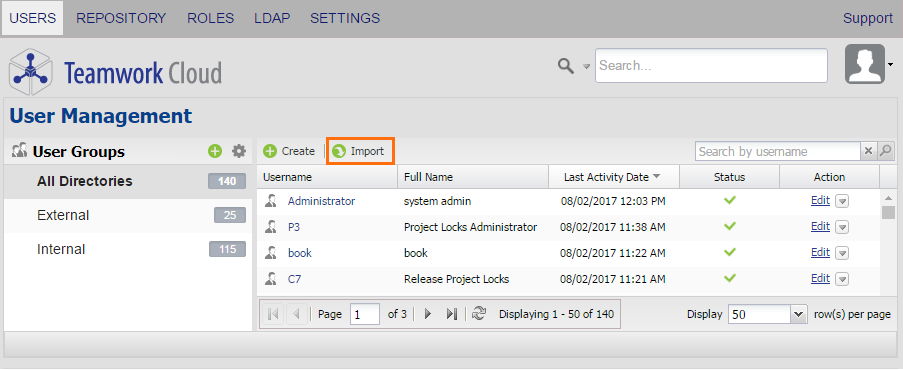
Clicking the Import button on the User Management opens the Import LDAP users page.
The button  on the User Management page enables a User Manager to import one or more users from an LDAP server to the TWCloud system. The button will be visible on both the User Management page and the LDAP User Directories page if at least one LDAP directory has been added to the TWCloud system (see Adding an LDAP server to TWCloud).
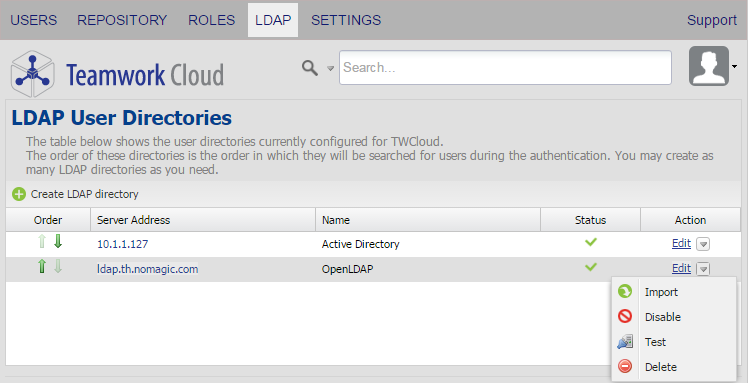
The Import button on the LDAP User Directories page.
|
To import an LDAP user or synchronize external user data through the User Management page
Open the User Management page.
Click
to open the Import LDAP users page.- Select an LDAP server that you imported from the box
 .
. In
 , type a username, a keyword, or an LDAP query, and either click
  or press Enter. A list of usernames that match the username, keyword, or LDAP query will appear.
 You are only allowed to import LDAP users. The system will connect you to the LDAP server automatically because it reuses the system username and system password you entered on the LDAP Configuration page. See the option in Adding an LDAP server to TWCloud.
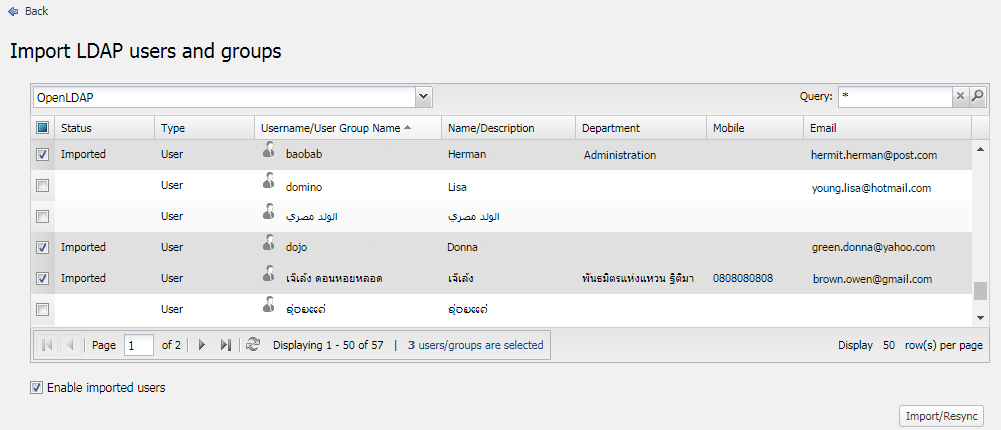
- Select one or more usernames to import by selecting the check box(es).
- Click
 . If the imported user is new, an external user will be created and the role assignment will be assigned to the user. If the user has been imported before, the existing user information will be updated but the role assignment stays the same.
Upon importing users, you can assign roles to them. See the section Assigning Roles for more information about assigning roles to users.
To import a user through the LDAP User Directories page
- Open the LDAP User Directories page.
Select an LDAP server from the directory list. Click the submenu button and select
. The Import LDAP users page will open. Alternatively, you can click the Manage LDAP directories icon
 on the User Management page to open the LDAP User Directories page.
- Select an LDAP server that you imported from the box .
In
, type a username, a keyword, or an LDAP query. Click either or press Enter. All usernames matching your query will appear.You can only import LDAP users.
- Select one or more users by selecting the check boxes next to the Status column.
- Click
 .
.