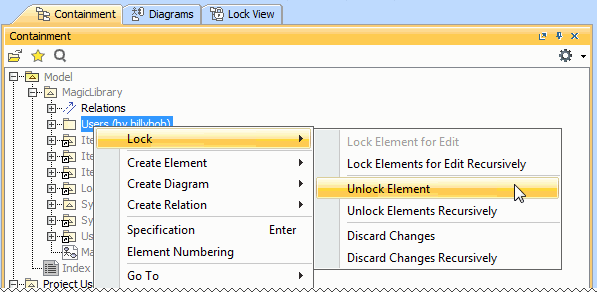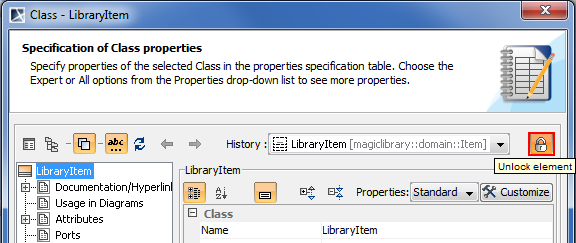
After you have finished editing, you should unlock model elements and diagram.
To unlock elements and / or diagrams
The list of commands may vary depending on the item you have selected. |
To unlock several elements
To unlock all element
To unlock an element in the Specification window
If the element was modified, you will be requested to commit changes to the server. |
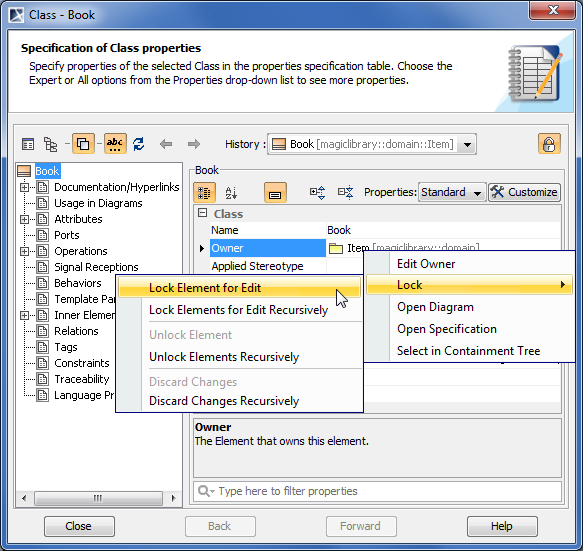
To unlock an element assigned as a property value
For more information about unlocking commands, see Unlocking commands.
To unlock on project committing
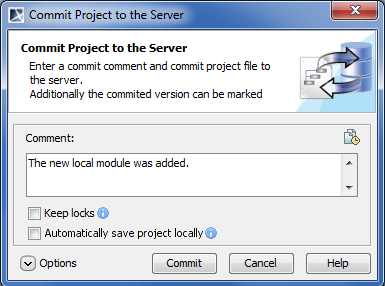 Commit Project to the Server dialog
Model elements that are not modified are unlocked without committing them to the server. |
The administrator (that is a user named “Administrator”) can forcibly unlock elements locked by other users.
The unlocking procedures for administrator are the same as described in section Unlocking model elements and diagrams after editing. |
Forced unlocking is helpful when elements are left locked by the user who is currently unavailable.
Use forced unlocking only in very special cases, as this may cause users working on this project to start their work again. |
The user has a possibility to commit changes made to elements that were forcibly unlocked by an administrator. To commit changes, the following conditions should be satisfied:
The preceding scenario is very rare, and users should not rely on it. After all, if administrator forcibly unlocked elements, it means there was a need to edit these elements for some purpose.
Changes to elements that were locked and not forcibly unlocked by an administrator, can be committed to Teamwork normally.
To delete an element from the server project
| If the element contains inner elements which can be locked separately, these inner elements should not be locked by the other users to complete element removal. For this reason, we suggest to use command Lock Element for Edit Recursively to lock all inner elements so nobody could prevent you from removing selected elements. |