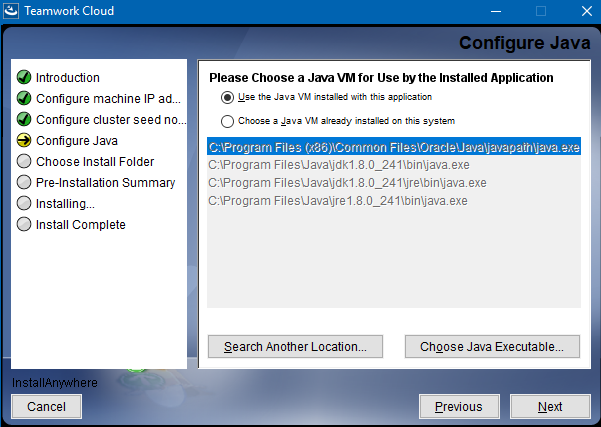
The installer file includes both Teamwork Cloud and Teamwork Cloud Admin in its installation package. Once the installation completes, you will have both Teamwork Cloud and Teamwork Cloud Admin installed on your machine.
If the installation path contains any of the following characters, like '[', ']', '(', ')', '!', '@', '#', '$', '#', '%', '{', '}', '+', '=', or ';' the installation procedure cannot be completed successfully and the login page will not load. If, for example, the installation path is C:\Program Files\TeamworkCloud, which does not contain any of the special characters, the installation will not fail. |
To install Teamwork Cloud by using the installer file on Windows

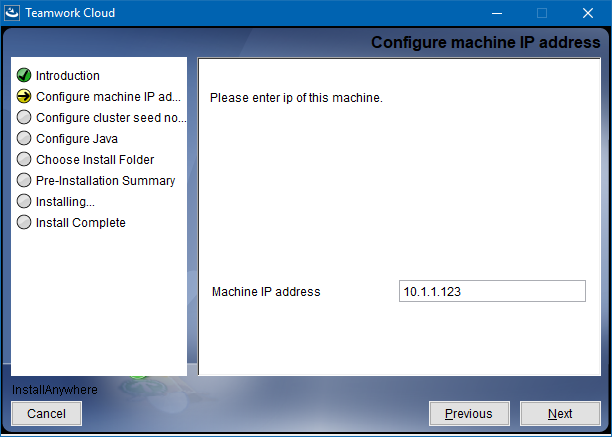
Enter the node IP. If your machine is a single node server or the first node in the cluster, enter the IP of your machine.
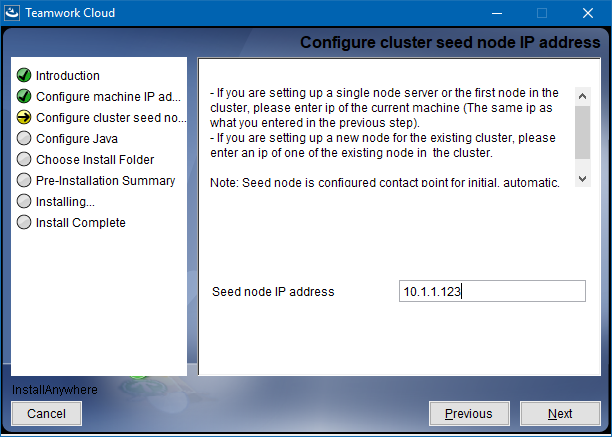
You will be allowed to select a Java VM. Do one of the following and click Next.

Select a location on your machine where you want to install Teamwork Cloud and click Next. The Pre-Installation Summary section will open.
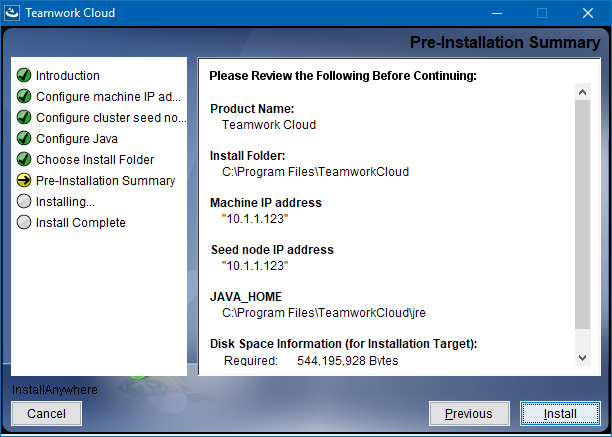
Click Install. The installer will install Teamwork Cloud on your machine.
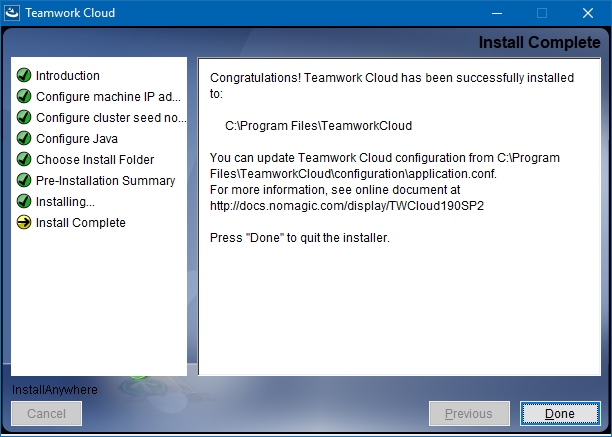
Upon successful installation, click Done to close the installation window.
Open the Task Manager and start the following services:
The installer has now created the preliminary configuration. If your system is still not operational and you cannot use Teamwork Cloud, check the configuration parameters as described below. |
Edit the configuration file: C:\Program Files\TeamworkCloud\configuration\application.conf. Search for seeds = , located under the section for the persistence Cassandra section, and replace: localhost with: ip_address_of_cassandra_node. Search for url =, located in the esi.auth section. Enter the IP address or FQDN (if accessing via FQDN) of your server.
If you are accessing Teamwork Cloud Admin via its FQDN, edit the configuration file: C:\Program Files\TeamworkCloud\AuthServer\config\authserver.properties. Search for server.public.host and replace the IP address with the FQDN. Search for authentication.redirect.uri.whitelist, and append the following to the entry, https://FQDN:8443/webapp/
Edit the configuration file for Teamwork Cloud Admin: C:\Program Files\TeamworkCloud\WebAppPlatform\shared\conf\webappplatform.properties.
Please create a an entry in C:\Windows\System32\drivers\etc\hosts containing the local IP address and the FQDN of your machine, if accessing via FQDN. For example, if your IP address is 10.1.1.123 and your FQDN is mymachine.mydomain.local, it would be in the form
10.1.1.123 mymachine.mydomain.local |
Open an administrative command prompt and issue the following commands in order to create service dependencies:
sc config authserver depend= teamworkcloud sc config webapp depend= teamworkcloud |