After creating a relation map, you need to specify the criteria, layout, and the depth for it.
To change the relation map properties
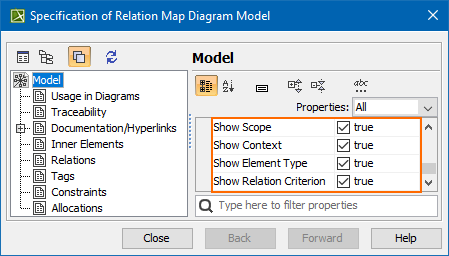
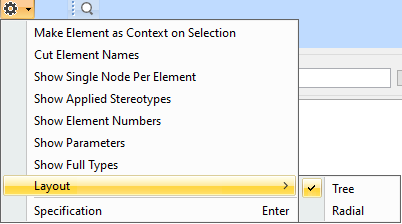
Right-click the diagram pane and from shortcut menu, select Specification, or click on the Options toolbar and then select Specification. Change the property values in the Specification window of the relation map.
Specify the most popular property values by using the relation map environment capabilities, such as toolbars and the Criteria area.
You can choose whether you want to show or hide Context, Relation Criteria, Element Type, and/or Scope. In the Relation Map Specification window, set the needed check-box to true or false.
To select the specified value in the Model Browser or to open its Specification window, you can right-click on the value boxes (except for the Relation Criteria) in the Criteria area.
Element name
Element type
Description
Context
Text box with
Click to select the main element from which the structure is started, that is, the context of the structure. You can change the context.
Relation Criteria
Text box with
Click to select relation criteria that will be displayed on the relation map.
Standard and custom subtypes of the selected element types can be optionally included when displaying them on the relation map.
Select the Include Subtypes check box to includes the subtypes of the selected elements, e.g., models and profiles of Packages in the relation map.
Select the Include Custom Types check box to show the custom types extending the selected element types, e.g., a Smart Package extending a Package on the relation map.
Scope
Text box with
Click to select packages from which the relation map structure will be shown.
Command on the Options button menu
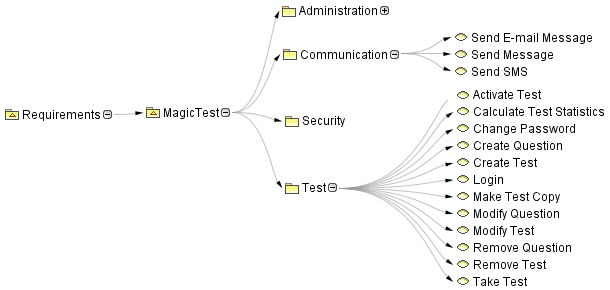
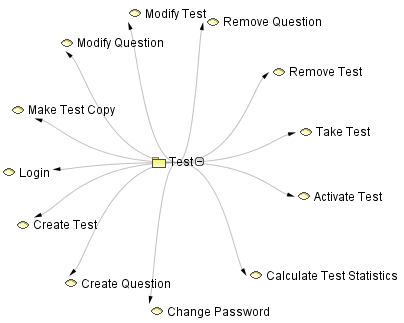
Select the relation map layout:
Tree.
Radial.
Depth
Spin box
Type or select the level of the relation map branches that will be automatically expanded.