With the Jama Connect 9.29 Cloud release (9.28.x for Self-Hosted and Customer-Validated Cloud), Jama Software is introducing API Reporting. This new view enables Organization Admins to monitor REST API usage, including active users, their OAuth Client IDs, and volumes. To support this enhancement, REST API access will be limited to users with Named Creator licenses. For any questions about licensing requirements, contact your Customer Success Manager.

The modeling tool supports JAMA Connect version 9.x and later.

Adding Data Sources for JAMA Connect

To add a Jama Connect data source


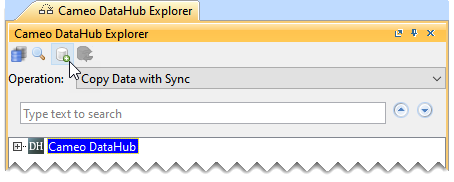
  1. In the Cameo DataHub Explorer toolbar, click Add Data Source.


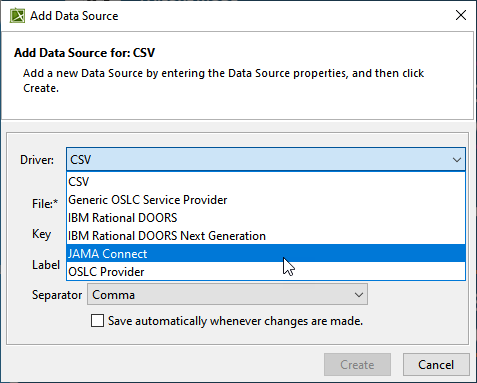
  2. In the Add Data Source dialog, select Jama Connect from the Driver drop-down list.


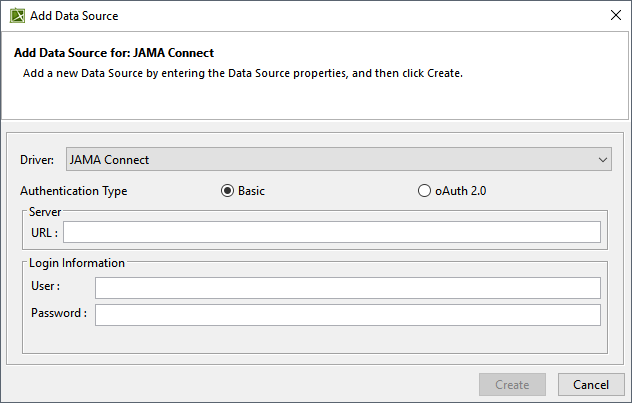
  3. Enter the server URL and login information and click Create.


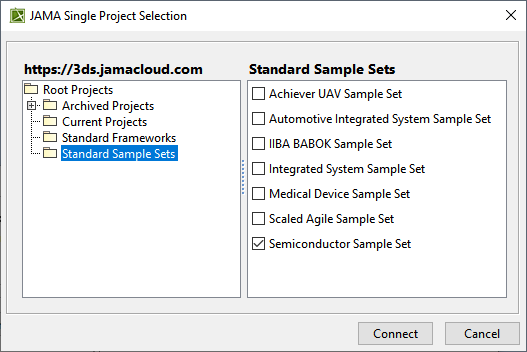
  4. From the JAMA Single Project Selection dialog, select the project and click Connect.


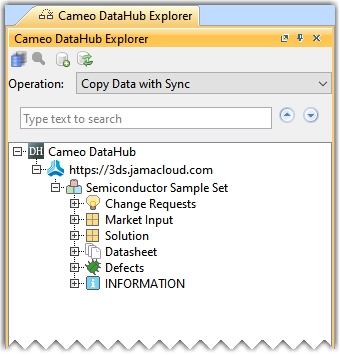
The data source is added in the Cameo DataHub Explorer panel.


The following video shows the Jama Connect to modeling tool Integration:

Adding Data Source for JAMA Connect using the OAuth 2.0 authentication type

To add a data source for JAMA Connect using the OAuth 2.0 authentication type


  1. In the Cameo DataHub Explorer toolbar, click Add Data Source.


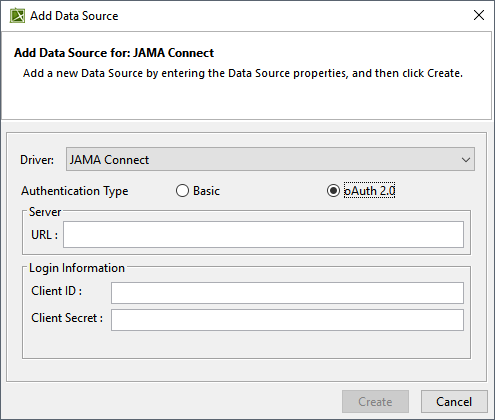
  2. In the Add Data Source dialog, select OAuth 2.0 authentication type.


  3. Specify the Server and Login Information in the Add Data Source dialog.

    Server and Login InformationFunction
    URL Specifies the JAMA Connect URL.
    Client IDSpecifies a key provided by the Client.
    Client SecretSpecifies a secret provided by the Client.

    To learn more about generating Client ID and Client Secret, refer to Generating an OAuth Bearer Token for Making API Calls.

  4. Click Create.

Related pages: