| Option | Function |
|---|
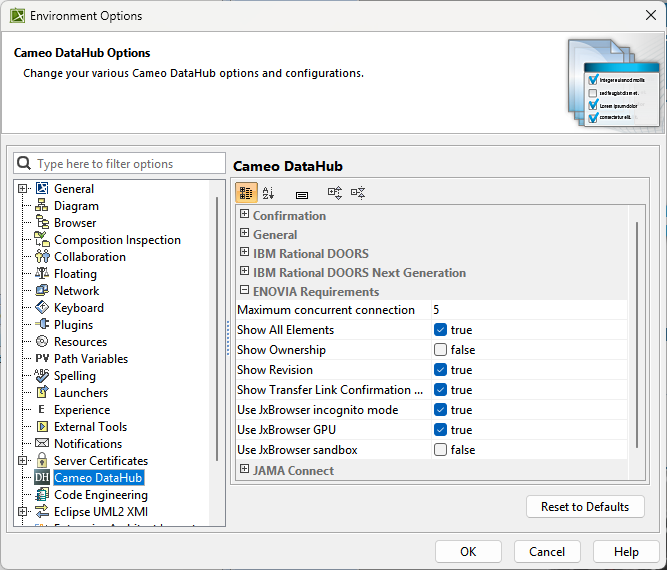
| Maximum concurrent connection | Takes a numerical value for the maximum number of concurrent connections. |
| Show All Elements | If true, displays all ENOVIA Requirement items available to you across all collaboration spaces on the server. If false, displays ENOVIA Requirement items only from the collaboration space you are currently connected to, based on your selected credentials. The default value is true. |
| Show Ownership | If true, displays the collaboration space name and organization for each object in the TRM data source. If false, displays only the object title for each object in the TRM data source (for example, the Specification title). The default value is false. |
| Show Revisions | If true, displays the revision name for each object in the ENOVIA Requirement data source tree, except for links. If false, hides the revision name for each object in the ENOVIA Requirement data source tree. The default value is true. |
| Show Transfer Link Confirmation Dialog | If true, displays the Transfer Link Confirmation Dialog while you are transferring DHLinks from one revision to another. If false, hides the Transfer Link Confirmation Dialog. The default value is true. |
| Use JxBrowser incognito mode | Enables the Incognito mode for the default profile. Incognito mode stores user data, such as browsing history, cookies, and site data in the memory. |
| Use DataHub JxBrowser | |
| Use JxBrowser GPU | JxBrowser renders content using GPU (Graphical Processing Unit) and displays it directly. |
| Use JxBrowser sandbox | If True, JxBrowser supports Chromium Sandbox on Windows. |