Changing the license
Using the FlexNet license server
Magic Collaboration Studio

You need to have the Server Administrator role to change the license.
To change the Magic Collaboration Studio license using the FlexNet license server
- In a web browser, go to http(s)://<domain_name>:<port>/webapp to open the authentication page.
- Sign in to the Administrator account or a user account with the Server Administrator role
- Open the Settings application.
- In the left-side menu select the Server license.
- In the License information card, click the Change License button. A dialog informing that you are about to delete the license will open.
Click the Change button.

You cannot undo your action after clicking the Change button.
- If you want to apply a license from another license server, change the license server address in the Server license field.
- Click the Show Licenses button.
- Select a new license key and click the Confirm button.
After changing the license, a new license is displayed on the License information card.
Teamwork Cloud
Changing a license or updating it through the Server license section on the Settings application requires a user with a Server Administrator role. Changing a license means returning the current one you are using to the FLEXnet License Server, setting the server capacity back to zero, and then leasing a new one.
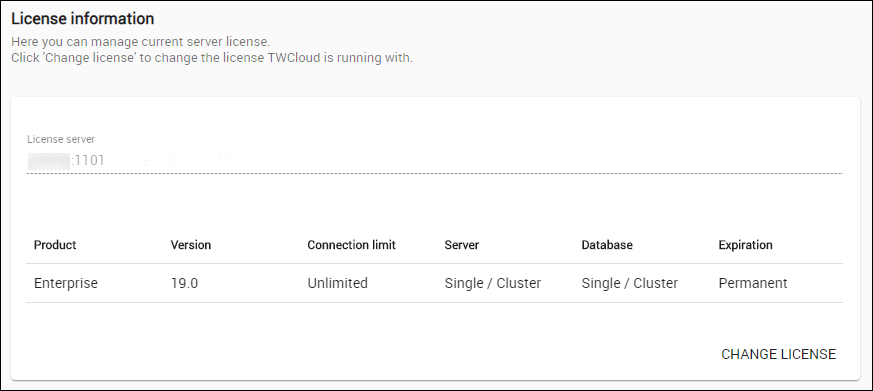
License information in Server settings.
The License Information section contains the details about the license server and the license key that is currently in use. Click Change License button only if you want to change your license because it will cause the current license to be deleted and allow you to select one of the available licenses and use it.
To get a new Teamwork Cloud license from the current license server
- Log into the Teamwork Cloud Admin with an Administrator account or user with a Server Administrator role.
- Using the App bar, navigate to the Settings application.
- Click the Change License button. A dialog informing that you are about to delete the license you are currently using will open.
Click Update.
You cannot undo your action after clicking Update.
- Your current license server address appears in the License Server box. Click the Show Licenses button:
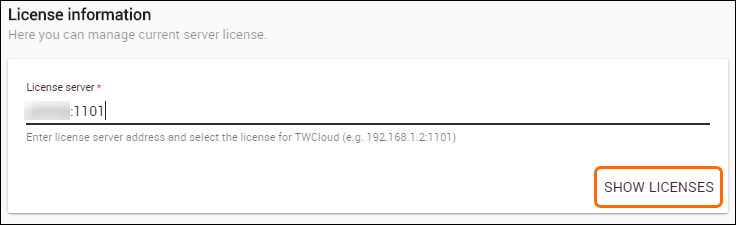
Teamwork Cloud Admin will update the license information and show all available license keys on the current license server in tabular form: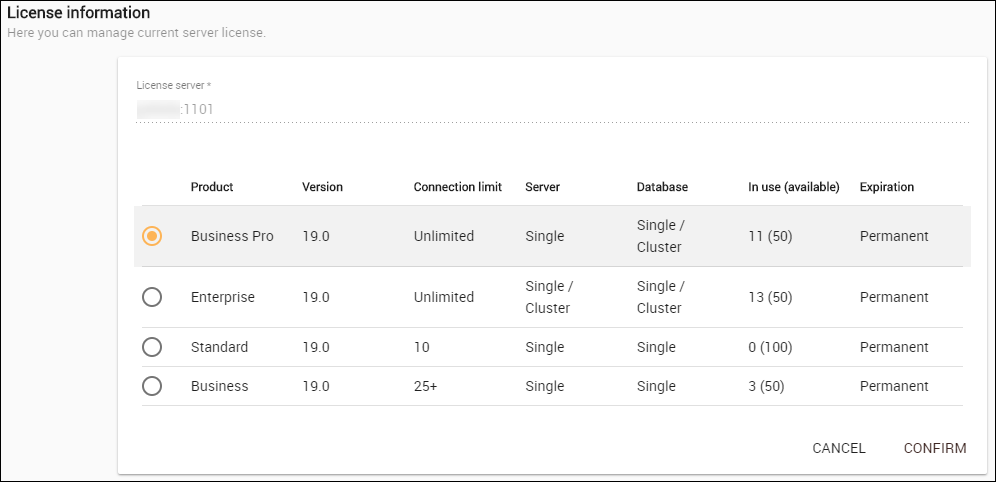
- Select a new license key from the table and click Confirm button. Your new license will be applied and appear in the Server License section.
To get a new Teamwork Cloud license from another license server
- Log into the Teamwork Cloud Admin with an Administrator account.
- Using App bar, navigate to Settings application.
- Click the Change License button. A dialog informing that you are about to delete your current license will open.
- Click the Yes button.
- Type the address and port of another license server in the Server license box.
- Click the Show License button. All available license keys on the new server license will appear in tabular form.
- Select a new license key from the table and click Confirm. Your new license will be applied and appear in the License Information section.
Using DSLS
Magic Collaboration Studio
If you use DSLS, follow the steps for applying the license and change the appropriate property values to update the license.
Teamwork Cloud
Use the application.conf file in your Teamwork Cloud installation directory to change Teamwork Cloud license. Follow the procedure for applying Teamwork Cloud license using DSLS and change the appropriate property values.