Auto-generating HTML files
On this page
If the Show UI As HTML property of a Simulation Configuration is set to true, the Magic Model Analyst / Cameo Simulation Toolkit will automatically generate HTML files from all used UI Configurations. You can use HTML UI Mockups instead of local UI Mockups and control your model simulation.
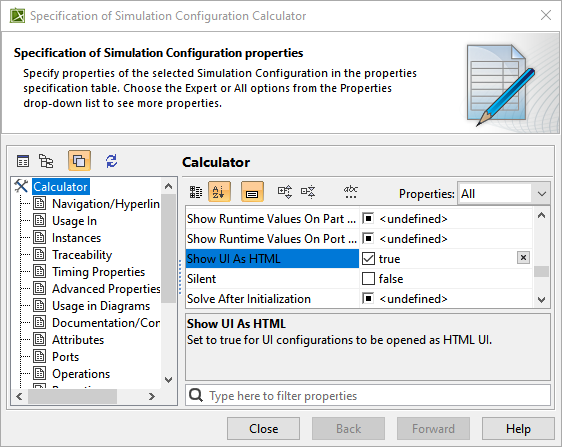
The Specification window of a Simulation Configuration with the Show UI As HTML property set to true to auto-generate HTML files.
When the Simulation Configuration is run, the embedded browser will open, HTML files with a hyperlink to each file in the local project folder will be generated.
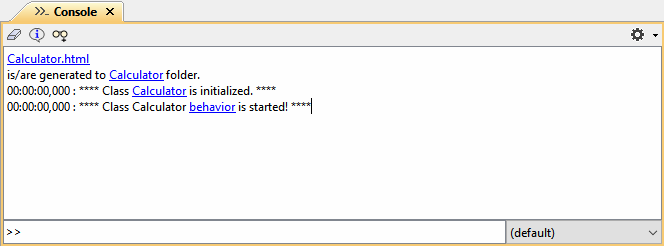
Simulation Console pane.
Embedded browser
By default, the HTML UI opens once you run the simulation configuration, where you can view and control the simulation. The Embedded Browser allows you to show any web pages in dock-able embedded windows in fixed places. These windows can be moved and docked, and will appear in the modeling tool window. When you open a saved project or re-run the project with the embedded browser option, those windows will automatically be shown in the same locations, States (docked/floating), and sizes. When the simulation is terminated, these windows will be closed automatically.
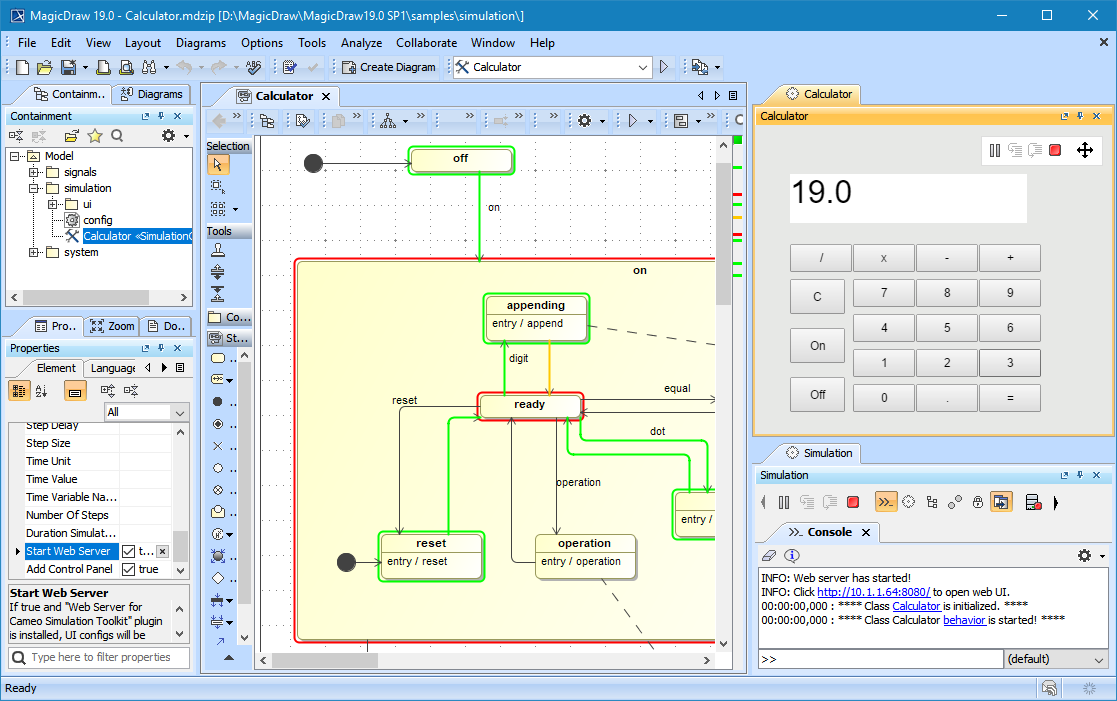 Embedded browser UI with Control Panel in modeling tool.
Generating HTML files
Depending on the circumstances, you may want to manually generate HTML files for further customization of the UI Mockups. You can manually generate HTML files through either the UI diagram or HTML supported controls using the Generate HTML command. However, if the files already exist, a warning message box will open to prevent you from accidentally overwriting them. All generated HTML files will be written and stored in the project's working directory.
To generate HTML
Do one of the following:
In the User Interface Modeling Diagram toolbar, click Generate HTML.

HTML files are generated for all the UI elements shown in the diagram.

- In the Containment tree, right-click the User Interface Modeling diagram or UI element and select Simulation>Generate HTML.
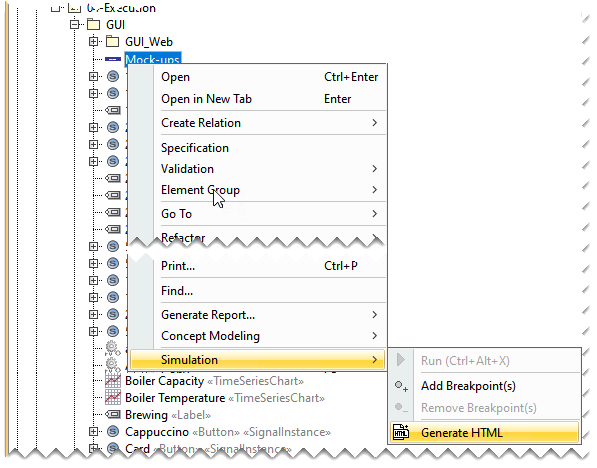
- In the Internal Block Definition Diagram, right-click the Widget property and select Simulation > Generate HTML.
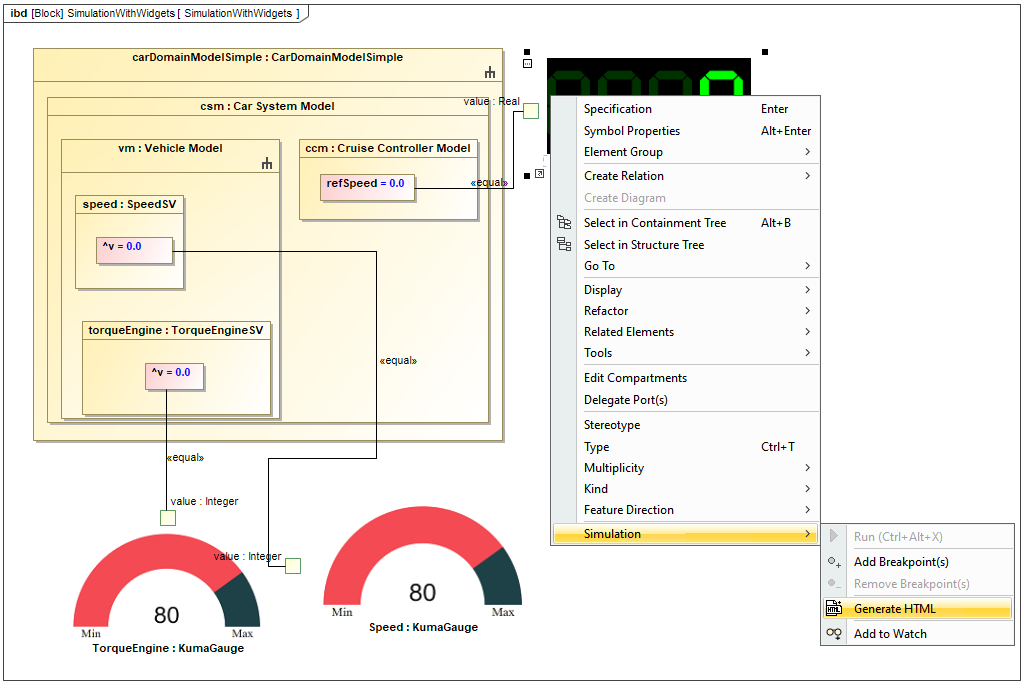
- If you get a warning that the file already exists, click Yes to replace the existing file, or click No to cancel the command.
After completing the steps above, you should get a notification that the files were generated successfully.
Generating and attaching HTML files to Teamwork Cloud projects
You can easily generate and attach HTML files through the UI Modeling diagram (for only the server-side simulation) when the project is hosted on Teamwork Cloud.
To generate and attach HTML
Do one of the following:
In the User Interface Modeling Diagram toolbar, click Generate and Attach HTML.

- In the Containment tree, right-click the User Interface Modeling diagram or UI element and select Simulation>Generate HTML.
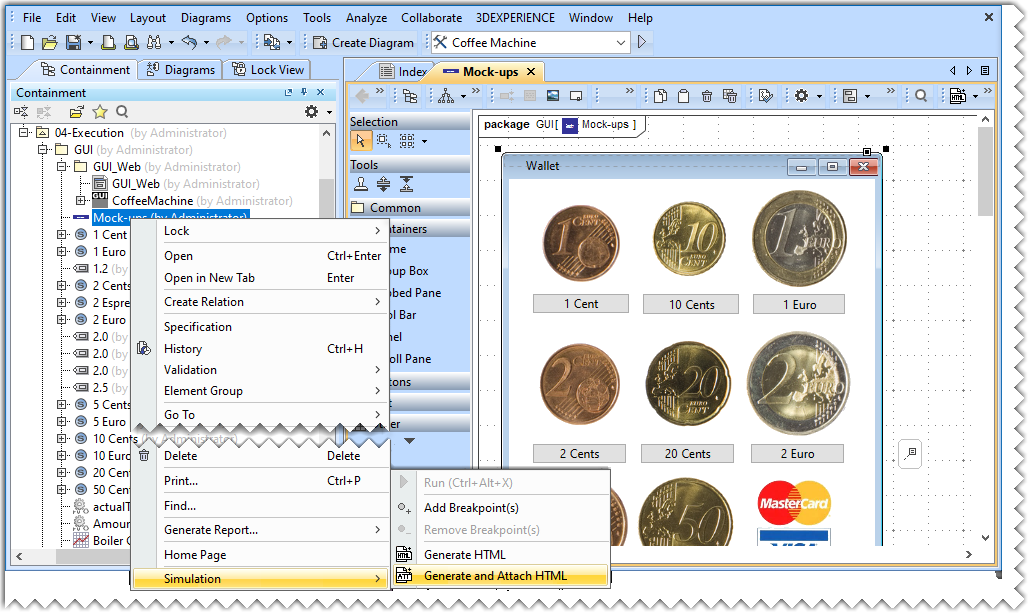
If you get a warning that the file already exists, click Yes to replace the existing file, or click No to cancel the command.
After completing the steps above, you should get a notification that the files were generated successfully.

Every Frame/Table element will automatically generate HTML files that are zipped and attached under the element with the same name as the UI element name. You should get a notification in the Console tab with the list of all the files attached to the project. The structure of the zipped file does not include reusable files of the Simulation, for example “js” folder, and “css” files.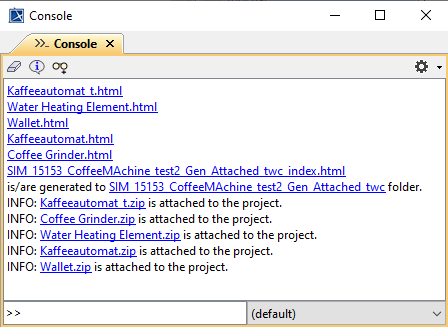
Related page