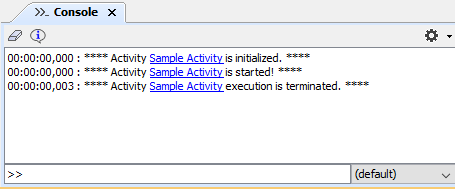
Magic Model Analyst / Cameo Simulation Toolkit provides the Simulation Console pane in the Simulation window. The Console pane displays simulation information during a model simulation including the date and time the simulation engine starts and the date and time the simulation runs and stops.
The Console pane may contain a hyperlink to a model element in a MagicDraw project. During a model simulation, scripts evaluation failures may happen and thus expression evaluation errors occur. If Magic Model Analyst / Cameo Simulation Toolkit cannot evaluate some scripts in an element, it will create a hyperlink in the Console pane to that element in the Containment tree. When you click the link, Magic Model Analyst / Cameo Simulation Toolkit will highlight the element in the Containment tree.
The following figure shows a hyperlink resulting from errors in evaluating scripts in the Console pane. The link points to the corresponding element in the Containment tree.
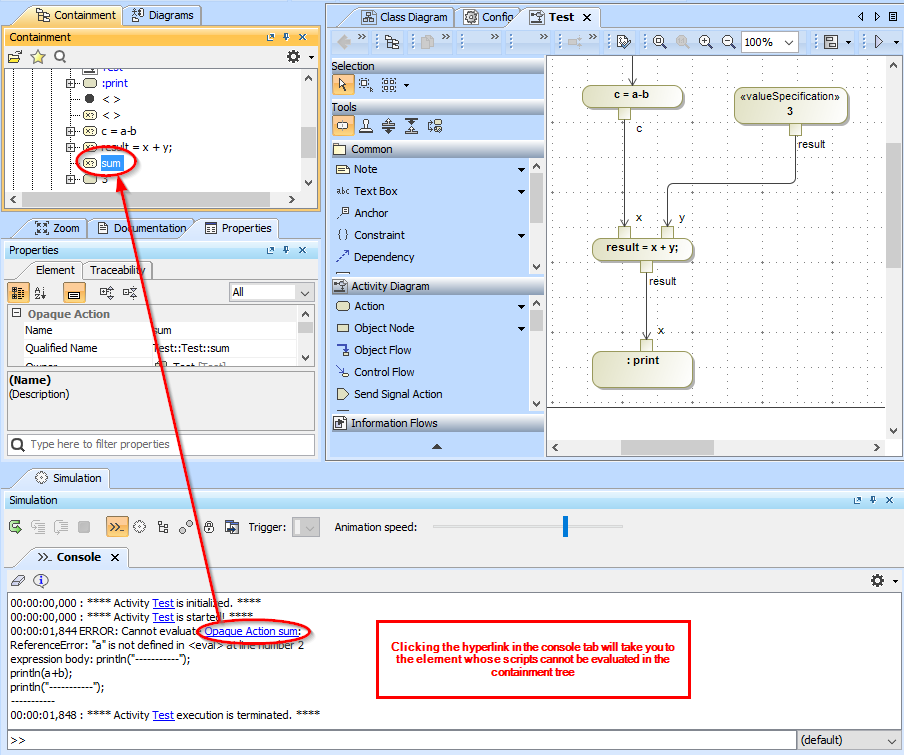
A hyperlink to the Element whose scripts cannot be simulated.
The table below shows the function of each button in the Console pane
| Button | Name | Function |
|---|
| Clear Console | To remove all simulation information displayed in the Console pane. |
| Show Runtime Information | To display the runtime information of the Magic Model Analyst / Cameo Simulation Toolkit in the Console pane. The runtime information consists of the Magic Model Analyst / Cameo Simulation Toolkit version, registered simulation engines, and available scripting engines. |
| Options | To filter outputs in the Console pane. There are four filter options: Debug, Info, Warn, and Error (See Console Log's Filter Options
for more details.). |
The following figure shows the simulation Console
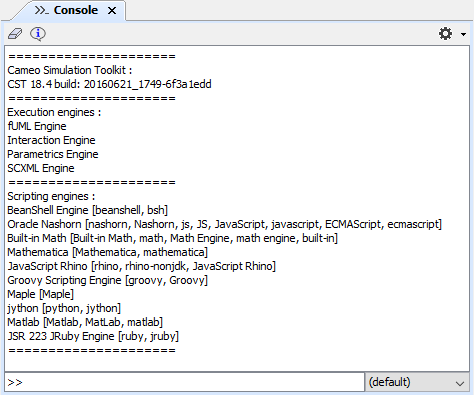
The Simulation console.