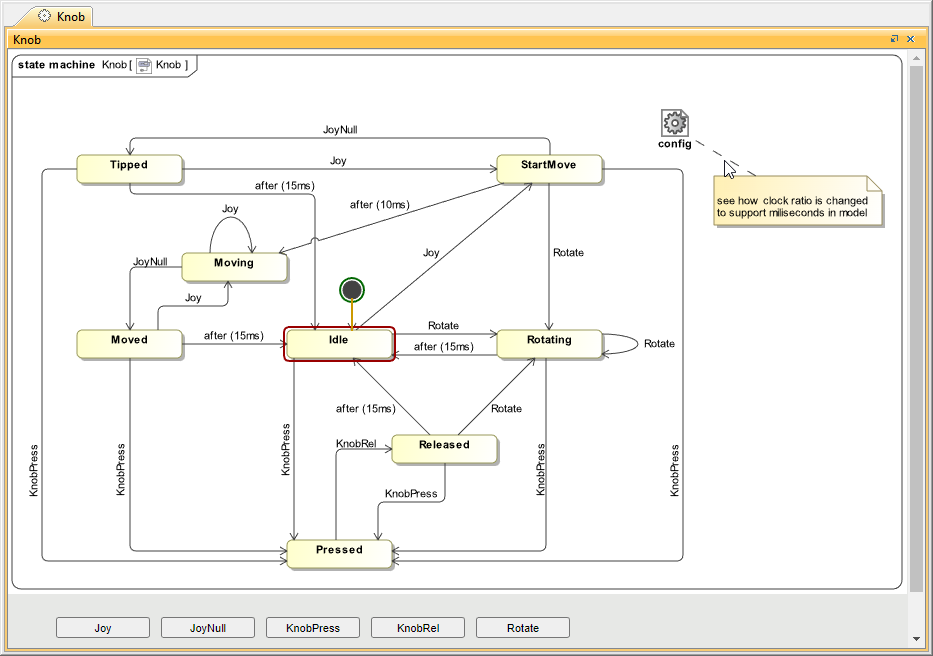
Behavioral diagrams (Activity diagrams, State Machine diagrams, and Sequence Diagrams) and Composite Structure diagrams (Internal Block diagrams) can be embedded into HTML-generated user interfaces and animated.
Composite Structure diagrams only display activations and not run-time values.
Creating a UI Mockup with a State Machine Diagram
The Joystick.mdzip sample model is used to demonstrate how to create a UI Mockup with a State Machine Diagram.
To create a UI Mockup with a State Machine Diagram
- Open the <modeling_tool_install_dir>\samples\simulation\Joystick.mdzip sample model.
- Create a User Interface Modeling Diagram.
- In the diagram, create a Frame and create a Panel inside the Frame. To learn more about the components of a User Interface Modeling Diagram, refer to the UI modeling diagram simulation.
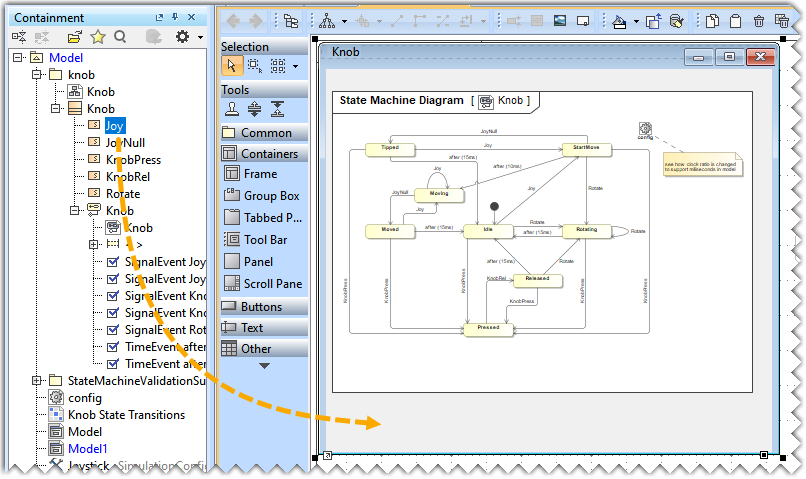
- Drag a State Machine Diagram to the Panel using a long drop and select the Create Diagram Knob Symbol command.
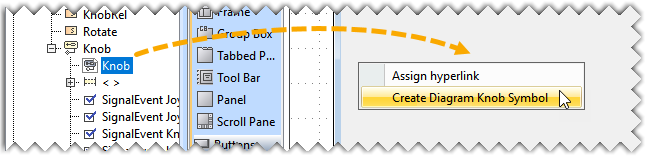
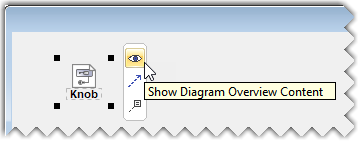
- Click the diagram symbol in the Panel to open the smart manipulator toolbar and click
 to view the diagram in the Panel.
- Drag the Classifier from the Containment tree to the Frame.
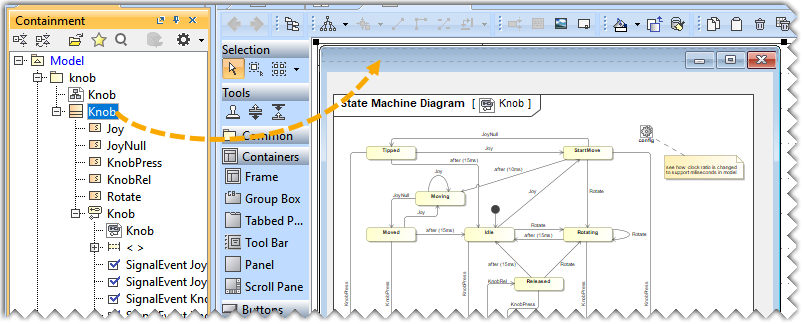
- Drag the Signals from the Containment tree to the Frame to create buttons.
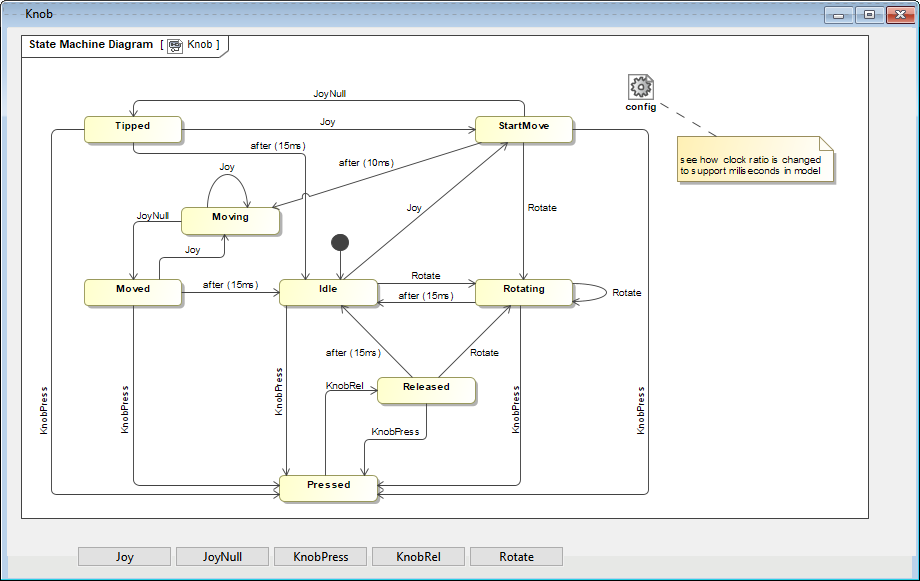
After completing the steps above, the diagram should look like the one below.
- Drag the Frame from the Containment Tree to a Simulation Configuration.
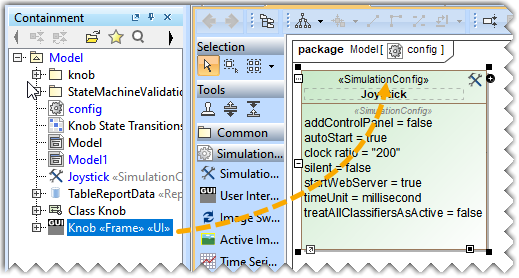
- In the Specification window of the Simulation Configuration, set the Show UI As HTML property to true.
- Run the Simulation Configuration to simulate the created UI Mockup in the embedded browser.