You can run a model simulation through the shortcut menu and the diagram toolbar.
To run a model simulation through the shortcut menu
- Do one of the following:
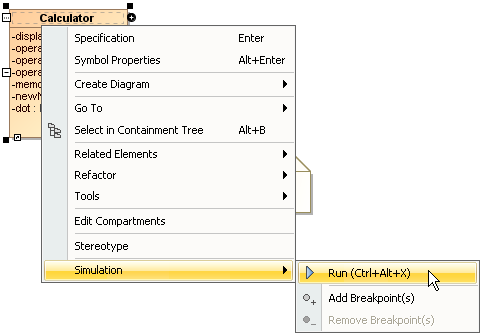
- Right-click an element shape on a diagram and select Simulation > Run.
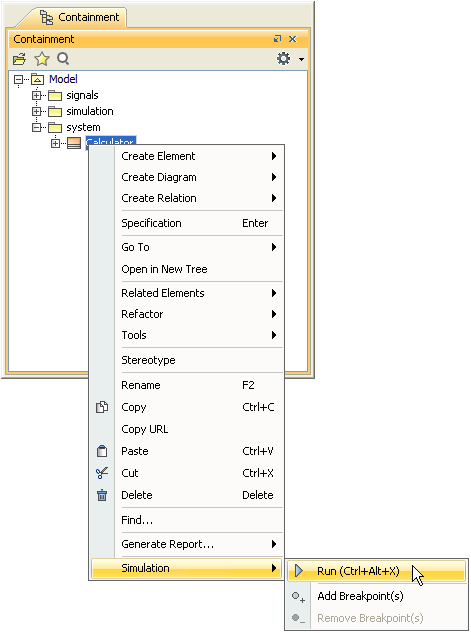
- Right-click an element in the Containment tree and select Simulation > Run.
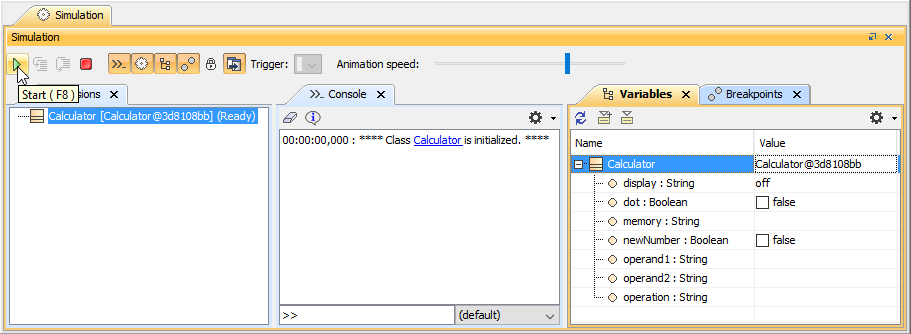
- In the toolbar of the open Simulation window, click
 to run the model.
To run a model through the diagram
- Do any of the following:
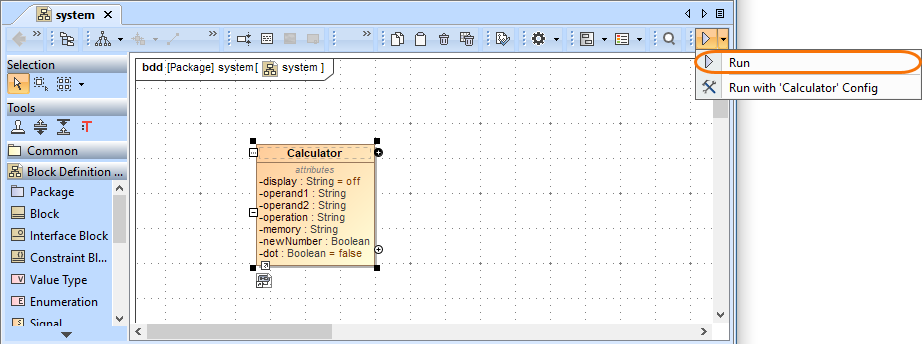
- In the diagram toolbar, click the Run or Run with Context button to run a diagram whose context is Class or Behavior (Composite Structure diagram, Activity diagram, State-Machine diagram, Use Case diagram, or Sequence diagram). Magic Model Analyst / Cameo Simulation Toolkit will run the class or the behavior which is the context of the diagram.
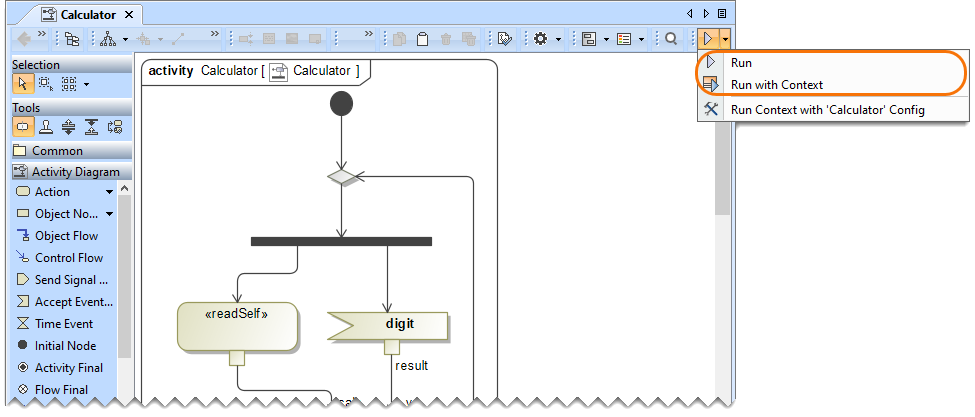
- In a Class or a Package diagram, select the element you want to run and click the Run or Run with Context button on the diagram toolbar. Magic Model Analyst / Cameo Simulation Toolkit will run the selected element on the diagram.
- In the toolbar of the open Simulation window, click the Start button to run the model.