Generating Threat Conditions and Security Impacts
On this page
Basic Concepts
Security Attributes
Security attributes are fundamental properties of the information and systems that must be protected to ensure cybersecurity.
- Availability: Ensuring authorized users have access to information and associated assets when required.
- Integrity: Safeguarding the accuracy and completeness of information and processing methods.
- Confidentiality: Ensuring that information is accessible only to those authorized to have access.
Threat Condition
A condition affecting the airplane and/or its occupants, either direct or consequential, which is caused or contributed, by one or more acts of intentional, unauthorized, and electronic interaction.
Generating Threat Conditions and Security Impacts

Prerequisites
Security assets must be identified before generating the Threat Conditions and Security Impacts. To learn more, refer to the Identifying Security Assets page.
To generate Threat Conditions and Security Impacts
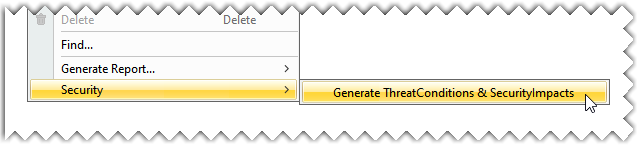
- In the Containment tree, right-click the L1 AcFct 1 to provide seating accommodations security asset and select the Security>Generate Threat Conditions & Security Impacts command.
The Generate Threat Conditions & Security Impacts dialog opens.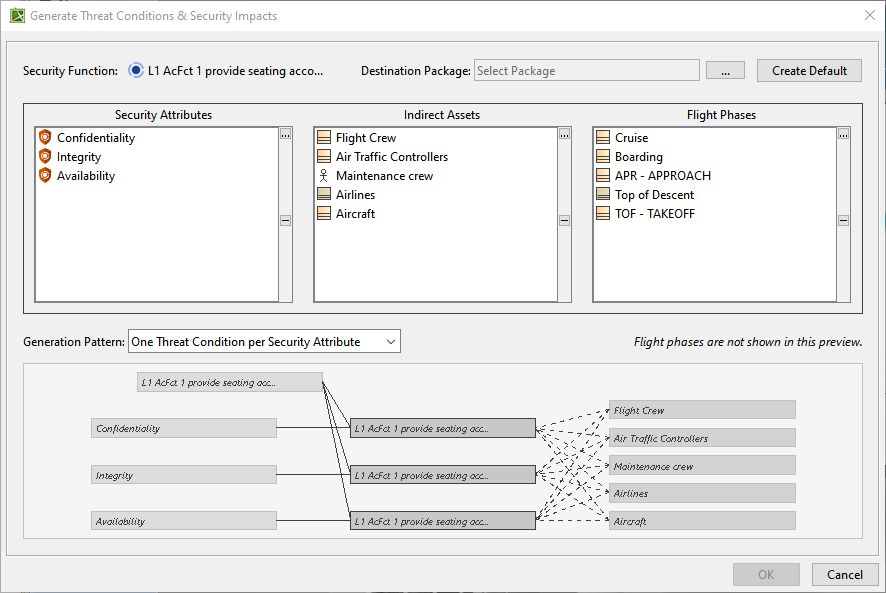
- In the Generate Threat Conditions & Security Impacts dialog, click the Create Default button to automatically create a package with the same name as the selected Security Asset.
You can also save the generated Threat Conditions and Security Impacts in the custom-created package.
To save the generated Threat Conditions and Security Impacts in the custom-created package
- Create a custom package under the L1 – Solution package.
- In the Generate Threat Conditions & Security Impacts dialog, click
 to open the Select Destination Package dialog.
 - In the Select Destination Package dialog, select the custom-created package and click OK.
- By default, all the Indirect Assets and Flight Phases present in the Indirect Assets and Flight Phases packages are added in the Generate Threat Conditions & Security Impacts dialog. To remove any Indirect Assets or a Flight Phase, select the required Indirect Asset or Flight Phase and click
 .
.
In case you remove any Indirect Asset and Flight Phase by mistake, follow the procedure outlined below to add them back.
To add any Indirect Assets and Flight Phases
- Click the
 icon beside the Indirect Assets or Flight Phase section to open the Select Indirect Assets or Select Flight Phases dialog.
 - In the Select Indirect Assets or Select Flight Phases dialog, add the required Indirect Assets or Flight Phases and click OK
- Click the
- In the Generation Pattern drop-down list, select the One Threat Condition per Security Attribute or One Threat Condition for all Security Attribute option.

By default, One Threat Condition per Security Attribute generation pattern is selected in the dialog.
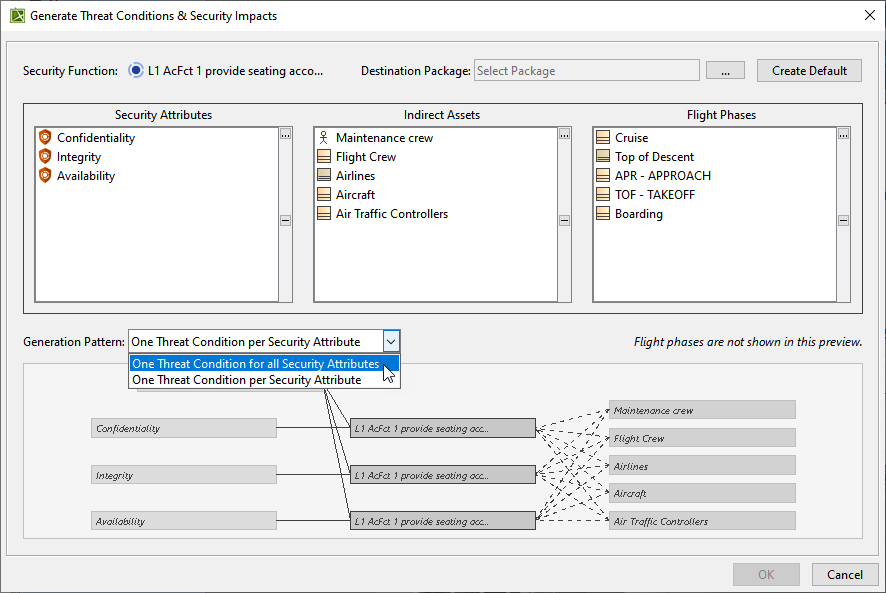
- Click OK.
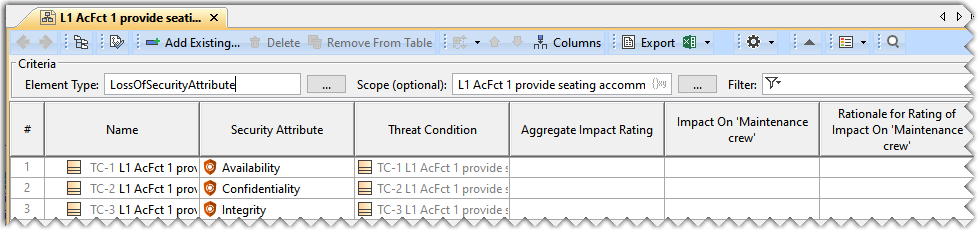
The Security Impact table, along with the Threat Condition, is created under the default destination package in the Containment tree. The Threat Condition has the prefix TC, which denotes that the created element is a Threat Condition; the number 1 indicates count.
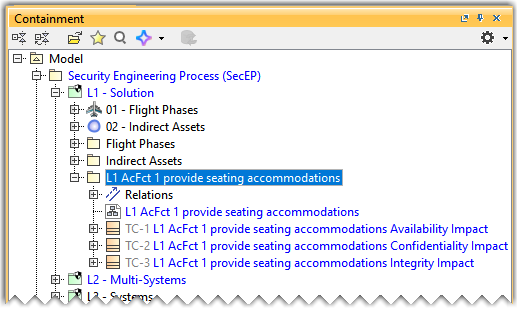
The Security Impact table, along with the Threat Conditions created under the default destination package in the Containment tree.