Changing used project versions or iterations
When a new version/iteration of a used project becomes available on the server, you may want to change the used project version/iteration in your main project to the latest one.

Permissions
To change the used project version in Teamwork Cloud, you must have:
- Read Resources, Edit Resources, Edit Resource Properties, and Administer Resources permissions for the main project
- Read Resources permission for the used project.
Changing used project versions
The quickest way to change the used project version is via the Containment tree, but you can also use the Project Usages dialog.
To change the used project version via the Containment tree
- In the Containment tree of the main project, expand the Used Projects node.
- Right-click a used project and select Change Version.
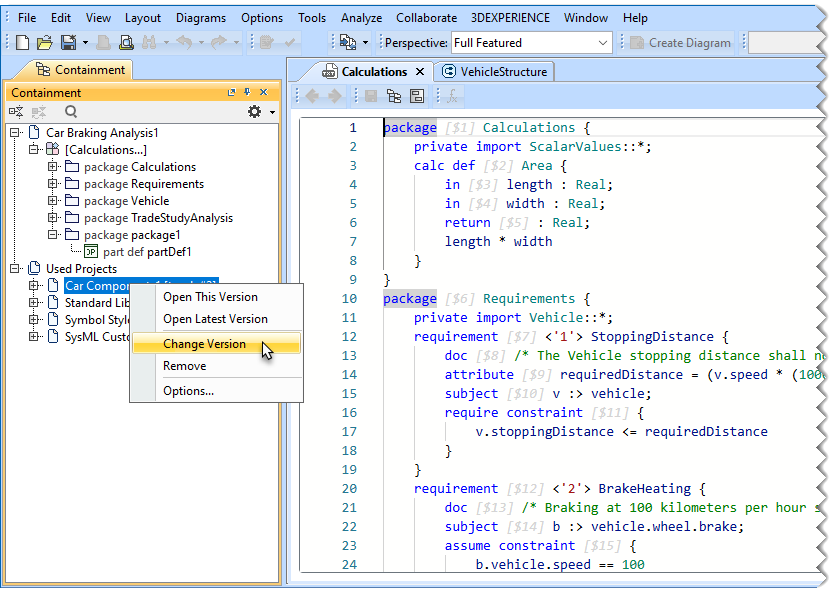
- In the Edit Branches dialog, select a new used project version/iteration and click OK.
To change the used project version/iteration via the Project Usages dialog
- Open the Project Usages dialog:
- In the main menu, select Options > Project Usages.
- In the main menu, select Collaborate > Project Usages > Project Usages.
- Do one of the following:
- Select a used project and click
 .
. - Right-click a used project and select Change Version/Change Iteration.
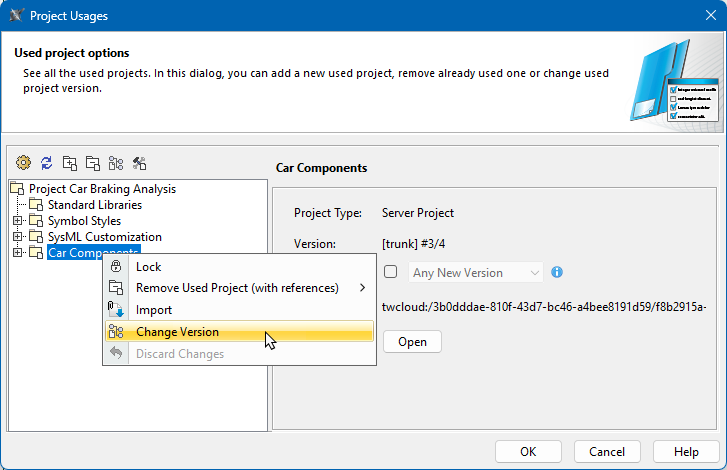
- Select a used project and click
- In the Edit Branches dialog, select a new used project version/iteration and click OK.
You can check the version of a used project after selecting it in the Project Usages dialog. Versions/iterations are displayed in the following format: #<used version/iteration>/<latest version/iteration>.
Updating used projects to the latest version
To update the used project version/iteration
- Open the Project Usages dialog:
- In the main menu, select Options > Project Usages.
- In the main menu, select Collaborate > Project Usages > Project Usages.
- Click
 .
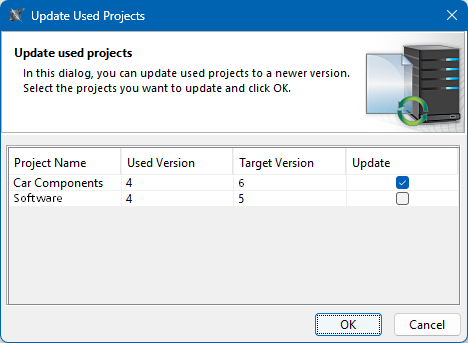
. - In the Update Used Projects dialog, select the projects you want to update and click OK.
If a used project is configured to show notifications about new versions with specific tags, only the versions meeting the notification criteria are displayed in this dialog.
Configuring notifications about new used project versions
Changing notification settings for all used projects
By default, you will get a notification about new used project versions every time you open the main project. You can change the setting for these notifications in the Environment Options dialog.
To change the notification settings for all used projects
- In the main menu, select Options > Environment.
- In the Environment Options dialog, select the Collaboration option group.
- Change the value of the Notify About Newer Project Usages option, to one of the following:
- Open - to show notifications about new used project versions every time you open the main project.
- Open, Update - to show notifications about new used project versions every time you open or update the main project.
- Never - to disable notifications about new used project versions.
- Click OK to close the Environment Options dialog.
Getting notifications about new versions of a specific used project (Teamwork Cloud only)
If you work with Teamwork Cloud, you can choose to get notifications about all new versions of a specific used project.
To get notifications about new versions of a specific used project (Teamwork Cloud only)
- Open the Project Usages dialog:
- In the main menu, select Options > Project Usages.
- In the main menu, select Collaborate > Project Usages > Project Usages.
- Select the used project you want to get notifications about.
- On the right side of the dialog, select the check box next to the Notify on drop-down box.
- In the drop-down box, select Notify for Any New Version.
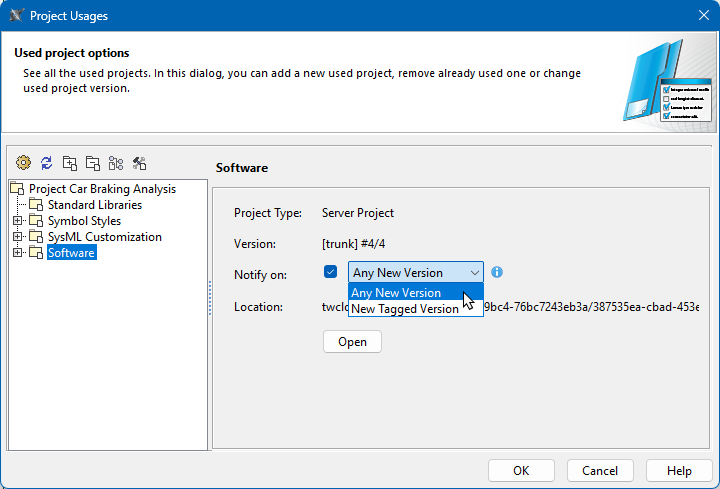
- Click OK to close the Project Usages dialog.
Getting notifications about new used project versions with specific tags (Teamwork Cloud only)
If you work with Teamwork Cloud, you can choose to get notifications about new versions of the selected used project with specific version tags.
To get notifications about new used project versions with specific tags (Teamwork Cloud only)
- Open the Project Usages dialog:
- In the main menu, select Options > Project Usages.
- In the main menu, select Collaborate > Project Usages > Project Usages.
- Select the used project you want to get notifications about.
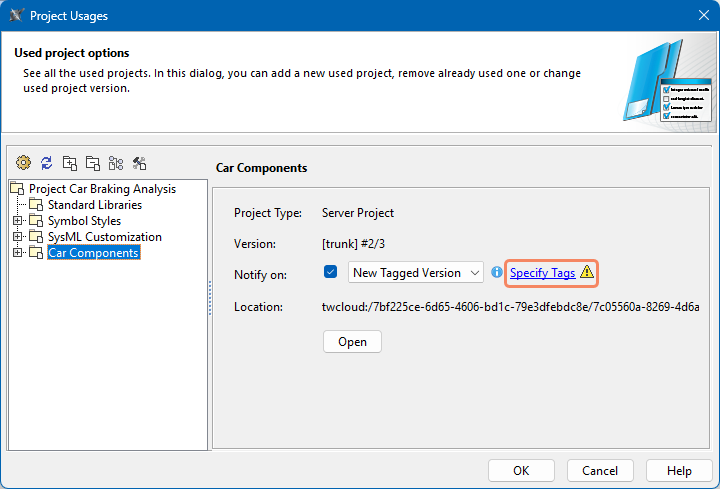
- On the right side of the dialog, select the check box next to the Notify on drop-down box.
- In the drop-down box, select New Tagged Version.
- Click the Specify Tags, link highlighted in the below figure.
- In the Specify Tags dialog, enter a version tag and click
 . The tag is added to the tag list.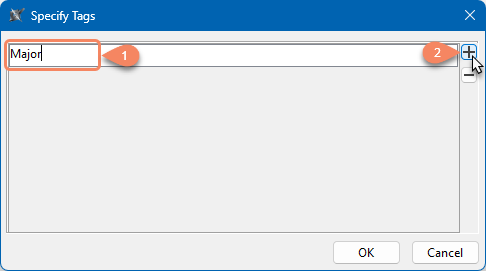
- If needed, repeat the previous step to add more tags.
To remove a tag, select the tag in the Specify Tags dialog and click
 .
. - Click OK to close the Specify Tags dialog.