Creating custom tabular view definitions
Instead of, or in addition to, using the predefined tabular view definitions, you can create model-based custom tabular view definitions as part of your projects. There are two ways you can do that:
- Reuse predefined or custom tabular view definitions
- Create new customized tabular view definitions from scratch
Afterward, you can create individual view usages defined by the newly created tabular view definitions.
Creating custom tabular view definitions
Creating a custom tabular view definition
To create a custom tabular view definition
- In the Containment tree, create a new root namespace with a package.
- Open the Textual Editor for the new package and do one of the following:
- To create a new custom tabular view definition from scratch:
- Declare a view definition, specify its name, and subclassify the Base Table view definition from the DS_Views::CoreViews package.
- To create a new custom tabular view definition by reusing an existing tabular view definition (predefined or custom):
- Declare a view definition, specify its name, and subclassify the needed tabular view definition.
- To create a new custom tabular view definition from scratch:
- Within the body of the view definition, declare the keywords render rendering, (optionally) specify the name for the element, and redefine the inherited renderer.

- Since all standard predefined tabular view definitions use the DS_Views::CoreViews::asTable renderer, redefine the inherited asTable renderer for any new custom tabular view definitions created from scratch or those reusing predefined tabular view definitions.
- For a new custom tabular view definition that reuses a custom-created tabular view definition, check what its renderer is.
- Click the Synchronize button. Proceed to add table columns.
The new view definition becomes available in the View Creation dialog/submenu once you:
// ---------- view definitions
// a new view definition created from scratch:
view def 'System Behavior Table' :> DS_Views::CoreViews::bt {
render rendering asNewTable1 :>> asTable;
}
// a new view definition created by reusing a predefined view definition Generic Table:
view def 'System Components Taxonomy Table' :> DS_Views::TabularViews::gt {
render rendering asNewTable2 :>> asTable;
}
// a new view definition created by reusing a custom-created view definition 'System Behavior Table':
view def 'Variant Table' :> 'System Behavior Table' {
render rendering asNewTable3 :>> asNewTable1; // asNewTable3 redefines the 'System Behavior Table' view definition's asNewTable1 rendering, which itself redefines the Base Table view definition's asTable rendering
}
Adding table columns
For more information, see the Column kinds table on the Tabular view columns page.
Adding table columns by feature
If you need to modify inherited columns by feature instead of creating new ones, see the Modifying inherited table columns procedure.
To add table columns by feature
- Within the body of the renderer, declare a view, specify the column name, define it by DS_Views::CoreViews::ColumnByFeatureView, and subset column.
- Within the column view's body, declare ref item, redefine columnFeature, and specify the expression for the targeted meta-feature or user-defined feature.
- Click the Synchronize button.
package 'Custom Tabular View Definitions' {
view def CustomTabularViewDefinition :> DS_Views::CoreViews::bt { // a view reusing Base Table, which does not have any columns to be inherited from
render rendering :>> asTable {
view 'Declared Name' : DS_Views::CoreViews::ColumnByFeatureView :> column { // new column
ref item :>> columnFeature = declaredName meta KerML::Core::Feature; // targets Declared Name
}
view 'Declared Short Name' : DS_Views::CoreViews::ColumnByFeatureView :> column { // new column
ref item :>> columnFeature = declaredShortName meta KerML::Core::Feature; // targets Declared Short Name
}
view Documentation : DS_Views::CoreViews::ColumnByFeatureView :> column { // new column
ref item :>> columnFeature = documentation meta KerML::Core::Feature; // targets Documentation
}
view 'Qualified Name' : DS_Views::CoreViews::ColumnByFeatureView :> column { // new column
ref item :>> columnFeature = qualifiedName meta KerML::Core::Feature; // targets Qualified Name
}
view Owner : DS_Views::CoreViews::ColumnByFeatureView :> column { // new column
ref item :>> columnFeature = owner meta KerML::Core::Feature; // targets Owner
}
}
}
}
// the following expressions are equivalent:
ref item :>> columnFeature = declaredShortName meta KerML::Core::Feature;
ref item :>> columnFeature = declaredShortName.metadata as KerML::Core::Feature;
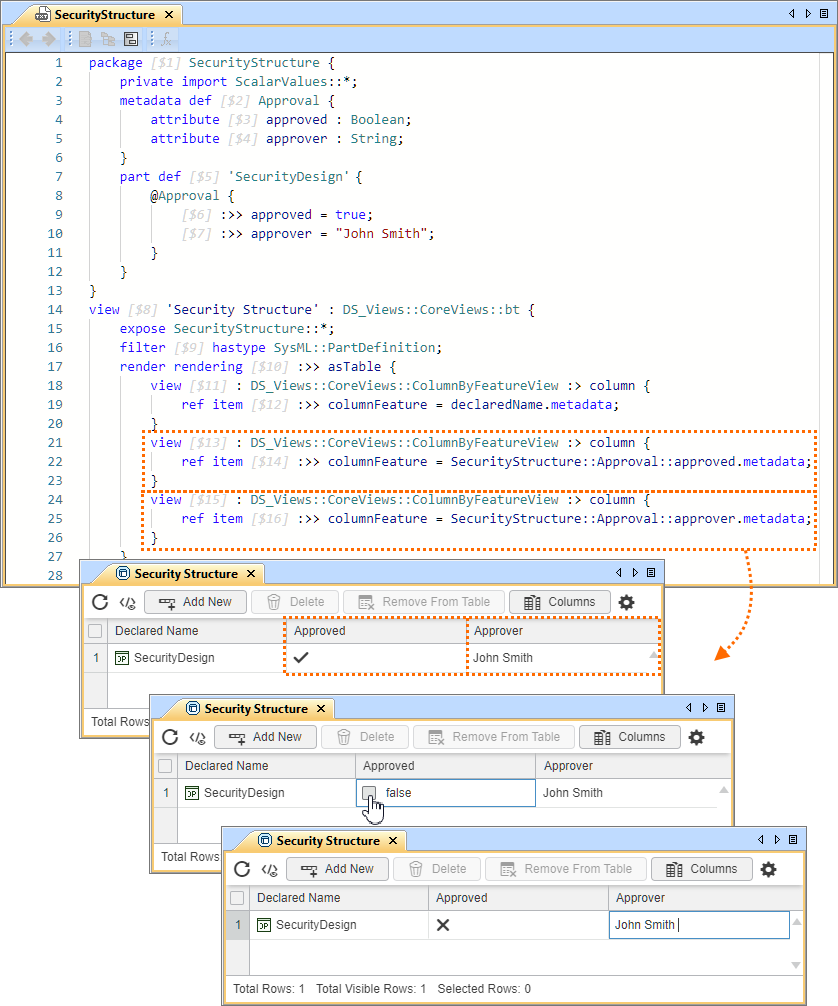
package SecurityStructure {
private import ScalarValues::*;
metadata def Approval { // custom metadata definition
attribute approved : Boolean;
attribute approver : String;
}
part def SecurityDesign { // element with applied custom metadata
@Approval {
:>> approved = true;
:>> approver = "John Smith";
}
}
}
package 'Custom Tabular View Definitions' {
view def CustomTabularViewDefinition :> DS_Views::CoreViews::bt {
render rendering :>> asTable {
view : DS_Views::CoreViews::ColumnByFeatureView :> column { // new column
ref item :>> columnFeature = SecurityStructure::Approval::approved.metadata; // targets the value of the 'approved' attribute of the custom metadata 'Approval'
}
view : DS_Views::CoreViews::ColumnByFeatureView :> column { // new column
ref item :>> columnFeature = SecurityStructure::Approval::approver.metadata; // targets the value of the 'approver' attribute of the custom metadata 'Approval'
}
}
}
}
Adding table columns by expression
To add table columns by expression
- Within the body of the renderer, declare a view, specify the element name, define it by DS_Views::CoreViews::ColumnByExpressionView, and subset column.
- Within the column view's body, declare the keywords render rendering, specify the name for the element, define it by the needed cell rendering definition, and redefine DS_Views::CoreViews::asTableCell.
- If you do not define asTableCell by a cell rendering definition, it is considered as defined by the StringCellRendering cell rendering definition by default.
- The available table cell rendering can be found in the CoreViews package.
rendering def BooleanCellRendering :> TableCellRendering;
rendering def ElementCellRendering :> TableCellRendering;
rendering def EnumCellRendering :> TableCellRendering;
rendering def IntegerCellRendering :> TableCellRendering;
rendering def MetaobjectCellRendering :> TableCellRendering;
rendering def RealCellRendering :> TableCellRendering;
rendering def StringCellRendering :> TableCellRendering;rendering def TableCellRendering {
calc getValue { in rowElement [0..1] : Metaobjects::Metaobject; }
attribute isMultiValued [0..1] : ScalarValues::Boolean;
} - Within the body of the rendering, declare a calculation and redefine getValue. Specify the in direction, redefine the rowElement. Specify the needed expression. See the example below.
- Click the Synchronize button.
package 'Custom Tabular View Definitions' {
view def CustomTabularViewDefinition :> DS_Views::CoreViews::bt { // a view definition reusing Generic Table definition
render rendering :>> asTable {
view Weight : DS_Views::CoreViews::ColumnByExpressionView :> column { // new custom column Weight
render rendering asTableCell : DS_Views::CoreViews::RealCellRendering :>> DS_Views::CoreViews::asTableCell { // specifying the table column's cell rendering as Real
calc :>> getValue {
in :>> rowElement : KerML::Root::Element;
if getWeight(rowElement) @KerML::Kernel::LiteralInteger ? (getWeight(rowElement) as KerML::Kernel::LiteralInteger).value else
(getWeight(rowElement) as KerML::Kernel::LiteralRational).value
}
calc getWeight {
in e : KerML::Root::Element;
(((e.ownedElement as SysML::Systems::AttributeUsage)->ControlFunctions::select {
in ee;
(ee as KerML::Root::Element).name == "weight"
} as SysML::Systems::AttributeUsage).ownedRelationship as KerML::Kernel::FeatureValue).value
}
}
}
}
}
}
Modifying table columns
Modifying inherited table columns
The table columns that are inherited from the standard predefined tabular view definitions are indicated in the Tabular views table.
To modify inherited table columns
- To modify an inherited column, redefine the needed column. In its body, modify the column as needed (e.g., hide columns, redefine attributes).
- Click the Synchronize button.
// a view defined by a predefined tabular view:
package 'Custom Tabular View Definitions' {
view def CustomTabularViewDefinition :> DS_Views::TabularViews::gt {
render rendering :>> asTable {
view :>> 'Qualified Name'; // redefining an inherited column
}
}
}
Hiding table columns
To hide table columns
- Within the body of the table renderer, declare a view, redefine the column you want to hide from the diagrammatic representation of the view, and set its multiplicity to zero.
The table columns that are inherited from the standard predefined tabular view definitions are indicated in the Tabular views table.
- Click the Synchronize button.
// a view defined by a predefined tabular view:
package 'Custom Tabular View Definitions' {
view def CustomTabularViewDefinition :> DS_Views::TabularViews::gt {
render rendering :>> asTable {
view :>> Owner [0]; // view redefines Declared Short Name inherited via Generic Table, specifying the redefining column's multiplicity to zero to hide it
}
}
}
Modifying table column attributes
Modifying table column attributes
To modify table column attributes
- Within the column view's body, redefine the needed attribute and set its value.

Column attributes
Table column attributes predefined in DS_Views::CoreViews::ColumnView are:
- attribute isMultiline [0..1] : Boolean; // specify whether single-valued string cells should be displayed in a multiline format.
- attribute pinning : ColumnPinning [0..1]; // allows you to pin the column to the left or right side of the table. Available values: left/right.
- attribute sorting : ColumnSorting [0..1]; // allows you to sort table rows in ascending or descending order. Available values: asc/desc.
- attribute sortingOrder : Integer [0..1]; // allows you to specify the sorting order priority for the columns with the sorting attribute. The table rows are ordered for all columns based on the order specified using this attribute, e.g., a column with sortingOrder set to 0 will take the highest priority.
- attribute width : Integer [0..1]; // allows you to specify the column width. The integer value is interpreted in pixels.
- Click the Synchronize button.
package 'Custom Tabular View Definitions' {
view def CustomTabularViewDefinition :> DS_Views::TabularViews::gt {
render rendering :>> asTable {
view :>> 'Qualified Name' {
attribute :>> sorting default sorting::desc; // specifying the sorting direction (sorted in descending order)
attribute :>> sortingOrder default 2; // specifying the sorting order priority for the column (2 - secondary priority)
attribute :>> isMultiline default true; // setting multiline to true to wrap a long qualified name
attribute :>> width default 200; // specifying the column width
}
view :>> 'Declared Short Name' {
attribute :>> sorting default sorting::asc; // specifying the sorting direction (sorted in ascending order)
attribute :>> sortingOrder default 1; // specifying the sorting order priority for the column (1 - primary priority)
attribute :>> pinning default pinning::left; // pinning the column to the table's left side
}
}
}
}
Managing table elements display mode
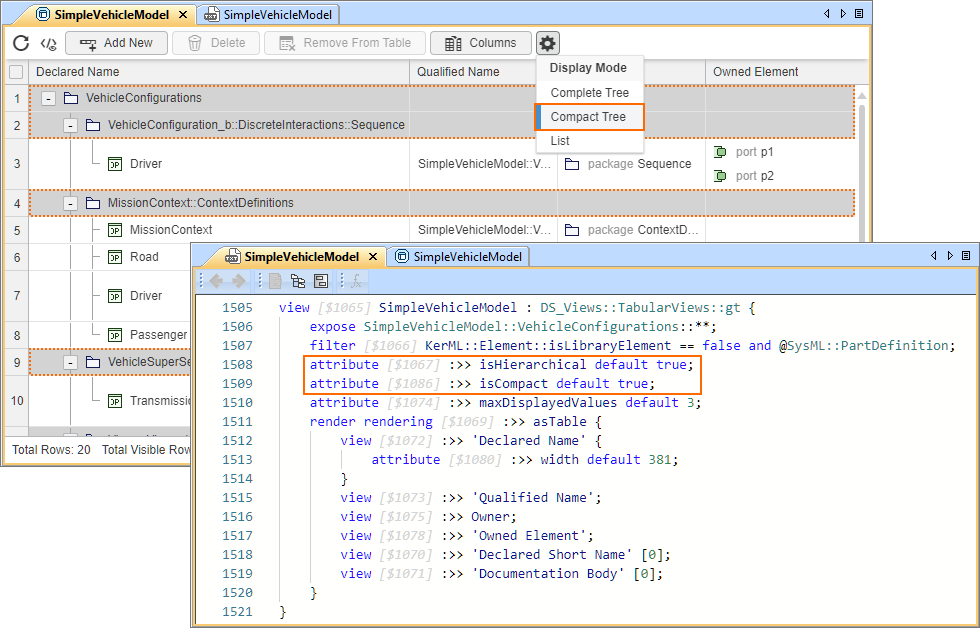
The table elements' display mode allows you to specify how the exposed elements should be displayed in the table. For more information, see the Displaying elements in tabular views page.
| Textual notation | Description |
|---|---|
Attribute DS_Views::CoreViews::'Base Table'::isHierarchical attribute :>> isHierarchical default true; |
|
Attributes DS_Views::CoreViews::'Base Table'::isCompact and isHierarchical attribute :>> isHierarchical default true; |
|
The attributes isHierarchical and isCompact are undefined or set to false. attribute :>> isHierarchical default false; | Displays the exposed elements as a plain list. |
Managing table elements display mode
To manage table elements' display mode
- Within the body of a view definition, do one of the following:
- To set the table elements' display mode to Complete Tree:
- Declare an attribute redefining the isHierarchical attribute and set the default value to true.
- To set the table elements' display mode to Compact Tree:
- Declare an attribute redefining the isHierarchical attribute and an attribute redefining the isCompact attribute, and set their default values to true.
- To set the table elements' display mode to List, do any of the following:
- Set the default value for the attribute redefining the isHierarchical or isCompact attribute to false.
- Delete the attributes redefining the isHierarchical or isCompact attributes.
- To set the table elements' display mode to Complete Tree:
- Click the Synchronize button.
If isHierarchical is set to true, but isCompact is set to false or is unspecified, the table's display mode is set to Complete Tree.
package 'Custom Tabular View Definitions' {
view def CustomTabularViewDefinition :> DS_Views::TabularViews::gt {
// sets the table's display mode to 'Compact Tree':
attribute :>> isHierarchical default true;
attribute :>> isCompact default true;
}
}