Redefinition
The redefinition relationship is a kind of subsetting used to replace an inherited feature by redefining.
Redefinition
Redefining a usage via the symbol shortcut menu in a view
To redefine a usage via the symbol shortcut menu in a view
- Right-click an inherited usage element symbol in a view and in the shortcut menu select Refactor, then Redefine.
Redefining a usage via the Textual Editor
To redefine a usage via the Textual Editor
- In the Textual Editor, identify the usage element that you want to be the redefining one.
- Follow the element name with either one of the following:
- keyword redefines
- textual symbol :>>
Follow the keyword with the name of the redefined usage element.
- Click the Synchronize button.
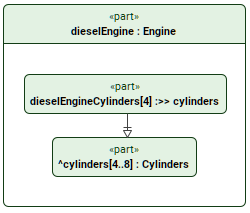
part def Engine {
part cylinders [4..8] : Cylinders;
}part dieselEngine : Engine {
part dieselEngineCylinders [4] :>> cylinders;
/* or */
part dieselEngineCylinders [4] redefines cylinders;
}
Redefining a usage via the Drag and Drop handler in a view
To redefine a usage via the Drag and Drop handler in a view
- Drag and drop an element from the Containment tree or use its symbol's (2026x Refresh1) Drag and Drop handler on an element symbol executing the Set Redefined Feature command.
Redefining a usage via the view palette
To redefine a usage via the view palette
- In the view palette, under the Specializations group, select redefinition.
- Draw the line with the arrowhead going from the redefining element to the inherited one.
Redefining a usage via the Create Relation command
To redefine a usage via the Create Relation command
- Right-click the element that you want to be the redefining one.
- In the shortcut menu, click Create Relation, then in the submenu, under Outgoing, click redefinition. The Create... dialog opens.
- In the Create... dialog, do one of the following:
- In a view, click the element symbol you want to redefine. Hold Shift to select multiple elements.
- Click the Add
 button. The element selection dialog opens. In the element selection dialog, select the element you want to redefine and click OK.
 - Drag and drop the needed element you want to redefine from the Containment tree onto the Create... dialog.
- In the Create... dialog, click OK.
Redefining a usage via the Specification panel
To redefine a usage via the Specification panel
- See the procedure Redefining inherited features via the compartment in the Specification panel on the (2026x Refresh1) Specification panel page.
Redefining parameters
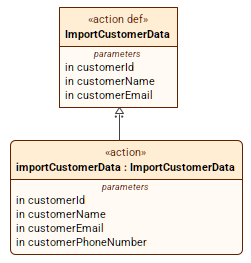
Parameters are directional features used in behavioral contexts. When it comes to redefining parameters, each owned parameter implicitly redefines the corresponding inherited parameter according to the latter's order:
action def ImportCustomerData {
in customerId;
in customerName;
in customerEmail;
}
action importCustomerData : ImportCustomerData {
in customerId; // implicitly redefines ImportCustomerData::customerId
in customerName; // implicitly redefines ImportCustomerData::customerName
in customerEmail; // implicitly redefines ImportCustomerData::customerEmail
in customerPhoneNumber; // new owned parameter
}
If you redefine the inherited parameters via either of the following procedures:
- Redefining a usage via the symbol shortcut menu in a view
- Redefining a usage via the Specification panel
The redefinitions are created as follows:
- If there are other inherited parameters from the same owner with preceding positions, then all of those parameters are redefined. E.g., if there are three inherited parameters and you redefine the second, then the first and the second parameters are redefined, while the third is unaffected.
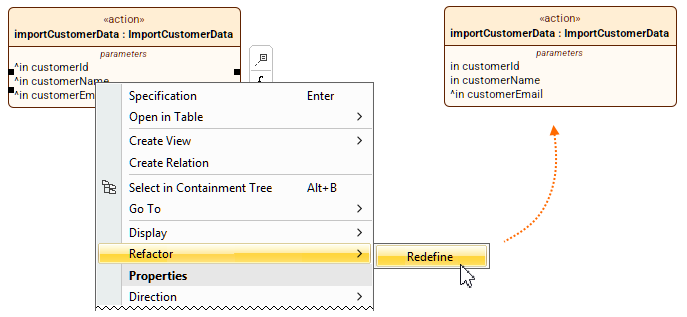
- The declared name for each redefining parameter is derived from the redefined parameter name. If multiple parameters are redefined, the names are concatenated. E.g., parameters customerId and validationId are inherited via separate specializations from two different definitions. Both parameters represent the first position in the order of inherited parameters. Redefining either of them creates a single redefining parameter with a concatenated name.
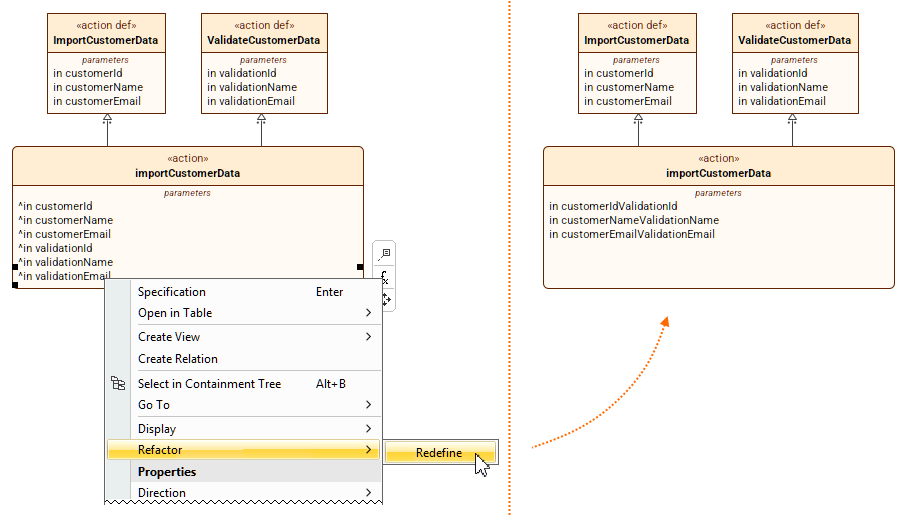
- The direction of each created parameter is the same as, or compatible with, the direction of the redefined parameter.