Allocation
An allocation definition is a connection definition that specifies that some or all of the responsibility for realizing the intent of the source is allocated to the target, defining traceable links as a kind of mapping across the various structures and hierarchies of a system model, possibly prior to more rigorous specification. An allocation usage must allocate features that conform to the types of the ends of its allocation definition.
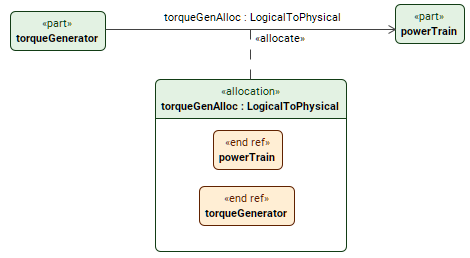
The image displays a torqueGenAlloc allocation usage defined by the LogicalToPhysical allocation definition. The allocation allocates the torqueGenerator part usage to the powerTrain part usage.
Additionally, the allocation connector is also elaborated.
Creating allocation usage and definition elements
Creating allocation usage elements via the Textual Editor
To create allocation usage elements via the Textual Editor
- In the Textual Editor, place the cursor where you want to create the element and do one of the following:
- For an unnamed and unspecialized allocation usage, use the allocate keyword, followed by explicit related feature declarations or a comma-separated list of related features.
- For a named and/or specialized allocation usage, use the allocation keyword, specify the element name (optional), specialization (optional), then the allocate keyword, followed by explicit related feature declarations or a comma-separated list of related features.
- Click the Synchronize button.
allocate torqueGenerator to powerTrain; // unnamed unspecialized allocation usage
allocate (torqueGenerator, powerTrain); // unnamed unspecialized allocation usage allocating elements in a comma-separated listallocation : LogicalToPhysical allocate torqueGenerator to powerTrain; // unnamed specialized (feature typing) allocation usage
allocation torqueGenAlloc allocate torqueGenerator to powerTrain; // named unspecialized allocation usage
allocation torqueGenAlloc : LogicalToPhysical allocate torqueGenerator to powerTrain; // named specialized (feature typing) allocation usage
// unnamed unspecialized allocation usage refined using a nested allocation for a more detailed decomposition of the containing allocation mapping:
allocate torqueGenerator to powerTrain {
allocate torqueGenerator.generateTorque to powerTrain.engine.generateTorque;
}
Creating allocation usage elements via the Create Relationship command
To create allocation usage elements via the Create Relationship command
- Right-click the element you want to allocate.
- In the shortcut menu, click Create Relationship, then in the submenu, click Outgoing, and then in the submenu, click allocation. The Element Picker dialog opens.
- In the Element Picker dialog, do one of the following:
- In a view, click the element symbol you want to allocate. Hold Shift to select multiple elements.
- Click the Add
 button. The element selection dialog opens. In the element selection dialog, select the element you want to allocate to and click OK.
 - Drag and drop the needed element you want to allocate to from the Containment tree onto the Element Picker.
- In the Element Picker dialog, click OK.
Creating allocation definition and usage elements via the view palette
To create allocation definition and usage elements via the view palette
- To create an allocation definition:
- In the view palette, under the Connectors group, click the allocation def button to create an allocation definition element.
- Click in the view pane where you want to create the allocation definition symbol.
- To create an allocation usage:
- In the view palette, under the Connectors group, click the allocation button to create an allocation usage.
- In a view, click on the element symbol you want to allocate, then on the element you want to allocate to. An allocation connection symbol is created between the elements.

If the needed button is not displayed, click the down-facing arrow next to either the allocation or the allocation def button and select the needed button in the dropdown menu.
Creating allocation definition elements via the Textual Editor
To create allocation definition elements via the Textual Editor
- In the Textual Editor, place the cursor where you want to create the element and declare the allocation def keyword for an allocation definition.
- Specify the element name, then open curly braces and specify the allocation definition features within the braces:
- Specify the allocation definition ends by declaring the end keyword, followed by the end name and/or specialization of the needed element.
- Click the Synchronize button.
allocation def LogicalToPhysical {
end logical : LogicalElement;
end physical : PhysicalElement;
}
Creating allocation definition elements via the Create Element command
To create allocation definition elements via the Create Element command
In the Containment tree, right-click an element, and in the shortcut menu, click Create Element.
- In the Create Element dialog, click allocation def for allocation definition.
Auto-creating allocation definition elements via the Extract Definition command
To auto-create an allocation definition element via the Extract Definition command
- See the Extract Definition and Usage page.