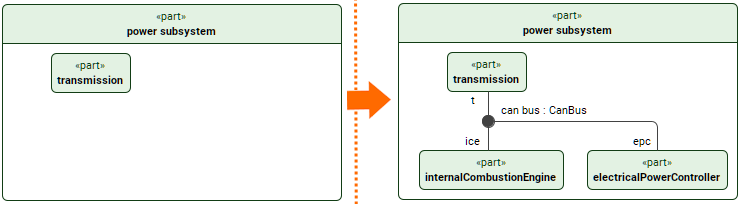
Displaying elements in symbolic views
You can use the Display commands to display element symbols in the graphical representation of a symbolic view.
Display commands
| Display command category and its commands | Description |
|---|---|
| Nested-view style | The category contains commands that render elements in the nested-view rendering style. Owned and inherited features of the selected element symbol are represented as nested symbols. |
| Display Features | The command displays owned and inherited features of any metatype. |
| Display Features Recursively | The command displays all owned and inherited features of any metatype recursively. |
| Display Parts | The command displays owned and inherited parts. |
| Display Parts Recursively | The command displays owned and inherited parts recursively. |
| Display Actions | The command displays owned and inherited actions. |
| Display Actions Recursively | The command displays owned and inherited actions recursively. |
| Display Swimlanes | The command displays owned and inherited swimlane symbols, and any element symbols related to each swimlane. 
The command is only available for specific perform actions and include use cases. |
| Display Owned Members | The command displays owned members based on the 'ownedMember' property's value.
The command is only available for packages. |
| Display Owned Members Recursively | The command displays owned members recursively based on the 'ownedMember' property's value.
The command is only available for packages. |
| Tree-view style | The category contains commands that render elements in the tree-view rendering style. Owned and inherited features of the selected element symbol are represented as symbols related via Feature Membership relationship paths.
|
| Relationships | The category contains commands for displaying relationship paths of the selected symbol. |
| Display Connectors | The command displays all types of connectors (connection, interface, succession, binding, etc.) that exist between the selected element symbol and any others displayed in the view. Connector paths can also be elaborated. |
| Display Specializations | The command displays all types of specializations (subclassification, feature typing, subsetting, etc.) that exist between the selected element symbol and any others displayed in the view. |
| Display Others | The command displays other relationships (annotation, dependency, type featuring, import, and all memberships) that exist between the selected element symbol and any others displayed in the view. |
| In-Between Relationships | The category contains commands for displaying relationship paths only between the selected element symbols.
|
| Other | The category contains commands for displaying any other element symbols. |
| Display Ports | The command displays owned and inherited ports.
The command's availability is element metatype-dependent. |
| Display Parameters | The command displays owned and inherited directional features.
The command's availability is element metatype-dependent. |
| Display Ends | The command displays end segments of the n-ary connection and the n-ary interface symbols.
The command is only available for n-ary dot symbols. |
| Display Exposed Elements | The command displays elements exposed for the view. Exposed elements depend on the exposition kind (e.g., recursivity) and filters.
|

Recursive commands
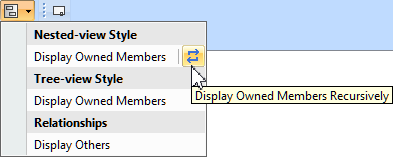
Recursive commands are indicated by the  recursive command button displayed next to the non-recursive command.
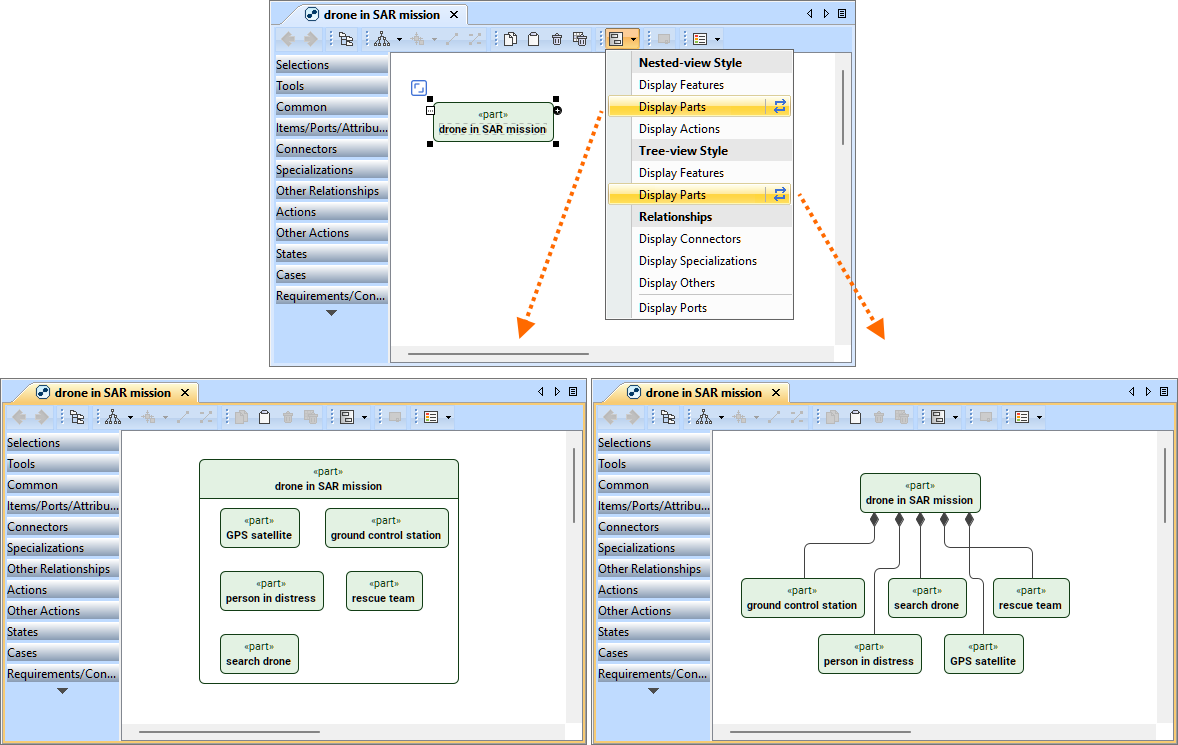
The Display Parts command is used to display parts owned by the drone in SAR mission part. On the left, the command is executed in the nested-view style, while the right shows the tree-view style.
Displaying element symbols in a view
There must be at least one element symbol already displayed in a view for the Display commands to be available (except for the Display Exposed Elements command).
Displaying element symbols
To display element symbols
- In a view, select the specific symbol(s) whose features, connectors, etc., you want to display.

- Hold Shift+Left Mouse Button on each symbol to select multiple symbols at once.
- Press Ctrl+A to select all symbols on the docked symbol.
- Select a symbol in the view and press Ctrl+Alt+B to select sibling symbols.
- Select a symbol in the view and press Ctrl+Alt+S to select symbols of the same type.
- Select a symbol in the view and press Ctrl+Alt+C to select connected symbols.
- Hold down the Left Mouse Button anywhere in the view pane and drag to select multiple symbols.
- Use the Select buttons in the Select option group in the view panel.
Do one of the following:
- Click the Display button
 in the view toolbar. Click the appropriate display command in the dropdown menu.
 - Right-click the element symbol(s). In the shortcut menu, select Display. Click the appropriate display command in the submenu.
- Click the Display button
Displaying connectors in a view
In a view, a connector (connection, bind, flow, interface, succession, succession flow) can be displayed as a path symbol using the Display Connectors command. See the Displaying element symbols procedure.
Proxy connectors
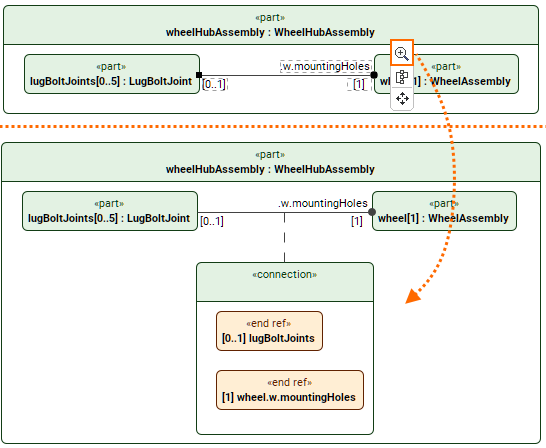
Nested elements that are connected via connectors may be displayed via proxy connector points. The proxy connector point symbol at the intersection between an element symbol and a connector indicates that the element to which the connector is connected is nested deeper within the element to which the proxy connector point symbol is attached. The connector label indicates the element to which the connector is connected via feature chain.
part wheelHubAssembly : WheelHubAssembly {
part lugBoltJoints : LugBoltJoint [0..5];
part wheel : WheelAssembly [1] {
part w : Wheel [1] {
part rim : TireMountingRim [2];
part mountingHoles : LugBoltMountingHole [5];
}
}
connect [0..1] lugBoltJoints to [1] wheel.w.mountingHoles;
}
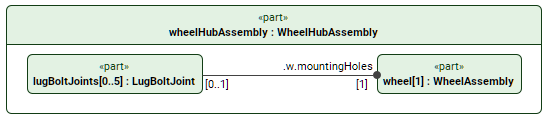
In the textual notation, a connection connects two parts: part lugBoltJoints and part mountingHoles nested within part w, which is nested within the part wheel.
Since the nested part symbols w and mountingHoles are not displayed in the view, the proxy connector path is drawn between lugBoltJoints and wheel, which is a displayed parent element symbol of w and mountingHoles.
To represent that the connector is connected to a nested element, a proxy connector point symbol is displayed at the intersection of the part wheel and the connector path.
A connector label with the w.mountingHoles feature chain informs you which element symbol the connector is connected to.
Elaborating a connector
The connector path symbol can be additionally elaborated for improved visualization of the connector and its related elements.
To elaborate/simplify a connector
- Do one of the following:
- To elaborate a connector in a view, click the connector symbol, and in its smart manipulator, click the Elaborate
 command. The connector is elaborated.
 - To simplfiy a connector into a path symbol only, click the connector symbol, and in its smart manipulator, click the Simplify
 command. The connector is simplified into a path symbol only.
- To elaborate a connector in a view, click the connector symbol, and in its smart manipulator, click the Elaborate
Displaying n-ary connectors in a view
In addition to binary connectors, you can also have n-ary connectors. An n-ary connector is a complex connector between three or more elements. The n-ary connector is displayed as a dot symbol with segments connecting the ends of the connector.
The following binary connectors can also be n-ary:
A dependency can also be n-ary or binary. However, as it is not a connector, the following procedures do not apply to it. Dependencies can be displayed as paths for the n-ary dot symbol via the Display Others command.
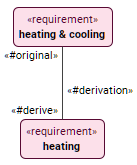
The image displays an unnamed binary derivation where the requirement heating & cooling is the original and heating is the derived one. The original and derived ends are connected with the connection path.
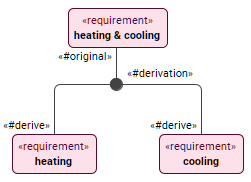
The image displays an unnamed n-ary derivation where the requirement heating & cooling is the original and heating is the derived one. The original and derived ends are connected with the connection path.
Displaying n-ary dot and its ends in a view
To display n-ary dot and its ends in a view
- Select the containing element symbol and click the Display command, then in its dropdown menu click Display Features.

Displaying n-ary connector ends in a view
To display n-ary connector ends in a view
- Select the n-ary dot symbol in the view, then click the Display command. In its dropdown menu, click Display Ends.

Displaying n-ary connectors for an element symbol in a view
To display n-ary connectors for an element symbol in a view
- Select the symbol whose n-ary connectors you want to display. Click the Display command, then Display Connectors in the Relationships category.