Binding
A binding is a binary connection that:
- asserts that the connected features have equal values in the same context. See the procedures on this page.
- binds a referential feature in one context to a composite feature in another context to assert they are the same thing.
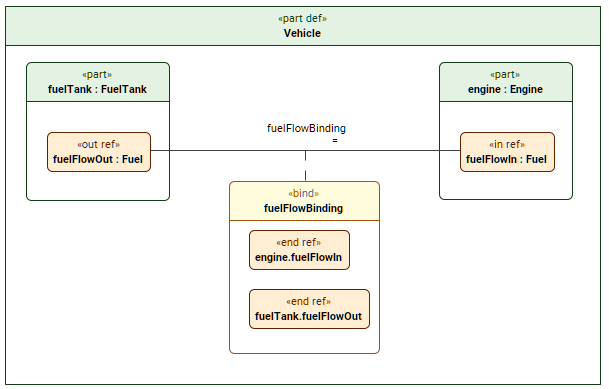
The image displays the fuelFlowBinding binding connector where fuelTank.fuelFlowOut is bound to engine.fuelFlowIn. Additionally, the connector is also elaborated.
Binding elements
Binding elements via the Textual Editor
To bind elements via the Textual Editor
In the Textual Editor, place the cursor where you want to create the element and declare the binding keyword.
Specify the element name (optional), specialization (optional), the keyword bind, then the name of the first element you want to bind, followed by the textual symbol =, then the name of the second element you want to bind.

If the binding has no name and no specialization, the keyword bind can be omitted.
- Click the Synchronize button.
part def Vehicle {
part fuelTank : FuelTank {
out fuelFlowOut : Fuel;
}
part engine : Engine {
in fuelFlowIn : Fuel;
}
binding fuelFlowBinding bind fuelTank.fuelFlowOut = engine.fuelFlowIn; // named binding
bind fuelTank.fuelFlowOut = engine.fuelFlowIn; // unnamed binding
}
Binding elements via the smart manipulator in a view
To bind elements via the smart manipulator in a view
- In a view, select an element symbol, and in its smart manipulator, click the bind command.
- Click on the element you want to bind. A binding path is created between the elements.
Binding elements via the view palette
To bind elements via the view palette
- In the view palette, under the Connectors group, click the bind button to create a binding usage.
- In a view, click on the first of the two element symbols you want to bind, then on the second. A bind symbol is created between the elements.
Binding elements via the Create Relationship command
To bind elements via the Create Relationship command
- Right-click one of the elements you want to bind.
- In the shortcut menu, click Create Relationship, then in the submenu, click Outgoing, and then in the submenu, click binding. The Element Picker dialog opens.
- In the Element Picker dialog, do one of the following:
- In a view, click the element symbol you want to bind. Hold Shift to select multiple elements.
- Click the Add
 button. The element selection dialog opens. In the element selection dialog, select the element you want to bind and click OK.
 - Drag and drop the needed element you want to bind from the Containment tree onto the Element Picker.
- In the Element Picker dialog, click OK.