Feature membership
Use feature memberships to specify element features.
- Feature membership relationship is created automatically in the tool when you create a feature for an element.
- For element creation procedures, see the (2026x Refresh1) Managing elements page.

You can also create features through the creation of a feature membership itself. This is especially useful for element decomposition, such as part decomposition or requirement decomposition.
- For element creation procedures, see the (2026x Refresh1) Managing elements page.
- For element ownership change procedures, see the (2026x Refresh1) Element ownership change page.
- The feature membership display can differ based on the related elements. If one of the elements related via a feature membership is a referential usage, it is displayed with a hollow diamond icon, whereas a composite usage is displayed with a filled diamond icon. For procedures on referential usages, see the Specifying the ref modifier for features section on the (2026x Refresh1) Modifiers page.
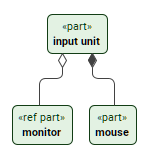
Specifying feature memberships
Specifying feature memberships via the Textual Editor
To specify feature memberships via the Textual Editor
- In the Textual Editor, use curly braces after element declaration to specify the element body. Features specified within the element body become related to the owning element via the feature membership.
To indicate a referential (non-composite) usage, use the keyword ref before the element keyword. For more procedures on referential usages, see the Specifying the ref modifier for features section on the (2026x Refresh1) Modifiers page.
- Click the Synchronize button.
part 'input unit' {
part mouse; // composite usage
ref part monitor; // referential (non-composite) usage
}
Specifying feature memberships via the smart manipulator in a view
Creating features via the smart manipulator is only available for a limited selection of elements (e.g., parts, requirements).
To specify feature memberships via the smart manipulator in a view
- In a view, create or display the part for which you want to specify a feature membership.
- In the selected symbol's smart manipulator, click the feature membership icon and do one of the following:
- To create a composite feature, click elsewhere in the view pane. The new composite feature of the same type is created.
- To designate an existing element as a composite one, click on the element you want to designate as the composite feature.
Specifying feature memberships via the view palette
To specify feature memberships via the view palette
- In the view palette, under the Other Relationships group, click the feature membership button.
- In a view, click on the element symbol you want to designate as the owner, then the one you want to designate as the owned feature. A feature membership path symbol is created between the elements.