N-ary connection
An n-ary connection is a complex connector between three or more elements. The n-ary connection is displayed as a dot symbol with segments connecting the ends of the connection.

The kind keyword (e.g., part) is optional for connection ends. The keyword is mandatory if the ends have owned cross features.
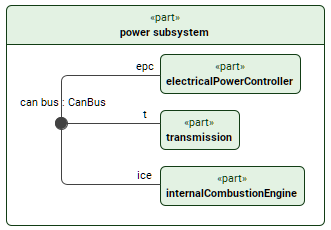
Creating n-ary connections
Creating n-ary connections via the Textual Editor
To create n-ary connections via the Textual Editor
- In the Textual Editor, place the cursor where you want to create the element and declare the connection keyword.
- Specify the element name (optional), specialization (optional), then the connect keyword, then state the features explicitly (using the connect...to syntax) or in a comma-separated list of related features.
- If the connection has no name and no specialization, the keyword connection can be omitted.
- You can also name connection ends, associating them to features via reference subsetting.
- Click the Synchronize button.
connection def CanBus {
end part transmission : Transmission;
end part electricalPowerController : ElectricalPowerController;
end part internalCombustionEngine : InternalCombustionEngine;
}
part 'power subsystem' {
part electricalPowerController;
part transmission;
part internalCombustionEngine;
// named specialized (feature typing) connection usage with named ends connecting features in a comma-separated list:
connection 'can bus' : CanBus connect (t ::> transmission, epc ::> electricalPowerController, ice ::> internalCombustionEngine);
// unnamed unspecialized connection usage connecting features in a comma-separated list:
connect (transmission, electricalPowerController, internalCombustionEngine);
}
Creating n-ary connections via the view palette
To create n-ary connections via the view palette
In the view palette, under the Connectors group, click the n-ary connection button.
If the needed button is not displayed, click the down-facing arrow next to the connection or the connection def button and click the n-ary connection button in the dropdown menu.
- Click in the view pane where you want the n-ary connection symbol to be created.
- Select the n-ary connection symbol and in its smart manipulator, click the end command.
- Draw the end from the n-ary connection symbol to the symbol of the element you want to connect. Repeat for all elements you want to connect.
Converting binary and n-ary connectors
Converting binary connectors to n-ary via the view
To convert binary connectors to n-ary via the view
- In the view pane, right-click the binary connector you want to convert to an n-ary.
- In the shortcut menu, click Refactor, then Convert to N-ary Dot. The binary connector is converted and the n-ary dot symbol is displayed.
Converting n-ary connectors to binary via the view
To convert n-ary connectors to binary via the view
- In the view pane, right-click the n-ary dot symbol of the connector you want to convert to a binary.
- In the shortcut menu, click Refactor, then Convert to Path. The n-ary connector dot symbol is converted and the binary path is displayed.
The Convert to Path command is only available if the connector has no more than two ends.
Creating an n-ary connection definition
Creating n-ary connection definitions via the Textual Editor
To create n-ary connection definitions via the Textual Editor
- In the Textual Editor, place the cursor where you want to create the element and declare the connection def keyword.
- Name the element, then specify the connection definition features in the element body:
- Specify the connection definition ends by declaring the end keyword, followed by the end name and/or specialization of the needed element.
Click the Synchronize button.
connection def CanBus {
end part transmission : Transmission;
end part electricalPowerController : ElectricalPowerController;
end part internalCombustionEngine : InternalCombustionEngine;
}
Auto-creating n-ary connection definition elements via the Extract Definition command
To auto-create n-ary connection definition elements via the Extract Definition command
- See the Extract Definition and Usage page.
Creating n-ary connection definitions via the view palette
To create n-ary connection definitions via the view palette
In the view palette, under the Connectors group, click the connection def button.
If the needed button is not displayed, click the down-facing arrow next to either the connection or the n-ary connection button and select the needed button in the dropdown menu.
- Click in the view pane where you want to create the connection def symbol. The connection def symbol is created containing two end element symbols.
- Create additional ends via the Create Element button's end command. See the procedure Creating elements via compartments on the Compartments page.