Projects can only use other projects in read-only mode. If you want to edit a used project, you must open it as a stand-alone. You can do this from within the main project in which the project is used by following the procedures listed below.

Opening a used project via the Containment tree 

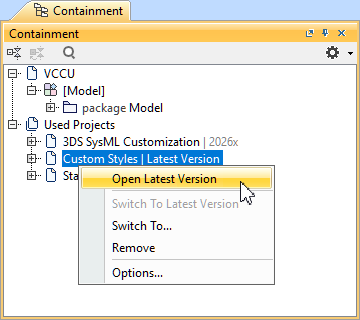
To open a used project via the Containment tree


  1. In the Containment tree, expand the Used Projects node.
  2. Right-click a used project and select one of the following:
    1. Open This Version.
    2. Open Latest Version.
      The used project is opened.
Opening a used project via the Project Usages dialog

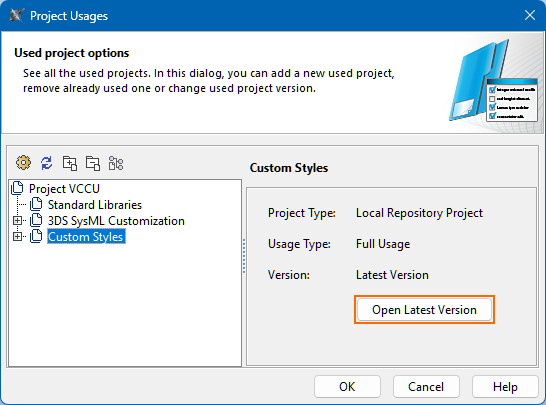
To open a used project via the Project Usages dialog


  1. Managing local used projects.
  2. In the Project Usages dialog, select a used project, then on the right side section of the dialog, click the Open button.
  3. Click the OK button to close the Project Usages dialog.
    The used project is opened.
2026x HotFix1 version

This documentation page is for the 2026x HotFix1 version of the SysML v2 Plugin. If you are working with the 2026x version, expand the section above. However, we highly advise upgrading to the 2026x HotFix1 version.

Projects can only use other projects in read-only mode. If you want to edit a used project, you must open it as a stand-alone. You can do this from within the main project in which the project is used by following the procedures listed below.

Opening a used project via the Containment tree

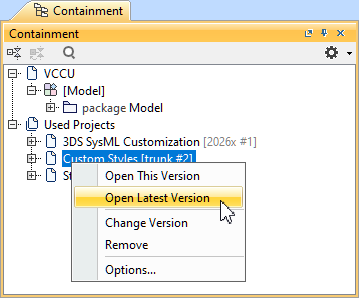
To open a used project via the Containment tree


  1. In the Containment tree, expand the Used Projects node.
  2. Right-click a used project and click Open Latest Version.
    The used project is opened.

Opening a used project via the Project Usages dialog

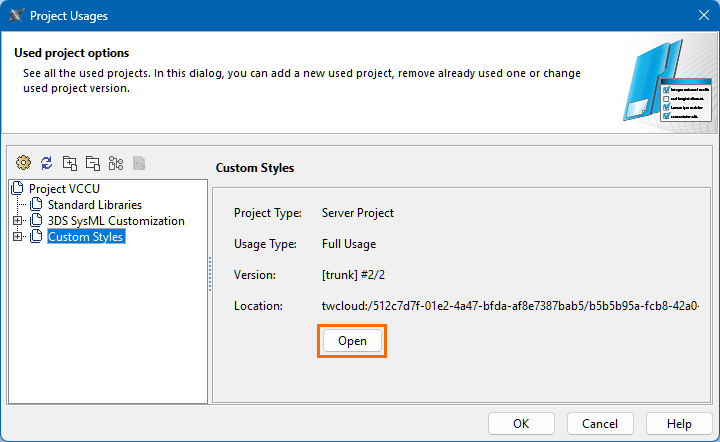
To open a used project via the Project Usages dialog


  1. Open the Project Usages dialog.
  2. In the Project Usages dialog, select a used project, then on the right side section of the dialog, click the Open Latest Version button.
  3. Click the OK button to close the Project Usages dialog.
    The used project is opened.