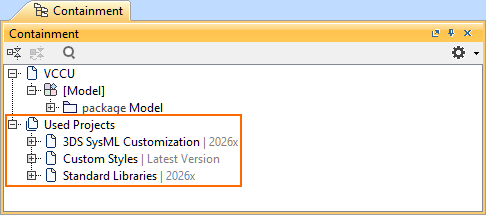
It is advisable to split large projects with loosely dependent parts into used projects. Project partitioning provides additional benefits, such as reusing model parts (e.g., libraries) across multiple projects and improving performance when working with very large models. The used projects are always added from the local repository; thus, the projects must first be added there to be used in other projects. Once added to the main project, you can view the used projects under the Containment tree's Used Projects node. 

You can manage used projects via the Containment tree, the Project Usages dialog, and the Advanced Project Usages Configuration dialog.

There can be two kinds of used projects:

  • Directly used projects: projects used directly by the main project.
  • Indirectly used projects: projects used by other used projects. For more information, see the Indirectly used projects subsection.

The Project Usages dialog

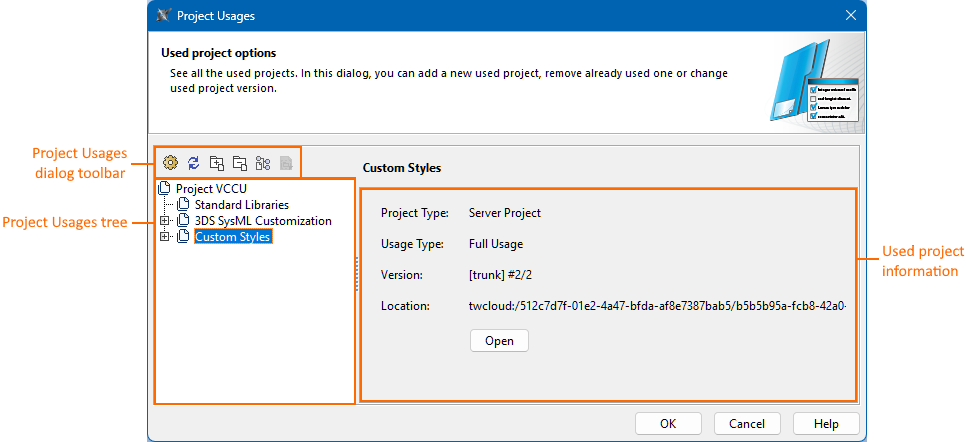
The Project Usages dialog allows you to manage projects used from the local repository. You can use, updateopenremove a used project, and switch between the original used project and its subsequent imports. Selecting a used project in the project usages tree displays the project's details (e.g., version, location) on the right side of the dialog.
Opening the Project Usages dialog

To open the Project Usages dialog


  1. Do one of the following:
    1. In the main menu, select Options > Project Usages.
    2. In the main menu, select Collaborate > Project Usages > Project Usages.
    3. In the Containment tree, expand the Used Projects node and right-click a used project. In the shortcut menu, click Options.
      The Project Usages dialog opens.

The Advanced Project Usages Configuration dialog

The Advanced Project Usages Configuration dialog allows you to manage projects used from the local repository. You can use (and undo this command), remove (and undo this command) a used project, and switch between the original used project and its imports of a used project. You can also review all the used projects' version information.
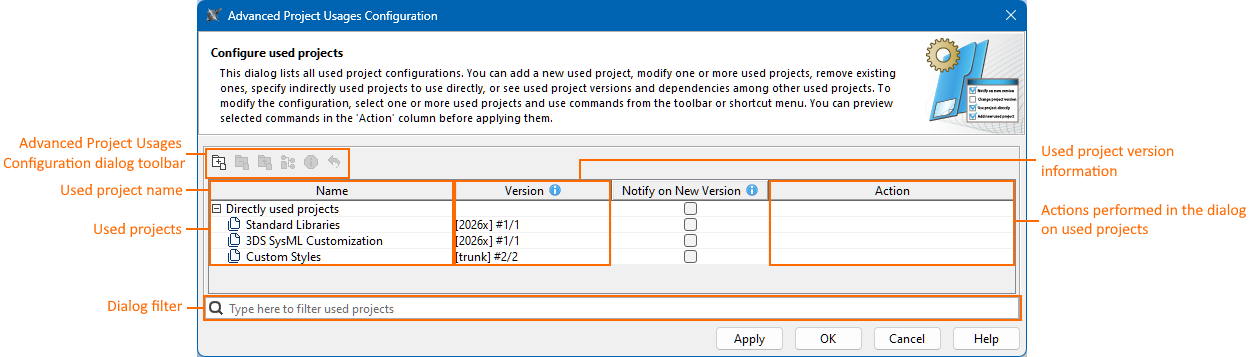

Some buttons in the Advanced Project Usages Configuration dialog are either disabled or not recommended for usage (e.g., Project Usage Information, Notify on New Version column functionality) as their functionality will be changed and/or removed in future releases.

Opening the Advanced Project Usages Configuration dialog

To open the Advanced Project Usages Configuration dialog


  1. Open the Project Usages dialog
  2. In the Project Usages dialog's toolbar, click the Usages Configuration button.
    The Advanced Project Usages Configuration dialog opens.

Using projects from the local repository

Used projects employ the sticky versions approach. Once a specific version of a project is used, the main project continues to use that exact version until you update it manually. This means that even if you modify a used project and save it as a new version, the main project will still use the previously added version. This prevents unexpected changes or damage to the main project. 

A project must be stored in the local repository before it can be used locally. 

The main project uses only the specified versions of the used projects, despite the newer versions they may have. 

Using a project from the local repository via the Project Usages dialog

To use a project from the local repository via the Project Usages dialog


  1. Open the Project Usages dialog
  2. In the Project Usages dialog's toolbar, click the Use Project button. The Use Project dialog opens.
  3. In the Use Project dialog, select the project you want to use and click the Next button.
  4. Select the project version you want to use and click the Finish button.
  5. Click the OK button to close the Project Usages dialog.
    Used projects are displayed under the Used Projects node in the Containment tree of your model.

Using a project from the local repository via the Advanced Project Usages Configuration dialog

To use a project from the local repository via the Advanced Project Usages Configuration dialog


  1. Open the Advanced Project Usages Configuration dialog
  2. In the Advanced Project Usages Configuration dialog's toolbar, click the Add button, and in its dropdown menu, click Use ProjectThe Use Project dialog opens.
  3. In the Use Project dialog, select the project you want to use and click the Next button.
  4. Select the project version you want to use and click the Finish button. The cell in the Action column for the added used project states 'Add'.  
  5. (Optional) To undo the action, do one of the following:
    1. In the dialog's toolbar, click the Reset Changes for Selection button.
    2. Right-click the used project and in the shortcut menu, click the Reset Changes for Selection command.
  6. Do one of the following:
    1. To save changes and keep the dialog open, click the Apply button.
    2. To save changes and close the dialog, click the OK button.
    3. To discard changes and close the dialog, click the Cancel button.
  7. Click the OK button to close the Project Usages dialog.
    Used projects are displayed under the Used Projects node in the Containment tree of your model.

Changing used project versions 

While a project may be used in the main project, it may be modified and saved to a new version, rendering its version used in the main project outdated. Therefore, in the main project, the used project is indicated with its version number, e.g., #1. You can choose to update the used project to a later version or continue using the older one. You can see the details about the used version in the Containment tree, the Project Usages dialog, and the Advanced Project Usages Configuration dialog. The Edit Branches dialog displays all existing versions of the used project.

  • Refreshing version information display. To ensure the used project version information displayed in the Containment tree and the rest of the tool is up to date, press F5 or click View > Refresh in the main menu.
  • Updating directly used projects. Updating directly used projects does not update indirectly used projects if they are outdated in the projects that use them. In this case, indirectly used projects must be updated individually. However, if the indirectly used project is already updated in the directly used one, then the indirectly used project's version is updated in the main project once you update the directly used project's version.


Updating all used projects to their latest versions

To update all used projects to their latest versions


  1. Open the Project Usages dialog
  2. In the Project Usages dialog's toolbar, click the Update Used Projects button. The Update Used Projects dialog opens.
  3. In the Update Used Projects dialog, select the check box in the Update column for the used projects you want to update and click OK.
  4. Click the OK button to close the Project Usages dialog.
    The used projects are updated to their latest versions. 

Changing a used project version via the Containment tree

To change a used project version via the Containment tree


  1. In the Containment tree, expand the Used Projects node, then right-click a used project. In the shortcut menu, click Change Version. The Edit Branches dialog opens.
  2. In the Edit Branches dialog, select the version you want to use, and click OK
    The used project version is changed. 

Changing a used project version via the Project Usages dialog

To change a used project version via the Project Usages dialog


  1. Open the Project Usages dialog and do one of the following:
    1. In the dialog's toolbar, click the Change Version button.
    2. In the dialog's project usages tree, right-click a used project and in the shortcut menu, click the Change Version command.
      The 
      Edit Branches dialog opens.
  2. In the Edit Branches dialog, select the version you want to use, and click OK
  3. Click the OK button to close the Project Usages dialog.
    The used project version is changed. 

Changing a used project version via the Advanced Project Usages Configuration dialog

To change a used project version via the Advanced Project Usages Configuration dialog


  1. Open the Advanced Project Usages Configuration dialog.
  2. In the Advanced Project Usages Configuration dialog, do one of the following:
    1. Select a used project and in the dialog's toolbar, click the Change Version button.
    2. Right-click a used project, then in its shortcut menu, select the Change Version command.
      The Edit Branches dialog opens.
  3. In the Edit Branches dialog, select the version you want to use, and click OK. 
    The cell in the Action column for the removed used project states 'Switch to <version number> in <project name>'.  
  4. (Optional) To undo the action, do one of the following:
    1. In the dialog's toolbar, click the Reset Changes for Selection button.
    2. Right-click the used project and in the shortcut menu, click the Reset Changes for Selection command.
  5. Do one of the following:
    1. To save changes and keep the dialog open, click the Apply button.
    2. To save changes and close the dialog, click the OK button.
    3. To discard changes and close the dialog, click the Cancel button.
  6. Click the OK button to close the Project Usages dialog.
    The used project version is updated. 

Switching between the original used project and its subsequent imports 

In addition to versions, used projects may also have multiple imports of the same project. For example, you might export a project that is used in the main project from the local repository to your file system, share it with a colleague who makes changes while you continue working on the main project, and then later import your colleague’s modified copy back into your local repository. In this case, the local repository will display both projects: the originally used project and the subsequent import of the same project. For more information, see the Managing local projects page.

Although the main project continues to use the specific project (and its version) that was originally used, you can switch the used project to its different import if needed. Both the original and the import can be modified and saved as a new version, allowing you to update the used project to its latest version (as described in the Changing used project versions subsection).

You can view details about the used project (original or its imports) in the Project Usages and the Advanced Project Usages Configuration dialogs:

  • If the used project was created in the local repository, it is displayed as trunk.
  • If the used project was imported into the local repository, it is displayed as <imported_file_name>.
    • If there already is an import with the same name, a number is added: <imported_file_name<number>>.

To ensure the used project import and/or version information displayed in the Containment tree and the rest of the tool is up to date, press F5 or click View > Refresh in the main menu.

Switching between the original used project and its subsequent imports

To switch between the original used project and its subsequent imports


See the following procedures:

Opening used projects 

Projects can only use other projects in read-only mode. If you want to edit a used project, you must open it as a stand-alone. You can do this from within the main project in which the project is used by following the procedures listed below.

Opening a used project via the Containment tree 

To open a used project via the Containment tree


  1. In the Containment tree, expand the Used Projects node.
  2. Right-click a used project and select one of the following:
    1. Open This Version.
    2. Open Latest Version.
      The used project is opened.

Opening a used project via the Project Usages dialog

To open a used project via the Project Usages dialog


  1. Open the Project Usages dialog.
  2. In the Project Usages dialog, select a used project, then on the right side section of the dialog, click the Open button.
  3. Click the OK button to close the Project Usages dialog.
    The used project is opened.

Removing used projects

Used projects are removed from the main project with all their references, including their used projects.

Removing a used project via the Containment tree

To remove a used project via the Containment tree


  1. In the Containment tree of the main project, expand the Used Projects node.
  2. Right-click a used project and select Remove.
  3. When the question dialog opens, click Yes to confirm that you want to remove the used project.

Removing a used project via the Project Usages dialog 

To remove a used project via the Project Usages dialog


  1. Open the Project Usages dialog and do one of the following:
    1. In the dialog's toolbar, click the Remove with References  button.
    2. In the dialog's project usages tree, right-click a used project and in the shortcut menu, click the Remove with References command.
  2. When the question dialog opens, click Yes to confirm that you want to remove the used project.
  3. Click the OK button to close the Project Usages dialog.

Removing a used project via the Advanced Project Usages Configuration dialog

To remove a used project via the Advanced Project Usages Configuration dialog


  1. Open the Advanced Project Usages Configuration dialog.
  2. In the Advanced Project Usages Configuration dialog, do one of the following:
    1. Select a used project and in the dialog's toolbar, click the Remove with References  button
    2. Right-click a used project and in the shortcut menu, click the Remove with References command
      The cell in the Action column for the removed used project states 'Remove, delete references'.  
  3. (Optional) To undo the action, do one of the following:
    1. In the dialog's toolbar, click the Reset Changes for Selection button.
    2. Right-click the used project and in the shortcut menu, click the Reset Changes for Selection command.
  4. Do one of the following:
    1. To save changes and keep the dialog open, click the Apply button.
    2. To save changes and close the dialog, click the OK button.
    3. To discard changes and close the dialog, click the Cancel button.
  5. Click the OK button to close the Project Usages dialog.

Indirectly used projects

The projects used in the main project may also use other projects, called indirectly used projects. When you use a project directly that may have other used projects, these indirectly used projects are loaded in the main project. Once loaded, the indirectly used projects use the same project version that is used in the directly used project. However, if the indirectly used project is later modified and you want this change to be reflected in the main project, you must update the project version in the directly used project, then update the version of the directly used project in the main project. 

In the main project, you can see the indirectly used projects:

  • Under the Containment tree's Used Projects node, displayed at the same node level as the project that uses it directly.
  • The Advanced Project Usages Configuration dialog's Indirectly used projects category.
  • The Project Usages dialog, nested under the project that uses it directly.

Using indirectly used projects directly 

To use indirectly used projects directly


  1. Open the Advanced Project Usages Configuration dialog.
  2. In the Advanced Project Usages Configuration dialog, do one of the following:
    1. Select a used project and in the dialog's toolbar, click the Use Project Directly  button
    2. Right-click a used project and in the shortcut menu, click the Use Project Directly command
      The cell in the Action column for the removed used project states 'Use Project Directly'.  
  3. (Optional) To undo the action, do one of the following:
    1. In the dialog's toolbar, click the Reset Changes for Selection button.
    2. Right-click the used project and in the shortcut menu, click the Reset Changes for Selection command.
  4. Do one of the following:
    1. To save changes and keep the dialog open, click the Apply button.
    2. To save changes and close the dialog, click the OK button.
    3. To discard changes and close the dialog, click the Cancel button.
  5. Click the OK button to close the Project Usages dialog.

Opening indirectly used projects

To open indirectly used projects


See the procedures:

Removing indirectly used projects

Indirectly used projects can only be removed from the main project in the following cases:

2026x HotFix1 version

This documentation page is for the 2026x HotFix1 version of the SysML v2 Plugin. If you are working with the 2026x version, expand the section above. However, we highly advise upgrading to the 2026x HotFix1 version.

It is advisable to split large projects with loosely dependent parts into used projects. Project partitioning provides additional benefits, such as reusing model parts (e.g., libraries) across multiple projects and improving performance when working with very large models. The used projects are always added from the local repository; thus, the projects must first be added there to be used in other projects. Once added to the main project, you can view the used projects under the Containment tree's Used Projects node. 

You can manage used projects via the Containment tree, the Project Usages dialog, and the Advanced Project Usages Configuration dialog.

There can be two kinds of used projects:

  • Directly used projects: projects used directly by the main project.
  • Indirectly used projects: projects used by other used projects. For more information, see the Indirectly used projects subsection.

The Project Usages dialog

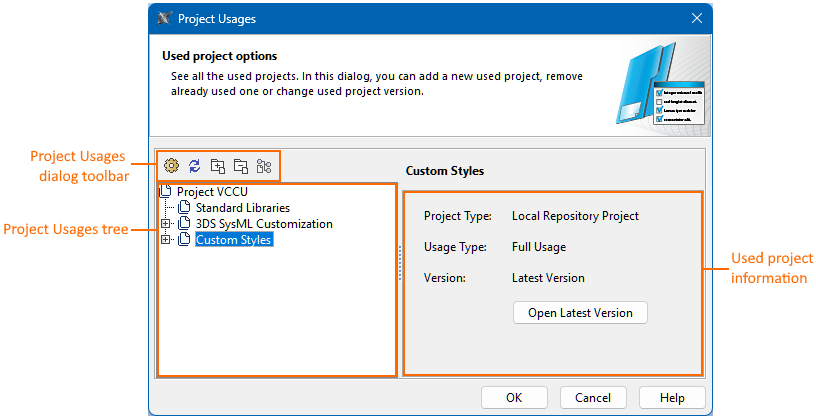
The Project Usages dialog allows you to manage projects used from the local repository. You can useupdateopenremove a used project, and switch between the original used project and its subsequent imports. Selecting a used project in the project usages tree displays the project's details (e.g., version, location) on the right side of the dialog.
Opening the Project Usages dialog

To open the Project Usages dialog


  1. Do one of the following:
    1. In the main menu, select Options > Project Usages.
    2. In the main menu, select Collaborate > Project Usages > Project Usages.
    3. In the Containment tree, expand the Used Projects node and right-click a used project. In the shortcut menu, click Options.
      The Project Usages dialog opens.

The Advanced Project Usages Configuration dialog

The Advanced Project Usages Configuration dialog allows you to manage projects used from the local repository. You can use (and undo this command), updateremove (and undo this command) a used project, and switch between the original used project and its imports of a used project. You can also review the information about the version and the imports of all used projects.
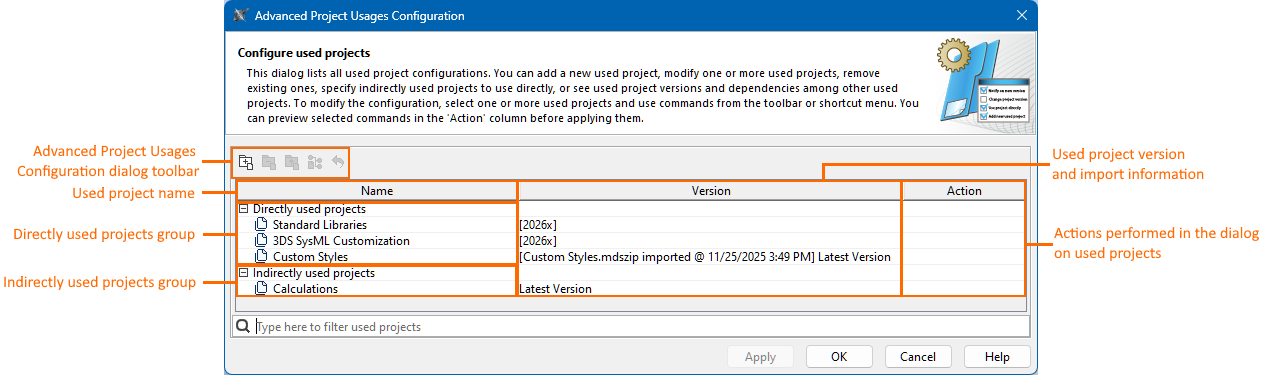
Opening the Advanced Project Usages Configuration dialog

To open the Advanced Project Usages Configuration dialog


  1. Open the Project Usages dialog
  2. In the Project Usages dialog's toolbar, click the Usages Configuration button.
    The Advanced Project Usages Configuration dialog opens.

Using projects from the local repository

Used projects employ the sticky versions approach. Once a specific version of a project is used, the main project continues to use that exact version until you update it manually. This means that even if you modify a used project and save it as a new version, the main project will still use the previously added version. This prevents unexpected changes or damage to the main project.

A project must be stored in the local repository before it can be used locally.

The main project uses only the specified versions of the used projects, despite the newer versions they may have. 

Using a project from the local repository via the Use Local Project command

To use a project from the local repository via the Use Local Project command


  1. In the main menu, select File > Use Project > Use Local Project. The Use Project dialog opens.

    If there are no other projects in the local repository or all of them are already used in the open project, the Use Local Project command is disabled.

  2. In the Use Project dialog, select the project you want to use and click the Next button.
  3. Select the project version you want to use and click the Finish button.
    Used projects are displayed under the Used Projects node in the Containment tree of your model.

Using a project from the local repository via the Project Usages dialog

To use a project from the local repository via the Project Usages dialog


  1. Open the Project Usages dialog
  2. In the Project Usages dialog's toolbar, click the Use Project button. The Use Project dialog opens.
  3. In the Use Project dialog, select the project you want to use and click the OK button.
  4. Click the OK button to close the Project Usages dialog.
    Used projects are displayed under the Used Projects node in the Containment tree of your model.

Using a project from the local repository via the Advanced Project Usages Configuration dialog

To use a project from the local repository via the Advanced Project Usages Configuration dialog


  1. Open the Advanced Project Usages Configuration dialog.
  2. In the Advanced Project Usages Configuration dialog's toolbar, click the Add button, and in its dropdown menu, click Use ProjectThe Use Project dialog opens.
  3. In the Use Project dialog, select the project you want to use and click the OK button. The cell in the Action column for the added used project states 'Add'.  
  4. (Optional) To undo the action, do one of the following:
    1. In the dialog's toolbar, click the Reset Changes for Selection button.
    2. Right-click the used project and in the shortcut menu, click the Reset Changes for Selection command.
  5. Do one of the following:
    1. To save changes and keep the dialog open, click the Apply button.
    2. To save changes and close the dialog, click the OK button.
    3. To discard changes and close the dialog, click the Cancel button.
  6. Click the OK button to close the Project Usages dialog.

Updating used projects to their latest versions

While a project may be used in the main project, it may be modified and saved to a new version, rendering its version used in the main project outdated. Therefore, in the main project, the used project may refer to two of its available versions: Older Version or Latest Version. You can choose to update the used project to its latest version or continue using the older one. You can see more details about the used version in the Containment tree, the Project Usages dialog, and the Advanced Project Usages Configuration dialog.

  • Refreshing version information display. To ensure the used project version information displayed in the Containment tree and the rest of the tool is up to date, press F5 or click View > Refresh in the main menu.
  • Reverting used project version update. Once you update a used project to its latest version and save the project, reverting to an older version is not possible. However, if you do not save the main project after the update, you can close the main project without saving it to discard all changes, including the used project's version update. Thus, make sure the update is necessary to avoid potential model inconsistencies.
  • Updating directly used projects. Updating directly used projects does not update indirectly used projects if they are outdated in the projects that use them. In this case, indirectly used projects must be updated individually. However, if the indirectly used project is already updated in the directly used one, then the indirectly used project's version is updated in the main project once you update the directly used project's version.

Updating all used projects to their latest versions

To update all used projects to their latest versions


  1. Open the Project Usages dialog
  2. In the Project Usages dialog's toolbar, click the Update Used Projects button. The Update Used Projects dialog opens.
  3. In the Update Used Projects dialog, select the check box in the Update column for the used projects you want to update and click OK.
  4. Click the OK button to close the Project Usages dialog.
    The used projects are updated to their latest versions. 

Updating a used project to its latest version via the Containment tree

To update a used project to its latest version via the Containment tree


  • In the Containment tree, expand the Used Projects node, then right-click a used project. In the shortcut menu, click Switch to Latest Version.
    The used project is updated to its latest version. 

Updating a used project to its latest version via the Project Usages dialog

To update a used project to its latest version via the Project Usages dialog


  1. Open the Project Usages dialog and do one of the following:
    1. In the dialog's toolbar, click the Change Version button, and in its dropdown menu, click Switch to Latest Version.
    2. In the dialog's project usages tree, right-click a used project and in the shortcut menu, click the Change Version > Switch to Latest Version command.
  2. Click the OK button to close the Project Usages dialog.
    The used project is updated to its latest version. 

Updating a used project to its latest version via the Advanced Project Usages Configuration dialog

To update a used project to its latest version via the Advanced Project Usages Configuration dialog


  1. Open the Advanced Project Usages Configuration dialog.
  2. In the Advanced Project Usages Configuration dialog, do one of the following:
    1. Select a used project and in the dialog's toolbar, click the Change Version button, then in its dropdown menu, click Switch to Latest Version.
    2. Right-click a used project, then in its shortcut menu, select the Change Version > Switch to Latest Version command.
      The cell in the Action column for the removed used project states 'Switch to <version number>'.  
  3. (Optional) To undo the action, do one of the following:
    1. In the dialog's toolbar, click the Reset Changes for Selection button.
    2. Right-click the used project and in the shortcut menu, click the Reset Changes for Selection command.
  4. Do one of the following:
    1. To save changes and keep the dialog open, click the Apply button.
    2. To save changes and close the dialog, click the OK button.
    3. To discard changes and close the dialog, click the Cancel button.
  5. Click the OK button to close the Project Usages dialog.
    The used project version is updated. 

Switching between the original used project and its subsequent imports 

In addition to versions, used projects may also have multiple imports of the same project. For example, you might export a project that is used in the main project from the local repository to your file system, share it with a colleague who makes changes while you continue working on the main project, and then later import your colleague’s modified copy back into your local repository. In this case, the local repository will display both projects: the originally used project and the subsequent import of the same project. For more information, see the Managing local projects page.

Although the main project continues to use the specific project (and its version) that was originally used, you can switch the used project to its different import if needed. Both the original and the import can be modified and saved as a new version, allowing you to update the used project to its latest version (as described in the Updating used projects to their latest versions subsection).

You can view details about the used project (original or its imports) in the Project Usages and the Advanced Project Usages Configuration dialogs:

  • If the used project was created in the local repository, it is displayed only by indicating the project name and version (Latest/Oldest Version). 
  • If the used project was imported into the local repository, it is displayed using the following structure: <[<file_name>.mdszip imported @<date and time of the import>] <version (Latest/Oldest Version)>>.

To ensure the used project import and/or version information displayed in the Containment tree and the rest of the tool is up to date, press F5 or click View > Refresh in the main menu.

Switching between the original used project and its subsequent imports via the Containment tree 

The Containment tree only displays the project version information (Latest/Oldest). You can view more details about the import in the Project Usages and the Advanced Project Usages Configuration dialogs.

To switch between the original used project and its subsequent imports via the Containment tree


  1. In the Containment tree, expand the Used Projects node, then right-click a used project. In the shortcut menu, click Switch To... The Switch To menu opens.
  2. In the Switch To menu, select the project you want to use.
    The used project is updated.

Switching between the original used project and its subsequent imports via the Project Usages dialog

To switch between the original used project and its subsequent imports via the Project Usages dialog


  1. Open the Project Usages dialog and do one of the following:
    1. In the dialog's toolbar, click the Change Version button, and in its dropdown menu, click Switch To.... The Switch To menu opens.
    2. In the dialog's project usages tree, right-click a used project and in the shortcut menu, click the Change Version > Switch To... command. The Switch To menu opens.
  2. In the Switch To menu, select the project you want to use.
  3. Click the OK button to close the Project Usages dialog.
    The used project is updated.

Switching between the original used project and its subsequent imports via the Advanced Project Usages Configuration dialog

To switch between the original used project and its subsequent imports via the Advanced Project Usages Configuration dialog


  1. Open the Advanced Project Usages Configuration dialog.
  2. In the Advanced Project Usages Configuration dialog, do one of the following:
    1. Select a used project and in the dialog's toolbar, click the Change Version button, then in its submenu, click Switch To.... The Switch To menu opens.
    2. Right-click a used project and in the shortcut menu, click the Change Version command, then in its submenu, click Switch To...The Switch To menu opens.
  3. In the Switch To menu, select the project you want to use.
    The cell in the Action column for the removed used project states 'Switch to <project version> <project import>'.  
  4. (Optional) To undo the action, do one of the following:
    1. In the dialog's toolbar, click the Reset Changes for Selection button.
    2. Right-click the used project and in the shortcut menu, click the Reset Changes for Selection command.
  5. Do one of the following:
    1. To save changes and keep the dialog open, click the Apply button.
    2. To save changes and close the dialog, click the OK button.
    3. To discard changes and close the dialog, click the Cancel button.
  6. Click the OK button to close the Project Usages dialog.

Opening used projects 

Projects can only use other projects in read-only mode. If you want to edit a used project, you must open it as a stand-alone. You can do this from within the main project in which the project is used by following the procedures listed below.

Opening a used project via the Containment tree

To open a used project via the Containment tree


  1. In the Containment tree, expand the Used Projects node.
  2. Right-click a used project and click Open Latest Version.
    The used project is opened.

Opening a used project via the Project Usages dialog

To open a used project via the Project Usages dialog


  1. Open the Project Usages dialog.
  2. In the Project Usages dialog, select a used project, then on the right side section of the dialog, click the Open Latest Version button.
  3. Click the OK button to close the Project Usages dialog.
    The used project is opened.

Removing used projects 

Used projects are removed from the main project with all their references, including their used projects (indirectly used projects).

Removing a used project via the Containment tree

To remove a used project via the Containment tree


  1. In the Containment tree of the main project, expand the Used Projects node.
  2. Right-click a used project and select Remove.
  3. When the question dialog opens, click Yes to confirm that you want to remove the used project.

Removing a used project via the Project Usages dialog

To remove a used project via the Project Usages dialog


  1. Open the Project Usages dialog and do one of the following:
    1. In the dialog's toolbar, click the Remove with References button.
    2. In the dialog's project usages tree, right-click a used project and in the shortcut menu, click the Remove with References command.
  2. When the question dialog opens, click Yes to confirm that you want to remove the used project.
  3. Click the OK button to close the Project Usages dialog.

Removing a used project via the Advanced Project Usages Configuration dialog

To remove a used project via the Advanced Project Usages Configuration dialog


  1. Open the Advanced Project Usages Configuration dialog.
  2. In the Advanced Project Usages Configuration dialog, do one of the following:
    1. Select a used project and in the dialog's toolbar, click the Remove with References  button
    2. Right-click a used project and in the shortcut menu, click the Remove with References command
      The cell in the Action column for the removed used project states 'Remove, delete references'.  
  3. (Optional) To undo the action, do one of the following:
    1. In the dialog's toolbar, click the Reset Changes for Selection button.
    2. Right-click the used project and in the shortcut menu, click the Reset Changes for Selection command.
  4. Do one of the following:
    1. To save changes and keep the dialog open, click the Apply button.
    2. To save changes and close the dialog, click the OK button.
    3. To discard changes and close the dialog, click the Cancel button.
  5. Click the OK button to close the Project Usages dialog.

Indirectly used projects

The projects used in the main project may also use other projects, called indirectly used projects. When you use a project directly that may have other used projects, these indirectly used projects are loaded in the main project. Once loaded, the indirectly used projects use the same project version that is used in the directly used project. However, if the indirectly used project is later modified and you want this change to be reflected in the main project, you must update the project version in the directly used project, then update the version of the directly used project in the main project. 

In the main project, you can see the indirectly used projects:

  • Under the Containment tree's Used Projects node, displayed at the same node level as the project that uses it directly.
  • The Advanced Project Usages Configuration dialog's Indirectly used projects category.
  • The Project Usages dialog, nested under the project that uses it directly.

Using indirectly used projects directly 

To use indirectly used projects directly


  1. Open the Advanced Project Usages Configuration dialog.
  2. In the Advanced Project Usages Configuration dialog, do one of the following:
    1. Select a used project and in the dialog's toolbar, click the Use Project Directly  button
    2. Right-click a used project and in the shortcut menu, click the Use Project Directly command
      The cell in the Action column for the removed used project states 'Use Project Directly'.  
  3. (Optional) To undo the action, do one of the following:
    1. In the dialog's toolbar, click the Reset Changes for Selection button.
    2. Right-click the used project and in the shortcut menu, click the Reset Changes for Selection command.
  4. Do one of the following:
    1. To save changes and keep the dialog open, click the Apply button.
    2. To save changes and close the dialog, click the OK button.
    3. To discard changes and close the dialog, click the Cancel button.
  5. Click the OK button to close the Project Usages dialog.

Opening indirectly used projects

To open indirectly used projects


See the procedures:

Removing indirectly used projects

Indirectly used projects can only be removed from the main project in the following cases: