Quick find
Use the Quick Find functionality to search for specific elements in the model. The simple and easy-to-use dialog is designed to locate the needed element by its declared or short name.
Opening the Quick Find dialog
To open the Quick Find dialog, do one of the following
- On the Containment tab toolbar click the
 Quick Find button.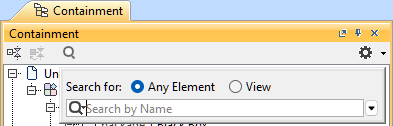
- On the main menu, click Edit > Quick Find.
- On the keyboard, press Ctrl+Alt+F or Cmd+Opt+F.
Search results are displayed in the drop-down list, which opens when you start typing the search phrase. Click the element you need in this list or correct the search query to perform a new search. The element will be selected in the Containment tree and on the active view if the element has symbols on the active view.
Quick Find dialog elements
The following table provides descriptions of the Quick Find dialog elements.
Dialog element name/image | Dialog element type | Description |
Search for | Options group |
|
Search By Name | Text box with a drop-down list | Type a phrase to search for in element names. See the search results in the drop-down list. The following elements are excluded from the search results:
|
| Menu button | Click the button and customize search options.
You can use camel case as follows:
|
More | Menu button | Click the button to load the next 100 matches. By default, the first 100 matches are shown in the dialog. |
Expand | Menu button | Click the button to load all model elements. |
| Apply Filter (Ctrl+Space) | Check box | Click to clear the check box, if you need to remove the search scope filter. If you clear the Apply Filter check box once, your selection is remembered for the next time. |
Filter Options | Menu button | Click the button and customize the search scope filter options. Ensure the Apply Filter check box is selected Hide Standard/System Libraries Reduces the search results list by hiding elements that belong to the Standard/System Libraries. |


