Require constraint
A require constraint states the required constraints imposed on the model, expressed formally or informally in the requirement.
There are two ways these constraints can be required:
- by referencing a constraint defined elsewhere in the model.
- The element symbol is displayed with the require keyword (unnamed element) or the require constraint keyword (named element).
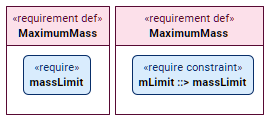
- See the procedures:
- The element symbol is displayed with the require keyword (unnamed element) or the require constraint keyword (named element).
- by containing an owned require constraint usage, i.e., the required constraint is the require constraint usage itself.
- The element symbol is displayed with the require constraint keyword.
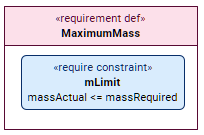
- See the procedures:
- The element symbol is displayed with the require constraint keyword.
Requiring a constraint by referencing a constraint defined elsewhere in the model
Requiring constraints via the Textual Editor
To require constraints via the Textual Editor
- In the body of a requirement for which you want to reference a constraint, declare one of the following:
- For an unnamed require constraint, declare the require keyword, then follow with the name of the constraint you want to reference.
- For a named require constraint, declare the require constraint keyword, name the new usage, and then reference subset the constraint you want to reference.
- Specify the constraint (expression, attributes, etc.) in the element's body.
- Click the Synchronize button.
constraint massLimit {
attribute mass : MassValue;
attribute massLimit : MassValue;
mass <= massLimit
}
requirement def MaximumMass {
attribute massActual : MassValue;
attribute massRequired : MassValue;
require massLimit { // step 1.a - unnamed usage reference subsets another constraint usage
:>> mass = massActual;
:>> massLimit = massRequired;
}
require constraint mLimit ::> massLimit { // step 1.b - named usage reference subsets another constraint usage
:>> mass = massActual;
:>> massLimit = massRequired;
}
}
Requiring constraints via the Drag and Drop handler in a view
To require constraints via the Drag and Drop handler in a view
- Drag and drop a constraint element from the Containment tree or use its symbol's Drag and Drop handler on a requirement element symbol executing the Create Require Constraint command.
Requiring constraints via the Specification panel
To require constraints via the Specification panel
- Drag and drop a constraint element from the Containment tree or use its symbol's Drag and Drop handler and drop it on the Required Constraint field in the Properties section of the Specification panel for the require constraint element.
The appropriate constraint is specified for the element.
Requiring a constraint via the owned require constraint usage itself as the required constraint
Requiring constraints via the Textual Editor
To require constraints via the Textual Editor
- In the Textual Editor, place the cursor where you want to create the element and declare the keyword require constraint for a require constraint usage
- Specify the element name.
- Specify the constraint (expression, attributes, etc.) in the element's body.
- Click the Synchronize button.
requirement def MaximumMass {
attribute massActual : MassValue;
attribute massRequired : MassValue;
require constraint mLimit { // named constraint
massActual <= massRequired
}
}
Requiring constraints via the symbol compartment in a view
For more information, see the Compartments page.
To require constraints via the symbol compartment in a view
- Do one of the following:
- Select an element symbol and click the Create Element button on it. In the dropdown menu, click the require constraint element.
- Select an element symbol and on the right side of the require constraints compartment, click the Create require constraint button.
- Specify the constraint (expression, attributes, etc.).
The new element is created and displayed in the require constraints compartment.
Requiring constraints via the Specification panel
To require constraints via the Specification panel
- Open the Specification panel.
- Do one of the following:
- In the Properties section bar, click the Create Element
 button. The shortcut menu appears. Click the require constraint element in the shortcut menu.
 - In the require constraints compartment section's bar, click the Create require constraint
 button.
- In the Properties section bar, click the Create Element
- Specify the constraint (expression, attributes, etc.).
The element is created in the require constraints compartment.