Tabular views
Tabular views (i.e., tables) allow you to represent and modify information about the model elements and/or relationships between them.
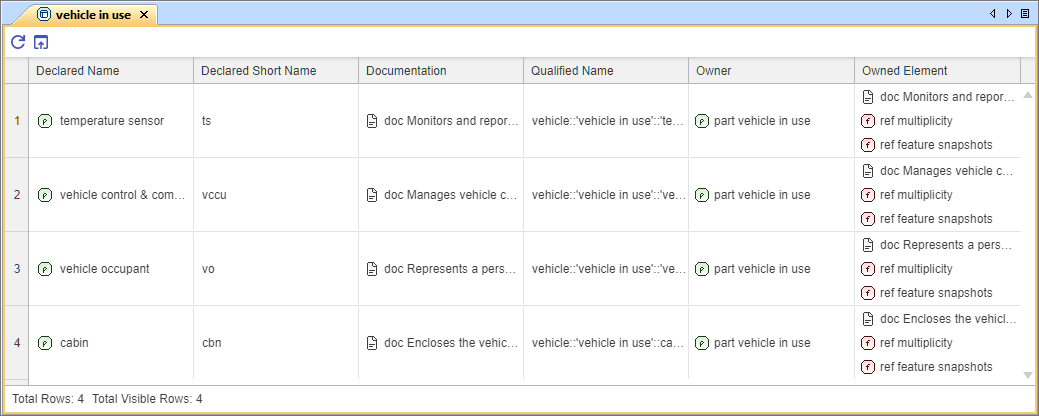
Tabular views
Specific tabular views you create in the modeling tool are tabular view usages defined by appropriate standard predefined tabular view definitions.

- For tabular view creation procedures, see the Creating tabular views page.
- For tabular view columns modeling procedures, see the Modeling tabular view columns page.
- Additionally, you can create custom tabular view definitions.
There are multiple predefined tabular view definitions available in the modeling tool, each designed for specific purposes:
| View definitions | Description | Columns | Availability |
Standard predefined tabular view definitions | |||
Generic Table | Standard predefined multi-purpose generic tabular view for element representation and modeling. |
|
|
| Requirements Table | Standard predefined tabular view for requirements representation and modeling. It subclassifies the NonStandardLibraryElementFilter view definition, which includes multiple filters that exclude various standard library elements that are unlikely to be relevant for display in views. |
| |
Tabular view areas
Views are displayed in the View Editor tab.
- Table toolbar allows you to quickly access the options for managing data in the table. See the Tabular view toolbar buttons page.
- Grid displays data according to the exposed elements and their filters. For information on element display in tables, see the Displaying elements in tabular views page.
The grid consists of:- Rows that appear along the side of the table, and are labeled using numbers starting with 1. Each table row represents an element.
- Columns that appear along the top of the table, and are labeled according to the specified metadata feature or named by hand, i.e., by naming the column view usage in the asTable renderer. Each table column represents specific element data.
- You can also modify tabular view columns. See the Modeling tabular view columns page.
- Column cells can be sorted and filtered.
- Cells are the intersections of every row and column, which represent element data values.
- Rows that appear along the side of the table, and are labeled using numbers starting with 1. Each table row represents an element.
- Table info area displays table information.
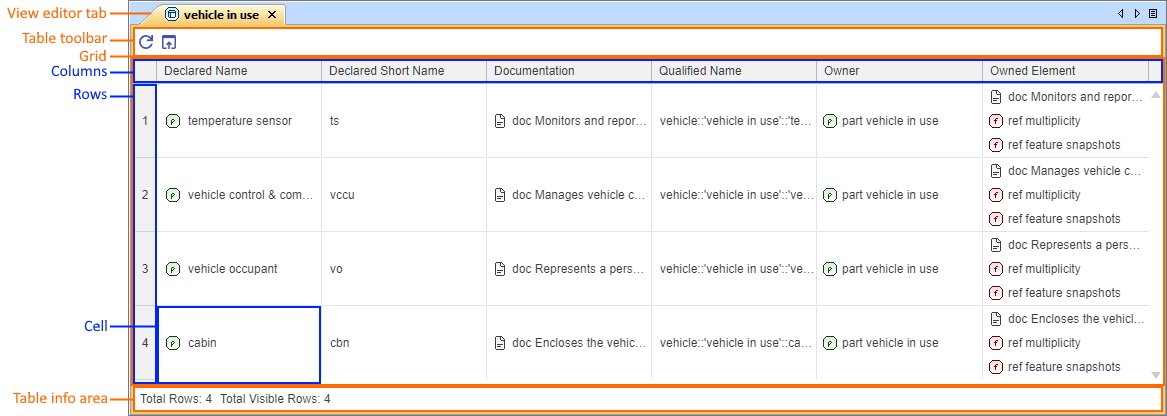
Tabular view areas presented in a standard predefined tabular 'Generic Table' view.
Tabular view toolbar buttons
The table below shows the buttons available in the tabular view toolbar.
| Button | Shortcut keys | Description |
|---|---|---|
| - | Click the button to update the displayed table content. |
| - | Click the button to open the table's textual notation in the Textual Editor. |


Filtering and/or sorting tabular view column cells

Tabular view loading
Tabular views load only the content that is immediately visible; additional rows and cell data are loaded as you scroll.
- If you filter and/or sort a partially loaded column cells, a notification icon
 appears in the column header. Scroll through the entire table to load all content; once fully loaded, retry to filter/sort.
NOTE: filtering and sorting do not persist and reset automatically once you reopen the tabular view.
Filtering tabular view column cells
To filter tabular view column cells
- In the tabular view, right-click the header of the column whose cells you want to filter and click Filter Column in the shortcut menu.
- Do one of the following:
- Expand the Filter by Values section. Do one of the following:
- In the Values column, select the check boxes for the values you want to display in the column.
- Type the value name in the input field to narrow the search, select the Apply filter on refined values check box, and select the check boxes for the values you want to display in the column.
- Expand the Filter by Conditions section.
- Select the condition from the dropdown menu and type the value you are looking for in the input field.
- Expand the Filter by Values section. Do one of the following:
- Click OK.
- (Optional) To reset the filter, right-click the column header with the applied filter. In the shortcut menu, do one of the following:
- Click Reset Column Filter.
- Click Filter Column, then Reset. Click OK.
Sorting tabular view cells
To sort tabular view cells
- In the tabular view, click the header of the column whose cells you want to sort. The Sorting icon is displayed in the header, indicating the current sorting order. Click the column header to change the sorting order.
Sorting order types
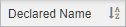 indicates that cells in the column are sorted alphabetically in ascending order. This is the default mode.
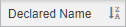 indicates that cells in the column are sorted alphabetically in descending order.