Displaying elements in tabular views
Display elements in diagrammatic representations of tabular views.

Tabular views display up to 50,000 rows. If building a table exceeds this limit, the tool displays a notification suggesting that you narrow the table scope or adjust the display mode settings and try again.
Displaying elements in tabular views
To display elements in tabular views
- Ensure the created view has:
- Tabular rendering.
- Expose relationship.
- (Optional) Filters.
- Open the view. The exposed and filtered elements are displayed in the tabular view.
- (Optional) To reflect any changes in the model, click the
 Refresh button in the view toolbar to update the view.
Managing table elements display mode
The table elements' display mode allows you to specify how the exposed elements should be displayed in the table. The default display mode for all tables is List. The display mode can be managed via the Textual Editor using dedicated attributes or the table toolbar's Options command. See the table below, indicating the display mode options available via the table toolbar's Options command and the corresponding attributes used in the textual notation.
| Display Mode (Options command) | Description |
|---|---|
| Complete Tree |
|
| Compact Tree |
|
| List | Displays the exposed elements as a plain list.
List is the default display mode for all tables. |
Ownership explanation
- Direct owner: the immediate owner of an element.
- Indirect owner: an owner higher in the hierarchy (not immediate).
- Common owner: the same element that owns multiple exposed elements.
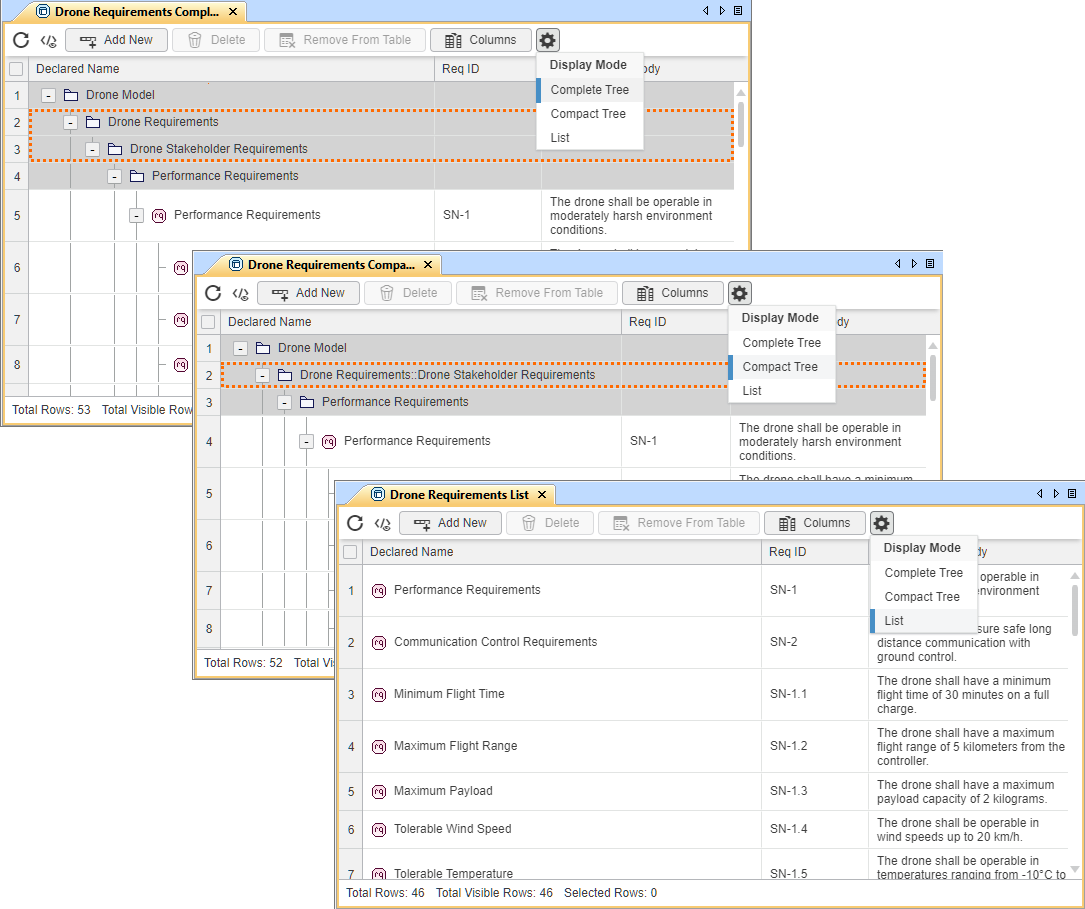
Managing table elements display mode via the Options command
To manage table elements' display mode via the Options command
- In the tabular view's toolbar, click the Options
 button, and in the dropdown menu, click the needed display mode option: Complete Tree, Compact Tree, List.
The table elements are displayed in the selected display mode.