Reviewing validation results
You can review validation results via:
- Validation Results panel for singular or multiple elements.
- Validation Results pop-up in Textual Editor for singular elements.
- Validation Results pop-up in views for singular elements.
- Validation Results marker bar for multiple elements (only in views).
Severity level
The table below explains the severity levels of the failed validation rules. This information is displayed in views, the Validation Results panel, and the Validation Results pop-up in views.
| Icon | Severity level | Severity level priority | Highlight color |
|---|---|---|---|
|
| 1 (i.e., the highest) | red |
| 2 | ||
|
| 3 | yellow |
|
| 4 | blue |
| 5 (i.e., the lowest) |


However, the icons and highlight colors are different in the Textual Editor; see the table below.
| Icon in Textual Editor | Explanation | Highlight color |
|---|---|---|
| Syntax error | red |
| Severity level: Fatal, Error | yellow |
| Severity level: Warning, Info, Debug | blue |


The severity level priority prioritizes more severe failures over lesser ones. This is reflected in the Validation Results pop-up in views and the Validation Results marker bar's marker eye, which display the icon or color of the failed validation rule with the highest severity level priority.
Validation Results panel
The Validation Results panel displays validation failures for:
- Singular element in a view, if opened via the Validation Results pop-up.
- Multiple elements in a view, if opened via the Open Validation Results for the View
 button.
 - Specific elements and their recursive contents in the model, if opened via the Validate command.
Validation Results panel areas
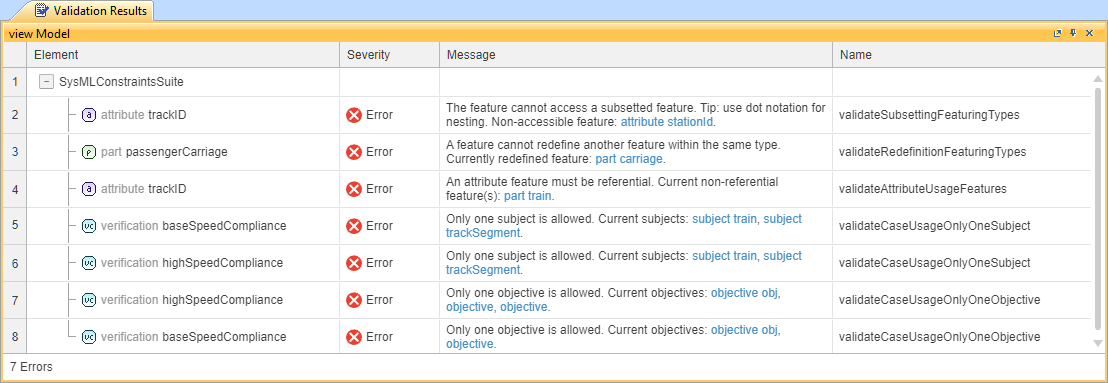
The Validation Results panel consists of the following areas:
- Validation Results panel title bar displays either the name of the singular element or the view for which the panel is opened.
- Validation results area displays the validation results columns:
- Element. The element failing a validation rule. This is the element whose symbol is highlighted in a view. The elements in the column are grouped based on the failed validation rule's suite.

Right-click an element in the Element column to access its shortcut menu commands:
- Specification to open the element in the Specification panel.
- Select in Containment tree to select the element in the Containment tree.
- Open in Textual Editor to open the element in the Textual Editor.
- Severity. The failed validation rule's severity level.
- Message. The failed validation rule's message explaining the failure.
- (Conditional) The message may list element(s) causing the validation failure of the highlighted element. The element is indicated as a hyperlink; click the link to select the element in the Containment tree. This information is displayed only if it is relevant to the specific validation rule.
- If the validation fails the highlighted element's owned element, the hyperlink is indicated before the validation message.
- (Conditional) The message may list element(s) causing the validation failure of the highlighted element. The element is indicated as a hyperlink; click the link to select the element in the Containment tree. This information is displayed only if it is relevant to the specific validation rule.
- Name. The name of the failed validation rule. In the Validation Results pop-up, this name is displayed in parentheses.
- Element. The element failing a validation rule. This is the element whose symbol is highlighted in a view. The elements in the column are grouped based on the failed validation rule's suite.
- Panel footer displays a summary of validation results, indicating the number of failed validation rules for each severity level.
Opening the Validation Results panel

If you modify the view or the element(s) for which the Validation Results panel was opened, you need to reopen the panel to update its results.
To open the Validation Results panel
- From a view:
- For a singular element in a view via the Open Validation Results for the View button:
- In the view's toolbar, click the Open Validation Results for the View button.
The Validation Results panel opens, displaying validation results for all failing elements in the view.
- In the view's toolbar, click the Open Validation Results for the View
- For multiple elements in a view via the Validation Results pop-up:
- In a view, click the highlighted element symbol. In its smart manipulator, click the Show Validation Results button. The Validation Results pop-up appears.
- Click the Open in Validation Results button at the bottom of the pop-up to open the results in the Validation Results panel.
The Validation Results panel opens, displaying validation results for the selected failing element.
- For a singular element in a view via the Open Validation Results for the View button:
- From a view or the Containment tree:
- For specific elements and their recursive contents in the model via the Validate command:
- Right-click an element in the Containment tree or an element symbol in a view and in the shortcut menu, click Validate.
The Validation Results panel opens, displaying validation results for any failing elements in the selected scope.
- Right-click an element in the Containment tree or an element symbol in a view and in the shortcut menu, click Validate.
- For specific elements and their recursive contents in the model via the Validate command:
Validation Results pop-up in Textual Editor
- To validate the textual notation in the Textual Editor, ensure the Run Validation environment option is enabled (default). The namespace for which you open the Textual Editor is validated automatically.
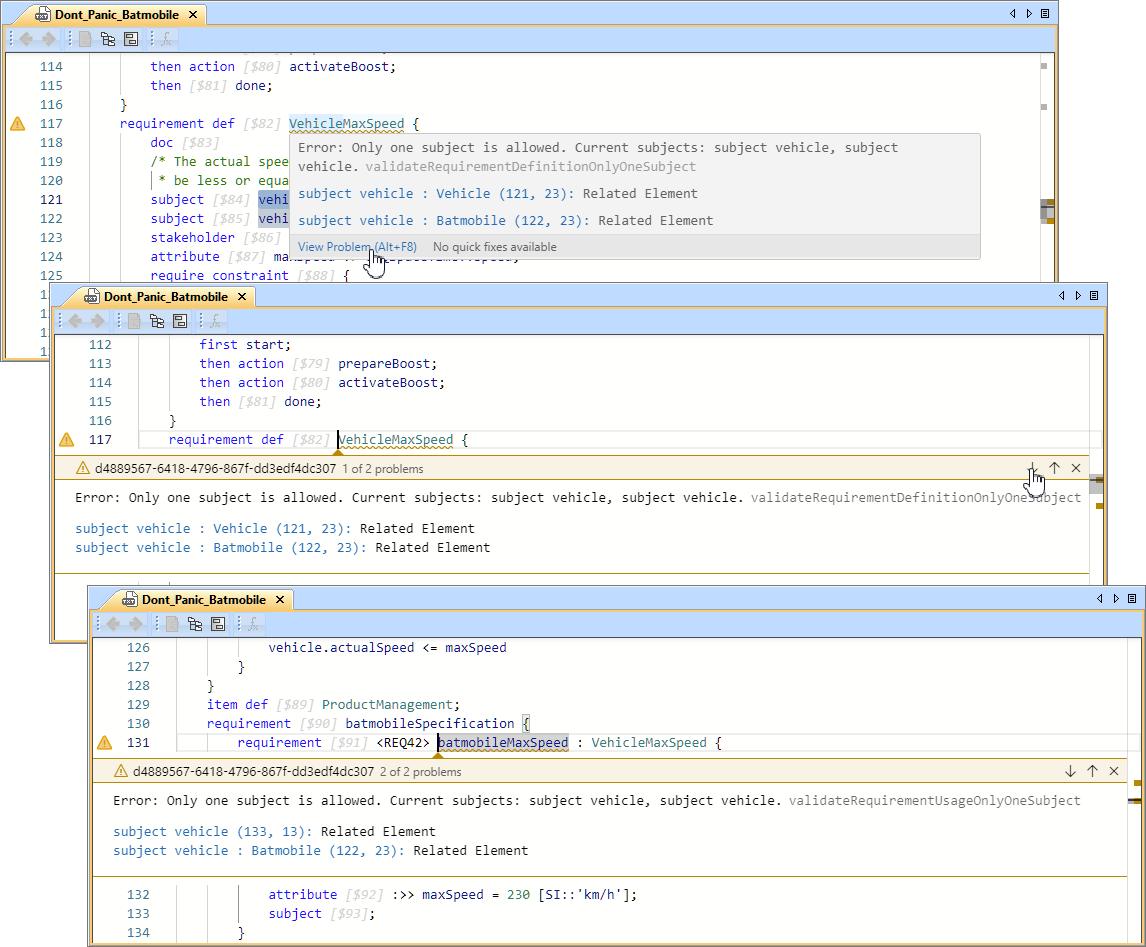
- The validation failure icons displayed in the left margin of the Textual Editor, as well as the color of the element underline and the scroll bar markers, correspond to the severity level of the failed validation rule.
You can locate the failing elements in the Textual Editor in two ways:
- The failing element's notation is underlined.
- The Textual Editor's scroll bar is supplemented with markers indicating the failing element's location in the editor.
Hovering over the failing element displays a pop-up with the validation results that contain:
- Message. The failed validation rule's message explaining the failure.
- The message is followed by the name of the failed validation rule, which is greyed out.
- (Conditional) The message may list element(s) causing the validation failure of the highlighted element. The element is indicated as a hyperlink; click the link to select the element in the Textual Editor. This information is displayed only if it is relevant to the specific validation rule.

- You can click the View Problem button in the Validation Results pop-up or press Alt+F8 to expand the pop-up, allowing you to navigate between all elements that fail the validation rule as a result (e.g., due to inheritance).
Validation Results pop-up in views
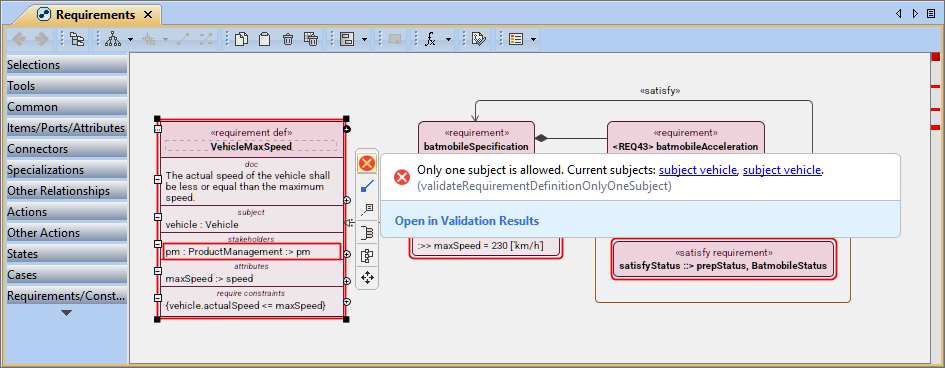
Failing elements are highlighted in views. The failing element's smart manipulator has the Show Validation Results button, which displays a pop-up with the element's validation results. The button's icon depends on the severity level of the failed validation rules. If the element fails multiple rules with different severity levels, the icon and the element highlighting in the view indicate the highest severity level of the failed validation rules.
The Validation Results pop-up displays:
- The failed validation rule's severity level icon.
- The failed validation rule's message explaining the failure.
- (Conditional) The message may list element(s) causing the validation failure of the highlighted element. The element is indicated as a hyperlink; click the link to select the element in the Containment tree. This information is displayed only if it is relevant to the specific validation rule.
- If the validation fails the highlighted element's owned element, the hyperlink is indicated before the validation message.
- (Conditional) The message may list element(s) causing the validation failure of the highlighted element. The element is indicated as a hyperlink; click the link to select the element in the Containment tree. This information is displayed only if it is relevant to the specific validation rule.
- The failed validation rule's name. The name is indicated in parentheses.
Reviewing validation results via the Validation Results pop-up
To review validation results via the Validation Results pop-up
- In a view, click the highlighted element symbol. In its smart manipulator, click the Show Validation Results button. The Validation Results pop-up appears.
- (Optional) In the Validation Results pop-up:
- In the Validation Results pop-up, click the hyperlinked element causing the validation failure to select it in the Containment tree.
- Click the Open in Validation Results button at the bottom of the pop-up to open the results in the Validation Results panel.
Validation Results marker bar
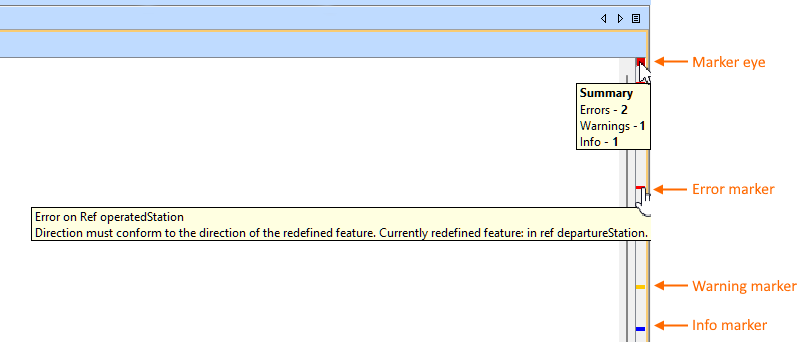
The validation results marker bar appears on the right side of the view pane if the view contains symbols of failing elements. The marker bar shrinks to fit the screen and displays the relative positions of the element symbols not visible on the screen; scroll through the pane to see them.
- Every marker is colored according to the severity level.
- Hovering over the marker displays the validation message; clicking it selects the appropriate symbol on the view pane.
- Hovering over the marker eye at the top of the marker bar displays the summary of the view's validation results.