Specifying styles for a rule
Once you have created a style sheet and the rules for it, and have specified the conditions for the rules, see the procedures on this page for specifying the styles for the rules.
There are two ways you can specify a style for a rule:
- Local specification allows you to specify the style of a specific rule only. See the procedure Specifying styles for a style sheet rule on this page.
- External specification allows you to create a custom style definition outside the rule itself, which can then be reused for the style specification of different rules. See the (2026x Refresh1) Creating reusable styles page.
Specifying styles for a style sheet rule
To specify styles for a style sheet rule via the Specification panel
- Create a style sheet, a rule for it, and the condition for the rule.
- Open the Specification panel for the style sheet's rule part usage element.
- In the Specification panel's style attributes compartment:
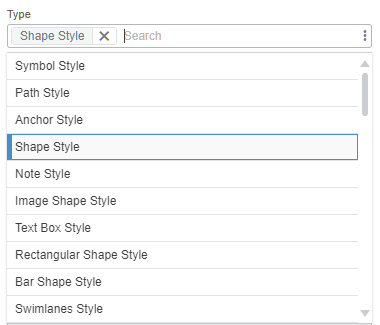
- Specify the style definition in the Type field:
- Click the input field to view the dropdown menu with available style definitions. Click the needed one(s) to specify it as the type.

The available style attributes (in the next step) depend on the style definitions you specify in the Type field. While you can specify multiple style definitions, keep in mind:
- Some definitions subclassify others; e.g., the Shape Style definition subclassifies Symbol Style, making it redundant to use both, as Shape Style inherits all attributes of the Symbol Style definition.
- Some definitions apply to all or most symbols (e.g., Shape Style, Symbol Style, Compartment Style, etc.), while others affect only specific ones. For example, Shape On Border Style can only affect elements that can be displayed as symbols on another symbol's border, such as part, attribute, ref, or item usages.
For a list of all style definitions, their attributes, value types, and symbols to which they apply, see the Symbol styles table.
- To remove the specified style definition:
- Click the
 button next to the style definition.
- To remove all specified style definitions, click the
 button in the Type input field, then click Clear All.
- Click the
- Click the input field to view the dropdown menu with available style definitions. Click the needed one(s) to specify it as the type.
- Specify the style attributes by clicking the element whose value you want to modify. A type-corresponding value editor is displayed:
- For integer-typed attributes, click the up or down arrow buttons in the second field to modify the feature value.
- For string-typed attributes, input the needed text.
- For real-typed attributes, input the needed number.
- For boolean or enumeration-typed attributes, select the needed value from the dropdown list.
- For color-typed attributes, either click the color picker rectangle and pick the color, or input a 6 or 8-digit HEX color code.
- If the modification is done for an inherited feature listed in the Inherited section of the compartment, the inherited feature is redefined with a new value and displayed in the Owned section.
- To delete the specified value, hover over it and click the Delete
 button.

- Click anywhere outside the edited field for changes to take effect.
- Specify the style definition in the Type field:
- Assess layout-sensitive changes.