Tabular views
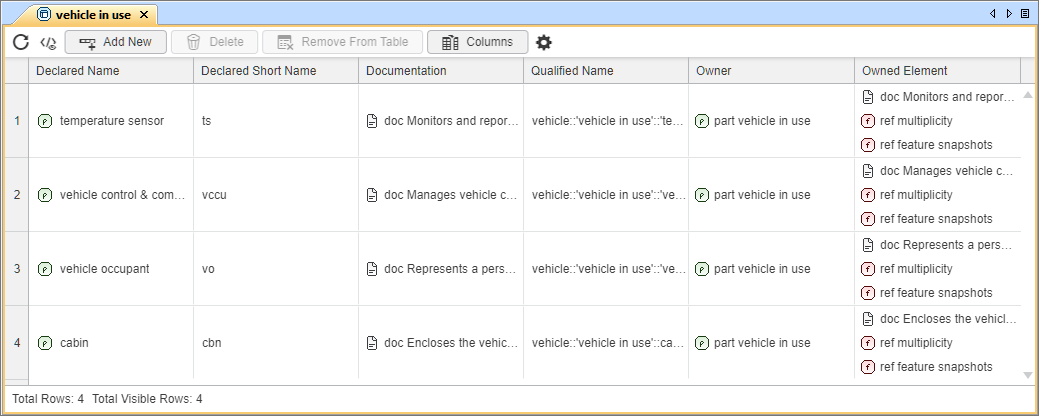
Tabular views (i.e., tables) allow you to represent and modify information about the model elements and/or relationships between them.
Tabular views
Specific tabular views you create in the modeling tool are tabular view usages defined by appropriate standard predefined tabular view definitions.

- For tabular view creation procedures, see the (2026x Refresh1) Creating tabular views page.
- Additionally, you can create custom tabular view definitions.
- You can use the (2026x Refresh1) Open in Table functionality to view element content in a table without creating a view element in the model.
There are multiple predefined tabular view definitions available in the modeling tool, each designed for specific purposes:
| View definitions | Description | Columns | Availability |
Standard predefined tabular view definitions | |||
Generic Table | Standard predefined multi-purpose generic tabular view for element representation and modeling. |
|
|
| Requirements Table | Standard predefined tabular view for requirements representation and modeling. It subclassifies the NonStandardLibraryElementFilter view definition, which includes multiple filters that exclude various standard library elements that are unlikely to be relevant for display in views. |
| |
Tabular view areas
Views are displayed in the View Editor tab.
- Table toolbar allows you to quickly access the options for managing data in the table.
- See the Tabular view toolbar buttons page.
- Grid displays data according to the exposed elements and their filters.
- See the (2026x Refresh1) Displaying elements in tabular views page.
The grid consists of: - Rows that appear along the side of the table, and are labeled using numbers starting with 1. Each table row represents an element.
- See the (2026x Refresh1) Managing tabular view rows page.
- Columns that appear along the top of the table, and are labeled according to the specified metadata feature or named by hand. Each table column represents specific element data.
- You can also modify tabular view columns.
- See the (2026x Refresh1) Modeling tabular view columns page.
- Column cells can be sorted and filtered.
- You can also modify tabular view columns.
- Cells are the intersections of every row and column, which represent element data values.
- See the (2026x Refresh1) Managing tabular view cells page.
- See the (2026x Refresh1) Displaying elements in tabular views page.
- Table info area displays table information.
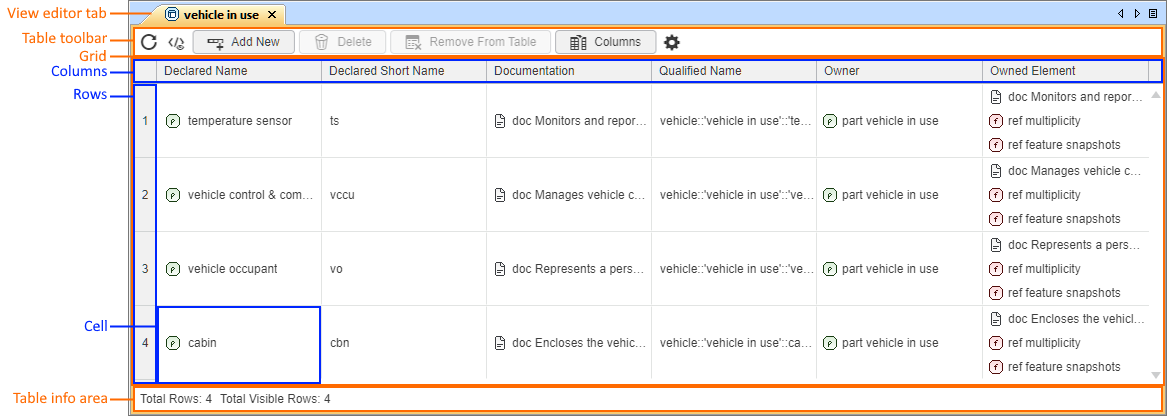
Tabular view areas presented in a standard predefined tabular 'Generic Table' view.
Tabular view toolbar buttons
The table below shows the buttons available in the tabular view toolbar.
| Button | Name | Description |
|---|---|---|
| Refresh | Click the button to update the displayed table content. |
| Open in Textual Editor | Click the button to open and highlight the table's textual notation in the Textual Editor.
In a temporary table, the Textual Editor highlights all the content displayed in the table. |
| Add New | Clicking the button displays a dropdown menu for selecting an element to be created in the model and displayed in the table. Learn more >> |
| Delete | Clicking the button deletes the selected row elements from the table and the model. Learn more >> |
| Remove From Table | Clicking the button removes the selected row elements from the table, but not from the model. This is achieved by filtering out the selected element from the table. Learn more >>
The button is unavailable in temporary tables. |
| Columns | Clicking the button displays a dropdown menu for hiding/displaying table columns. It also contains a command for opening the Configure Table Columns dialog. Learn more >>
The button is unavailable in temporary tables. |
| Options | Clicking the button displays a dropdown menu for managing the table's display mode (e.g., Complete Tree, Compact Tree, List). Learn more >> |