SyML v2 Simulation window
The SysML v2 Simulation window is the primary interface for controlling and monitoring simulation execution. It provides access to runtime values, execution logs, charts, and data export functionality.
The window appears automatically when the simulation starts and remains active until the simulation is terminated.
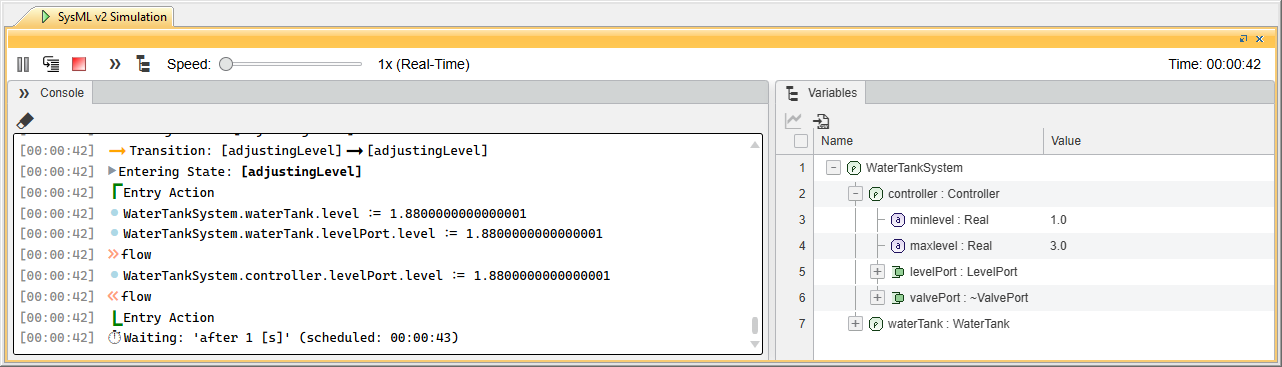
SysML v2 Simulation window
The SysML v2 Simulation window contains the following panels that allow you to observe and manage simulation execution:
- Console Panel - Displays simulation messages and logs, including informational messages, warnings, and errors generated during simulation execution.
- Variables Panel - Displays runtime values of model variables. Values are updated dynamically as the simulation progresses.
Console panel
The Console panel displays messages generated during simulation execution. These messages provide information about simulation events, warnings, and errors that occur during the simulation. You can use the Console panel to monitor simulation behavior and diagnose issues in the model.
The following table describes the types of messages displayed in the Console panel.
| Message Type | Description |
|---|---|
| Information | Provide general information about simulation progress and execution events. |
| Warnings | Indicate potential modeling issues that may affect the simulation behavior. |
| Errors | Indicate problems that prevent the simulation from continuing correctly. |

The Console panel is useful for diagnosing simulation issues. When troubleshooting simulation problems, the console should be the first place to check for diagnostic information.
Use the panel to monitor execution logs to:
- Track simulation events
- Detect modeling errors
- Identify the requirement verification results
- Understand simulation behavior
Variables panel
The Variables panel displays runtime values of model elements during simulation. It allows you to observe how values change during the simulation.
Variables are organized in a hierarchical tree structure that reflects the structure of the simulated model. Each node represents a model element such as a part, attribute, reference, or port.
You can expand or collapse nodes to explore nested elements and monitor specific runtime values.
The Variables panel can display the following runtime elements:
- Part usages
- Attribute usages
- Reference usages
- Port usages
- Satisfy requirements
You can also use the Variables panel to open a (2026x Refresh1) Time Series Chart and export simulation data to CSV.
Simulation controls
The SysML v2 Simulation window toolbar provides the following controls for managing the simulation execution.
| Control | Icon | Description |
|---|---|---|
| Start |
| Begins the simulation execution. |
| Pause |
| Temporarily suspends the simulation execution. |
| Resume |
| Continues the simulation execution after pausing. |
| Step |
| Executes a single simulation time step. |
| Terminate |
| Terminates the current simulation. |
| Speed Slider |
| Adjusts the simulation execution speed. |


