SysML v2 Simulation Plugin
Released on: June 26, 2026
The 2026x Refresh1 release introduces the Technology Preview version of the new SysML v2 Simulation Plugin, which enables execution of SysML v2 models for behavioral verification against system requirements and early validation of operational concepts. It supports state execution, structure execution, including dynamic interaction between system elements, and automated requirements verification.
Supported Structural and Connectivity Elements
The SysML v2 Simulation Plugin supports execution of key SysML v2 structural and connectivity elements, allowing engineers to seamlessly simulate dynamic interactions between complex system components.
Supported elements include:
- Parts: Elements defining system structure and decomposition.
- Ports: Interaction points between system components.
- Connections: Links between structural elements.
- Interfaces: Specification of interactions between components.
- Flows: Value transfers defined within interfaces.
- Attributes: Typed properties of system elements.
- Enumerations: Discrete value sets used in system modeling.
Interfaces support automatic value propagation across connected ports and features, while binding connections ensure primitive attribute values remain consistent between linked features throughout simulation execution.
These capabilities enable SysML v2 models to be executed as fully interconnected system architectures, allowing engineers to verify structural designs through simulated interactions between system elements.
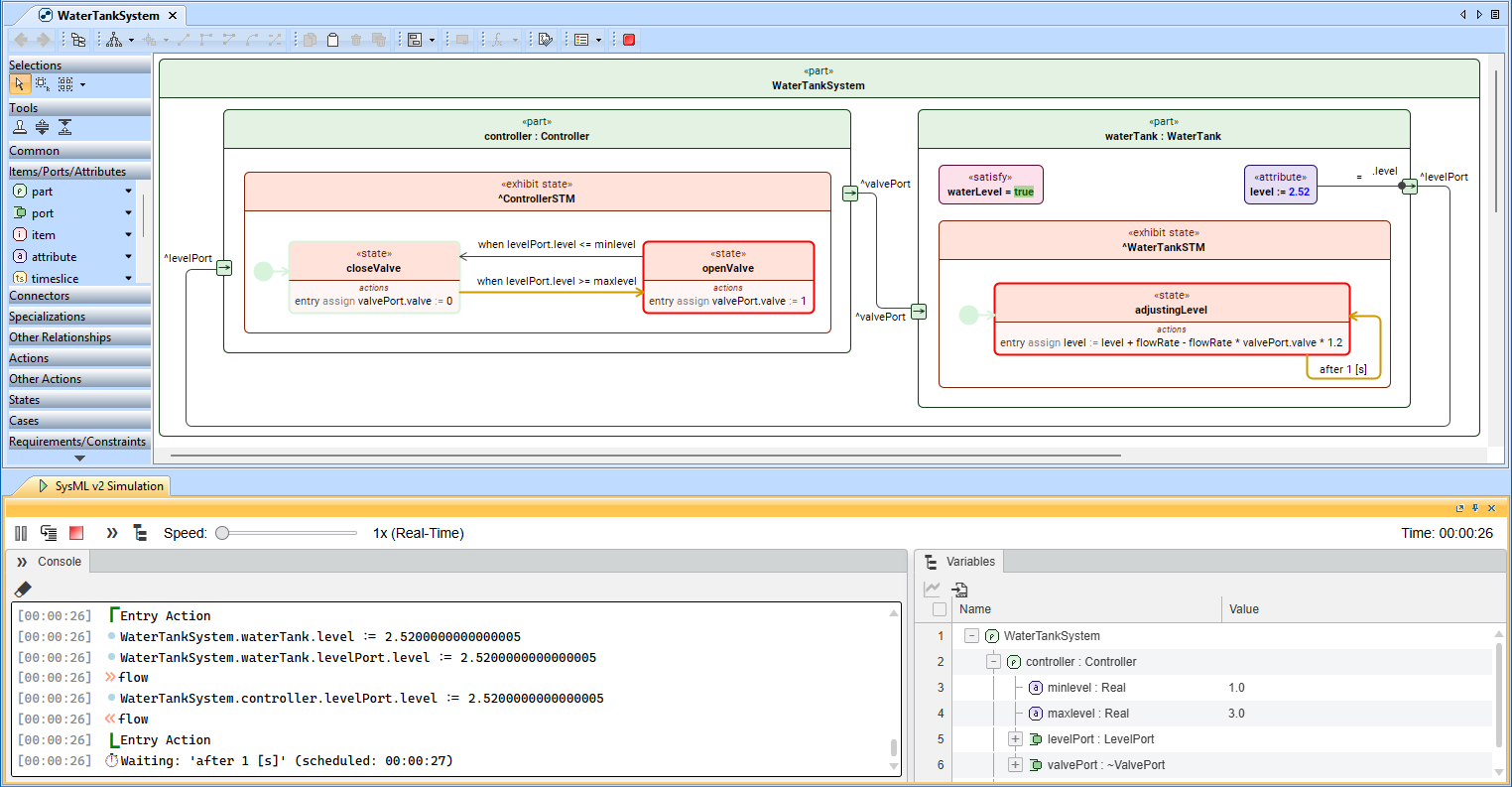
Water tank system simulation
State Simulation
The simulation engine supports SysML v2 state execution, allowing you to analyze and visualize behaviors defined by states. You can use the SysML v2 Simulation Plugin to run states directly from the model and observe how states, transitions, triggers, and actions behave dynamically. During execution, active states are highlighted and transitions are fired according to the precise semantic rules of the model, providing an immediate visual trace of system behavior.
State execution enables you to:
- Verify state transitions and guard logic
- Observe how payloads and events propagate between elements
- Identify issues in behavioral models before implementation
- Demonstrate system behavior interactively
- Validate system behavior early in the design process
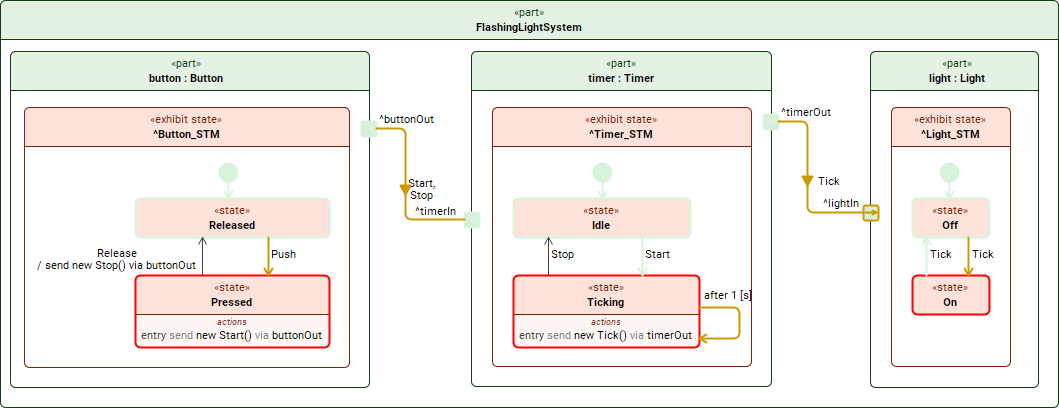
Example of annotating the state simulation in a model view.
Simulation Information in Model Views
During simulation, model views display runtime information associated with model elements. This information is dynamically updated during execution and reflects the current state of the simulated system, making it easier to understand how the system evolves over time.
Supported capabilities include:
- Simulation annotations in views
Model elements in views are annotated during execution to reflect simulation progress. Elements are marked as Active (currently executing), Visited (already executed), or Last Visited (most recently executed). - Displaying runtime values
Runtime values are displayed in blue and update continuously as execution progresses. These values replace default values and are displayed next to attributes, references, and satisfy requirements. - Automated requirement verification
Model simulation supports automated requirement verification. Unsatisfied requirements are highlighted in red, while satisfied requirements are highlighted in green. Tooltips display requirement details when hovering over elements associated with failing requirements.
These capabilities enable you to observe simulation results directly in model views, providing immediate feedback on system behavior and supporting early verification of both system behavior and requirements.
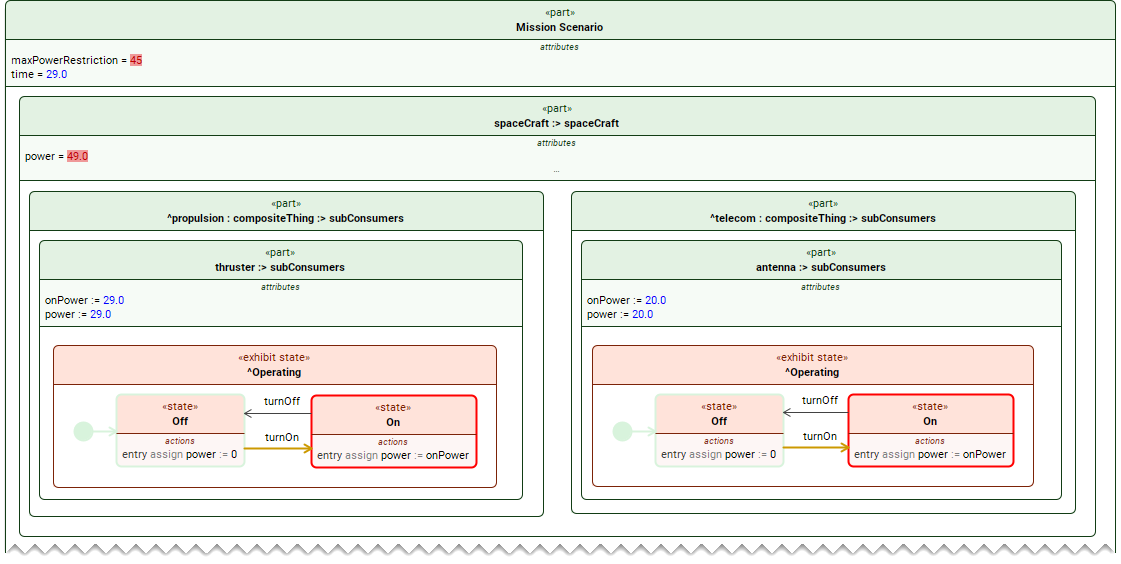
Displaying simulation information in a model view.
Manipulating Simulation Information
You can interact with the simulation data displayed in views to improve understanding and analysis of system behavior during execution. Runtime information can be modified without stopping the simulation, allowing you to observe how the system responds to changing conditions. During simulation, you can use model views to:
- Change runtime values
You can modify initial runtime values (marked with “:=”) directly in model views during simulation. Runtime values can be edited based on their type: numerical values can be entered directly, enumeration values can be selected from a list, and Boolean values can be toggled within the view. Changes are applied automatically and reflected in the simulation results in real time.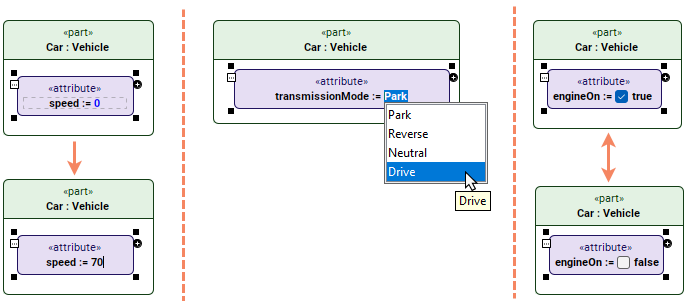
- Send payloads from transitions
If supported, payloads can be triggered directly from transition symbols in a view by clicking the Fire Transition icon. This allows transitions to be fired manually during simulation to observe the resulting system behavior.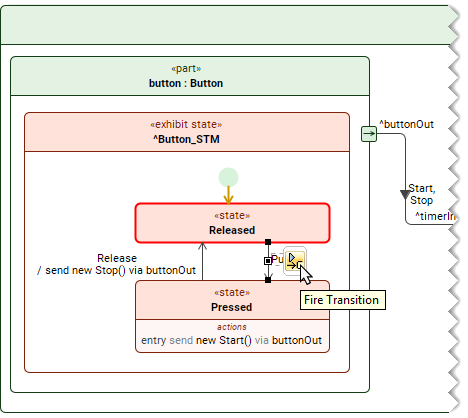
Time Series Chart
The Variables panel of the SysML v2 Simulation window provides the ability to visualize numerical variable values over time during simulation using a Time Series Chart. The chart displays time-series data for selected attributes and references and updates as the simulation progresses. In an open Time Series Chart, you can:
- Add new variables
Additional numerical variables can be added to an open chart during simulation, allowing combined analysis of multiple value trends in a single visualization. - Configure chart display options
Chart visualization can be adjusted to improve readability. Options include linear interpolation, showing or hiding data points, and displaying or hiding numeric values on the chart. - Export chart data
Time Series Chart data can be exported for external use in formats including PNG, JPEG, SVG, CSV, and XLS. Exported data can be used for analysis, reporting, or documentation purposes.
Time Series Charts provide deeper insight into system behavior and enable easier communication of simulation results through export to various formats.
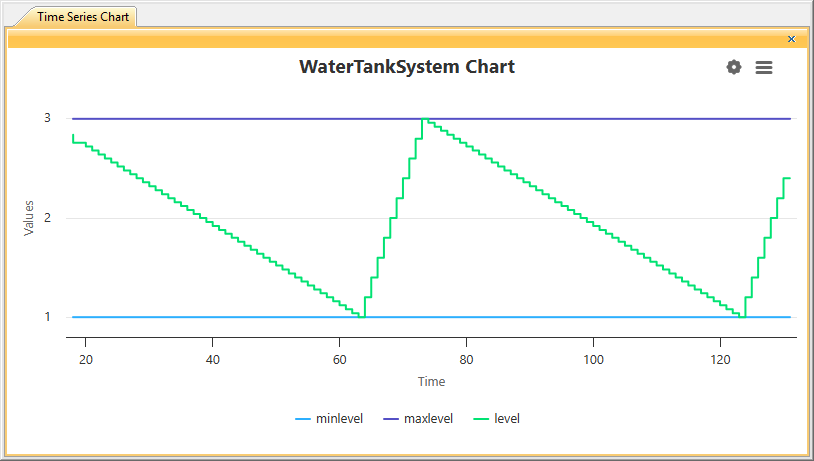
Time Series Chart for the water tank system simulation.
Exporting Simulation Data to CSV
You can export simulation data from the Variables panel of the SysML v2 Simulation window for further analysis outside the modeling tool environment. Exported data is saved in CSV format and can be opened in standard spreadsheet or data analysis tools.