

Use the Project Options dialog to do the following: Specify symbol property styles for shapes, paths, diagrams, and stereotypes within the project. For the instructions how to create, edit, clone, import /export, or remove symbol property styles, please refer to Style Engine. Change default element property values. For the instructions about setting the default element property values, please refer to Default Property Values. The Project Options dialog includes option groups, each designated for one of the above mentioned features and containing lists of corresponding options. Groups are represented using the tree structure. An option value can be simply changed by typing a new value, setting a value to true / false, or selecting a value from the list. Click the Reset to Defaults button to restore default option values. In order to change a desired project option, first of all you need to find it in the Project Options dialog. These options are grouped into categories to make it easier for you to locate them. Use the quick filter to find the desired option in the list. Filtering is performed in the all available options, not only in the selected option group. Make sure that the Show Description mode is turned on in the Project Options dialog.
To open the Project Options dialog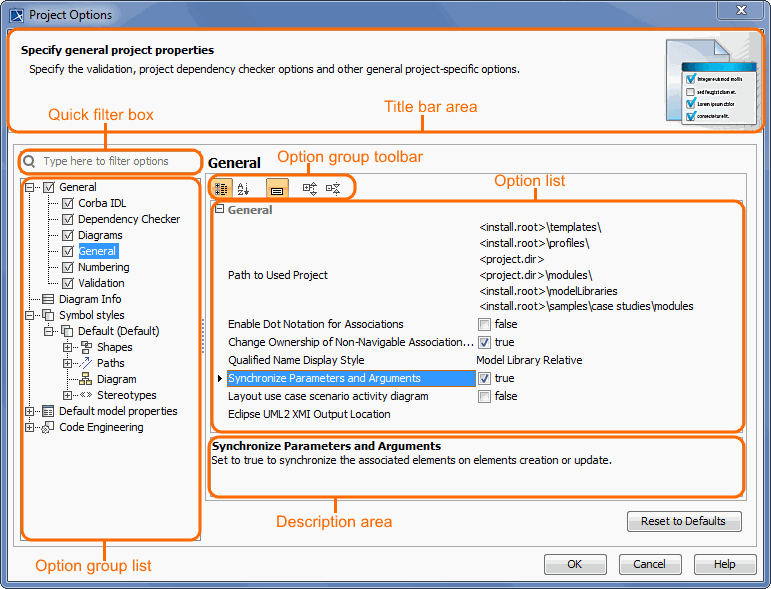
Changing options
To make sure you selected the right option, first read its description and see if the effect of changing the option value is what you expect to be done.
To turn the Show Description mode on or off, click the Show Description button on the
following toolbar in the Project Options dialog.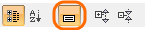
To read the option description