

Use the simple navigation operation type, if you need to specify a direct relation between the elements through model relationships, properties, or tags.
To specify a simple navigation as criteria
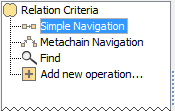
- Click Simple Navigation on the left side of the dialog.
- Select a relationship, property, or tag and specify other options described in the following table.
| Column | Mode | Description |
|---|---|---|
Relation | Standard/ | Name of a relationship, property, or tag. |
| Is Applied | Standard/ | Select the check box to define the appropriate |
| Direction | Standard/ | Select from the drop-down list the direction If the direction is defined for relationships, then If the direction is defined for properties or tags, then |
Include | Expert | Select the check box to include subtypes of the selected relationship. |
Filter by | Expert | Click the |
| Result Type | Expert | Click the |
| Color | Standard/ | Click the button and in the open dialog select the color |

Manipulations in Expert mode
The Expert mode allows for changing the Contextual element of a simple navigation criterion as well as creating a new operation, where the result of the simple navigation operation is used as an argument.
To change the Contextual element of a simple navigation criterion
- On the left side of the dialog, expand the simple navigation criterion and select the Context parameter.
- On the Context specification panel, click the Reset button.
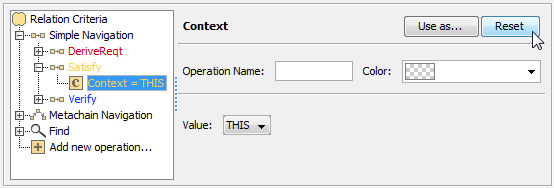
The value of the Context parameter becomes null. Select a new context from the list of operations and element types.
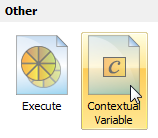
To restore the original context, expand the Other group and click Contextual Variable.
To use the expression of a simple navigation operation as a parameter of another operation
- On the left side of the dialog, click Simple Navigation.
On the criteria specification panel, click the Use as button and select the appropriate command.
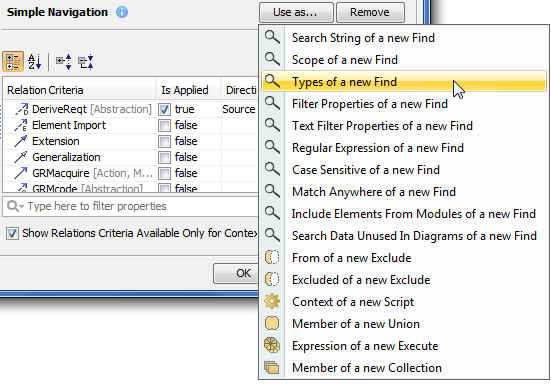
- Specify other parameters of the new operation.