

To create a link
- Create an Object diagram.
- In the diagram pane, create two Instance shapes by dragging and dropping the element onto the diagram pane. Select any Classifier you would like.
- Draw a Link between the two Instance shapes.
The Select Association dialog opens.
Select Association dialog
The Select Association dialog displays associations that are created between the classifiers of the Link.
- Select the appropriate association and click OK.
- The Create Slots dialog opens. Select the appropriate slots and click OK.
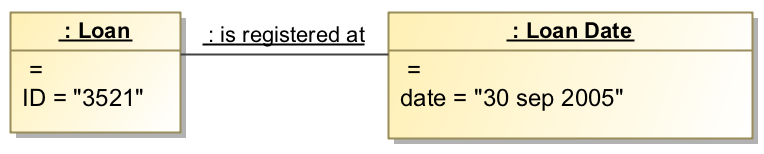
Example of a link between two Instance shapes.
To create slots on a link
- In the Object diagram's diagram pane, create two Instance shapes by dragging and dropping the element onto the diagram pane. Select any Classifier you would like.
- Draw a Link between the two Instance shapes. The Select Associations dialog opens.
- In the Select Association dialog, select the appropriate associations then click OK.
- The Create Slots dialog opens.
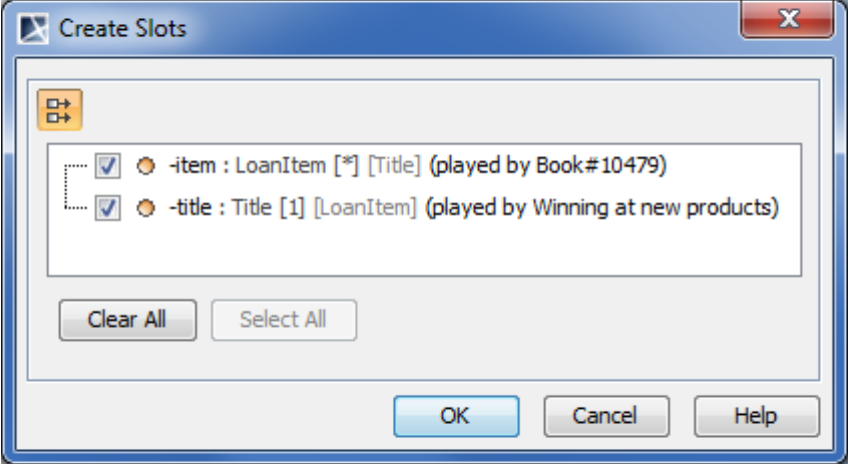
Select the slots.
Create Slots dialog
The Create Slots dialog displays the roles of the association that is created between the classifiers of the Link.
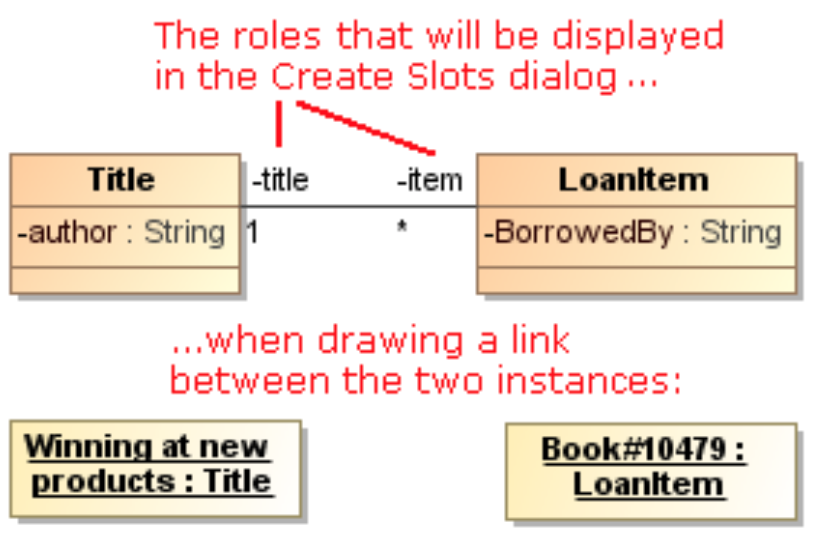
- Click OK.
Automatic Creation of Slots on Links
- The slots on the Link are created automatically only if the Automatically Create Slots of Link option is set to true. For more information, read the instructions on how to turn on automatic creation of slots in Links further on in this page.
- The slots on a Link are created automatically only when the Link references the association. For more information read on how to create a Link at the top of this page.
To turn on automatic creation of slots in links
- In the window, click Options > Environment. The Environment Options dialog opens.
- In the General options group, under the Editing subgroup, set the Automatically Create Slots in Link option value to true.
To display slot values on a link
- Right-click on a Link. Select Symbol Properties. The Symbol Properties dialog opens.
- Deselect the Suppress Slots check box, so it says false.
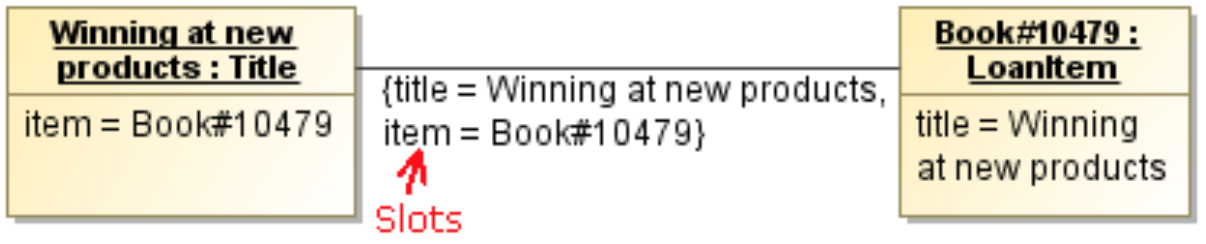
- The result should look something like the figure below.
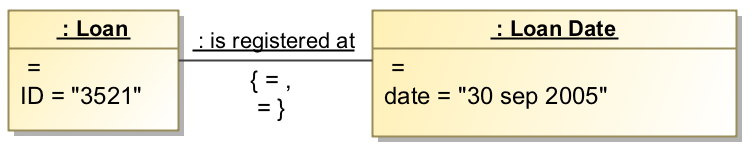
Suppress Slots Default Value
- The default value of the Suppress Slots option is true, that is, slots are not displayed on a Link.
- Slots on a Link are displayed in the following form: {< slot1 name > = < slot values >, < slot2 name > = <slot values> , ... }
Edit Compartment
You can select to display or hide an individual slot in the Compartment Edit dialog.
To open the Compartment Edit dialog
- Select the link on a diagram pane and on its shortcut menu, click Edit Compartment > Slots.
To change a link end
- On a diagram pane, select an end of a Link and move it to the other target.
- The Link is connected to the other target.
Related Pages
Related References