
...
- Right-click the magic_collaboration_studio_<version_number>_installer_win64.exe file and select Run as administrator.
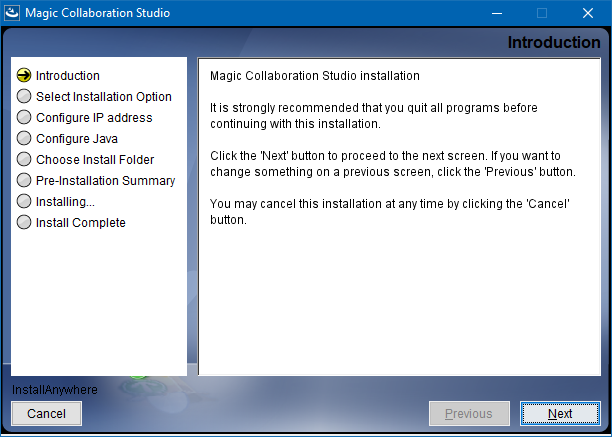
- When the installation wizard opens, click Next.
- Do one of the following:
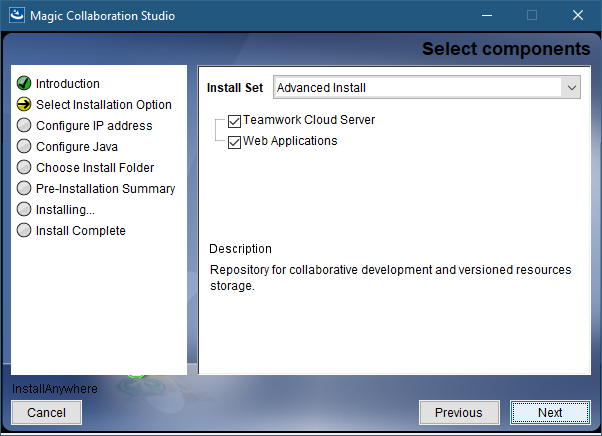
- Select the Quick install installation option, click Next, and go to step 5.
- Select the Advanced Install installation option and click Next.
- Select the components you want to install and click Next.
- Configure the IP address:
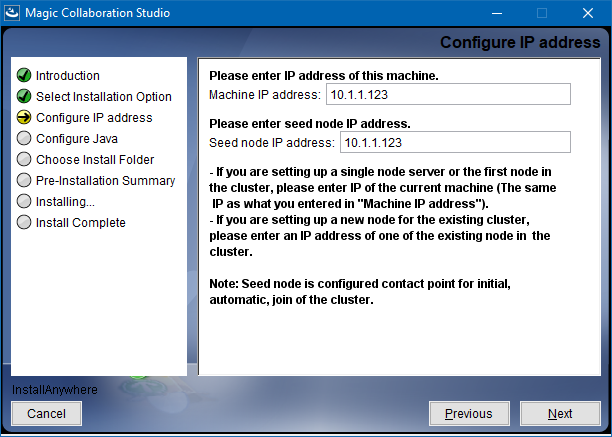
- Enter the name or IP of the machine on which you want to install Magic Collaboration Studio.
- Enter the node IP. If your machine is a single node server or the first node in a cluster, enter the IP of your machine.
- Click Next.
Select the Java VM installed on your machine for running Magic Collaboration Studio and click Next.

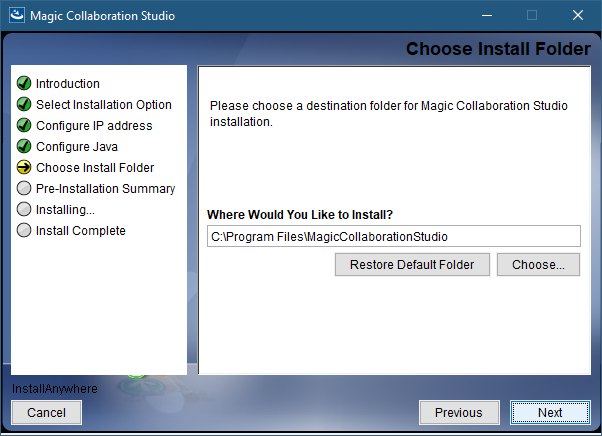
Select a location on your machine where you want to install Magic Collaboration Studio and click Next.
Check the pre-installation summary and click Install.
Upon successful installation, click Done to close the installation window.
Open the Task Manager and start the following services:
- AuthServer service
- TeamworkCloud service
- WebApp service
- Zookeeper service
Check if the system is working. You should be able to access Magic Collaboration Studio via https://FQDN:8443/webapp/.
Post-Install Configuration
| Note |
|---|
The installer has now created the preliminary configuration. If your system is still not operational and you cannot use Magic Collaboration Studio, check the configuration parameters as described below. |
...