After creating a role, you can modify it by changing its name, description, and permissions as described in the following sections. | Note |
|---|
| - You can edit only custom (user-created) roles.
- You must have the Security Manager role to edit custom roles.
|
Editing role detailsIn the Roles application, you can edit the name and description of a custom role as described below.
To edit role details
- Do one of the following actions:
- In the content pane of the Roles application, select a role and when the Role pane opens, click the Edit button in the role details card.
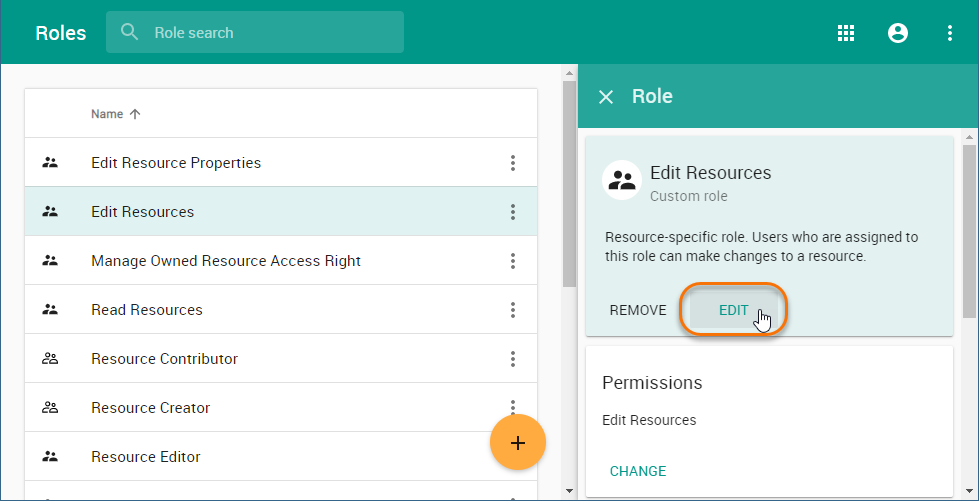
- In the content pane of the Roles application, click
 Image Removed Image Removed Image Added next to a role name and select Edit role details. Image Added next to a role name and select Edit role details.
- When the Edit role details pane opens, change role name and or description and click Image Modified.
Changing role permissions
You can use the Roles application to add or remove permissions of a custom role. Note that a role must have at least one permission.
To add or remove permissions of a role
- Do one of the following actions:
- In the content pane of the Roles application, select a role and when the Role pane opens, click the Change button in the role details card.
- In the content pane of the Roles application, click Image RemovedImage Added next to a role name and select Change permissions.
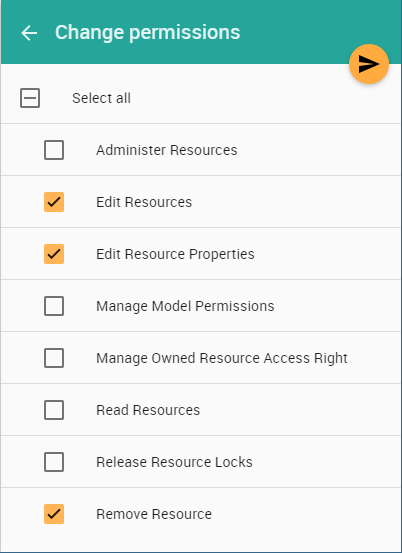
- When the Change permissions pane opens, select the permissions you want to assign to the role (as shown below) and/or clear the check-boxes next to the permissions you want to remove.
- Click Click to to save the changes.
| 