You can display the Time Series and Timeline charts along with the standard UI modeling diagram on the web user interface. You are required to generate the respective HTML files before generating the charts. To generate learn more about generating the HTML , do one of the following Right-click Time Series or Timeline chart element and in the shortcut menu, click Generate HTML.
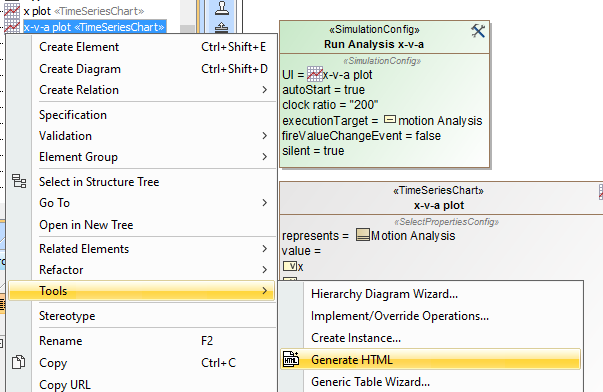 Image Removed Image Removed
In the diagram toolbar, click Generate HTML.
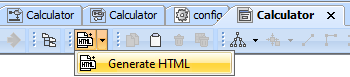 Image Removed Image Removed
Once you click Generate HTML,the '<HTML file(s) name> is/are generated to <project name> folder'message will appear on theSimulation Console panefiles, refer to Auto-generating HTML files. | Note |
|---|
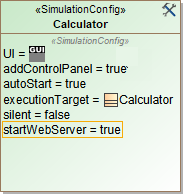
If the Start Web Server property is set to true, HTML chart files are automatically generated.
 |
To plot on the web-based UI
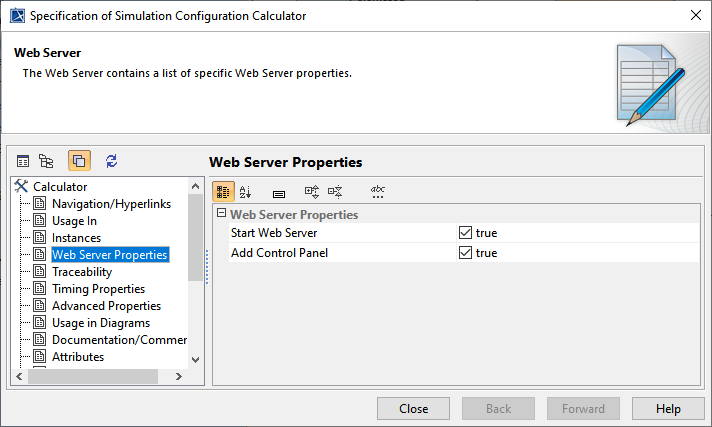
- Open the Specification window of a Simulation Configuration.
- Set the Start Web Server property to true to start the Web Server and close the dialog.
- Run the simulation.
- Click the URL that appears in theConsole pane when the model simulation is running. Select Web Browser to open the web UI.
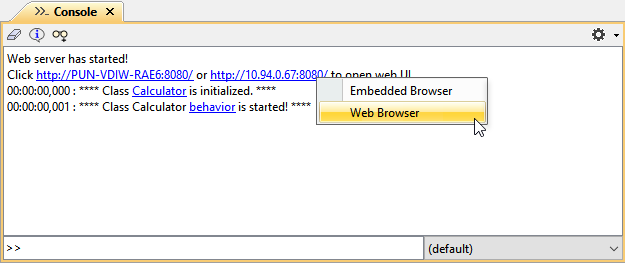
The charts in the web and embedded browsers are the same. If the values in the simulation UI change, the corresponding chart is updated accordingly. The layout of the charts is auto-aligned with the chart properties of the runtime UI.
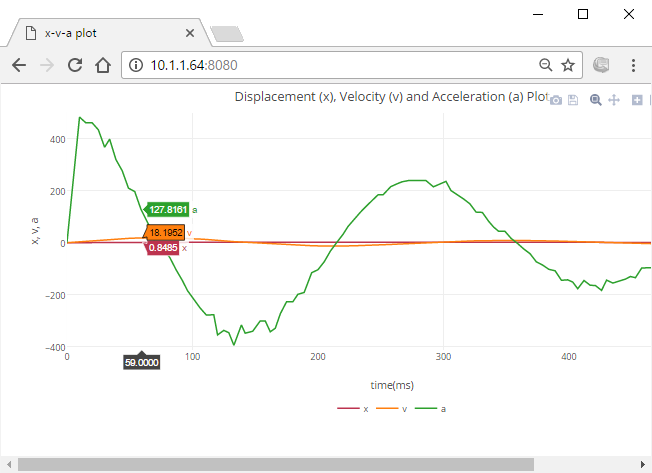
The Time series on the Web UI representing the values that correspond to those of the charts in the simulation UI.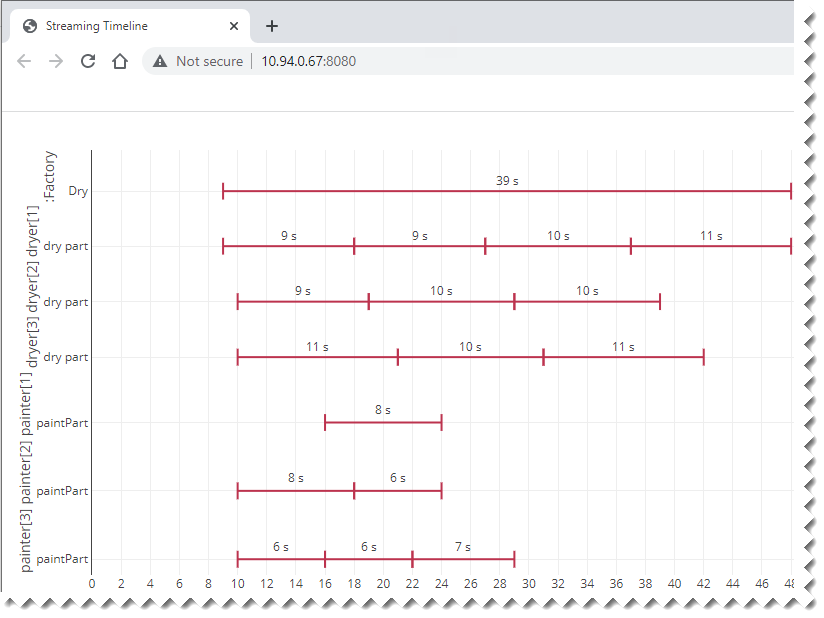
The Timeline on the Web UI representing the values that correspond to those of the charts in the simulation UI. | 