You can view a Cameo Collaborator for Teamwork Cloud document in two several different view modes: - Model view - In : In this view mode, the content pane of a document portal shows only the content of the item selected in the navigation pane. The In addition, the Model view is shows model information and is the default mode of a Cameo Collaborator document.
- Document view - : This mode hides model details and allows you to browse a Cameo Collaborator document continuously. You You can scroll through the entire content of the selected model view, or select an item in the navigation pane to load the related content.
- Wiki view: Similar to the Document view, The Wiki view hides model details while displaying the content of just one section, like the Model view.
To change the view mode of a Cameo Collaborator for Teamwork Cloud document
- Click
 Image Removed in In the app bar of a Cameo Collaborator document and document, click Image Removed in In the app bar of a Cameo Collaborator document and document, click  Image Added and select the model view whose view mode you want to change. Image Added and select the model view whose view mode you want to change. - Click Image Removed on On the right side of the app bar and , click
 Image Added. Image Added. - In the open menu, click Active view and select the desired view mode (Model view or Document view)..
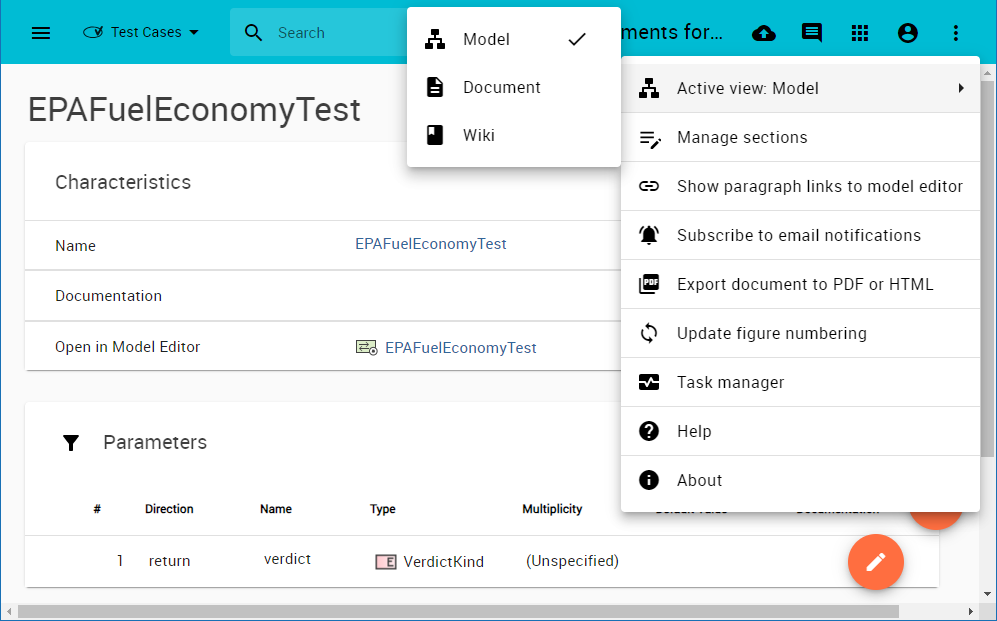 Image Added Image Added
After changing the document view mode, the selected model view in the document is reloaded and displayed in a new mode.
| 