In My account, you can manage your account data - add or remove your name, phone number, email address, and department, you can also change your password. Opening My accountTo open My account
- In the upper right corner click
 button and select My account application. button and select My account application.
| Note |
|---|
The user without assigned roles or resources will be automatically redirected to the My account page after signing in. |
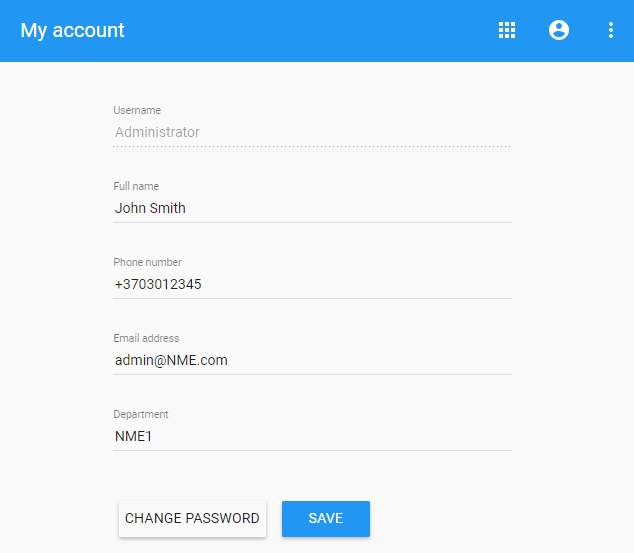
My account view.Changing passwordTo change the password
- Open My account application.
- Choose Change Password.
- Enter your old and new passwords, then select Save.
| Tip |
|---|
You can also change your password in the User details pane by clicking and selecting Change password option. Your new password cannot be the same as your previous password. |
To change the Administrator’s password
- Change the password using My account.
- Update the properties file at <Teamwork Cloud install folder>/WebAppPlatform/shared/conf/webappplatform.properties with the new Teamwork Cloud Admin password.
- Restart the Web App serviceCATIA No Magic WebApp Service.
| 