
...
This chapter describes two ways to run server-side simulation with a self-signed certificate.
| Note | ||
|---|---|---|
| ||
|
To run server-side simulation with SSL
...
- Do one of the following:
Use the following request to connect to Web Application Platform and provide the path to the certificate file:
Note In the request, make sure to provide the IP or hostname for which the certificate was generated.
Code Block client = SimulationWebClient('<WebApp_server_IP_or_hostname>', '<user_name>', '<password>', verifySSL='<path_to_certificate_file>')- Add the self-signed certificate to the Python trusted certificates list by completing the following steps:
In Jupyter Notebook, execute the following commands to find the path, where the cacert.pem file of trusted certificates is located:
Code Block import certifi print(certifi.where())- Open the certificate file with a text editor and copy all information inside the file.
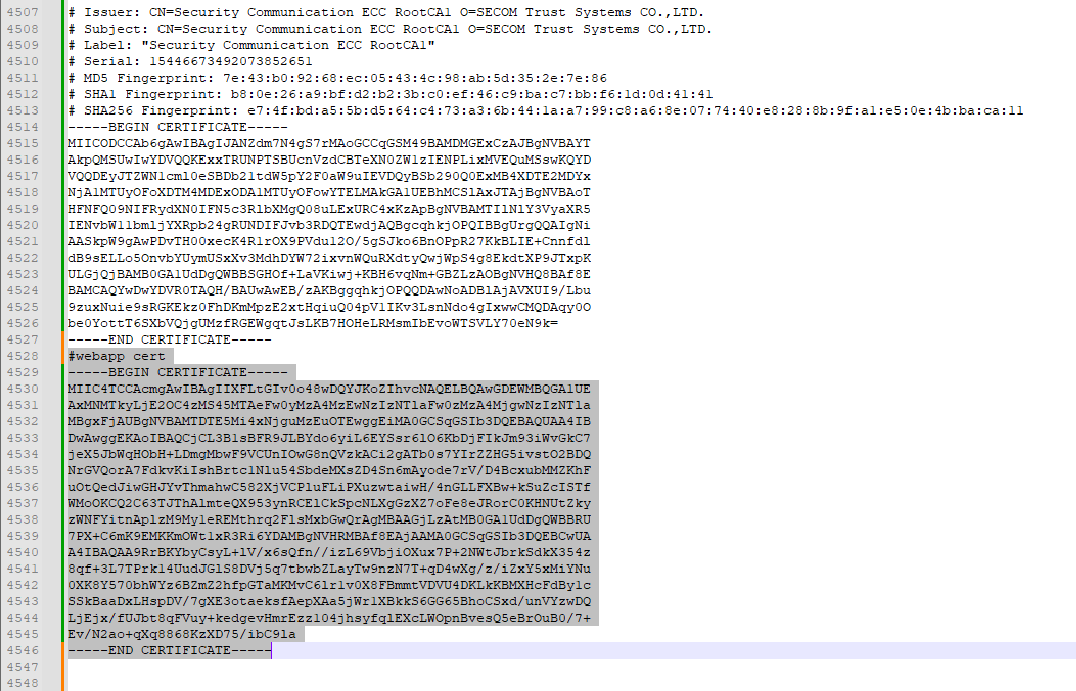
- Open the cacert.pem file with a text editor and paste the copied information at the end of the file, as shown below.
Use the following request to connect to Web Application Platform:
Note In the request, make sure to provide the IP or hostname for which the certificate was generated.
Code Block client = SimulationWebClient('WebApp_server_IP_or_hostname>', '<user_name>', '<password>', verifySSL=True)