
Page History
On this page
| Table of Contents | ||||
|---|---|---|---|---|
|
This section explains how to specify units for a Value Property, how to display or hide units, and unit symbols in various places.Excerpt Include SYSMLP2024xR1:UnitSYSMLP2024xR1: Unit nopanel true
Specifying Unit for a Value Property
When a Block has a Value Property defined, it requires a numeric value and must be typed by the Value Type, either with or without (unitless) a specified Unit.
To specify the Unit for a Value Property
- Select the Value Property in the Block compartments.
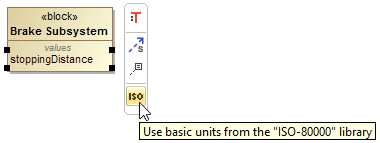
If the ISO-80000 library is not uploaded in your project, click the ISO button on the smart manipulator toolbar.
Warning - If you work with projects older than version 18.0, which use the QUDV library and SysML 1.3 library, the ISO-80000 library will not be compatible.
- If you work with Teamwork projects, the ISO-80000 library is uploaded by default.
- Open the Select Type menu in one of the following way:
- Click
 .
. - Press Ctrl+T.
- From the shortcut menu, select Type.
- Click
Select the Value Type by typing the quantity name and unit name in the following syntax: quantity name[unit name].
Warning title Unit libraries - If you cannot find a suitable Unit in the standard libraries, you can create custom Units. To learn more about creating units, refer to the Customizing Units page.
- You can manage the scope of provided units with the Package Import feature.The unit is specified for a Value Property. As an example, see the figure below.
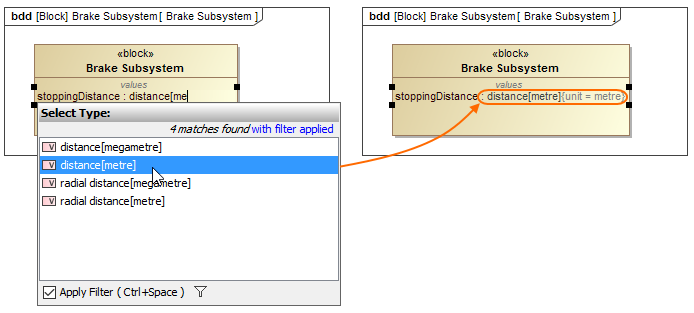
The stoppingDistance Value Property typed by distance[metre] Value Type.
Displaying/hiding Units
After the unit is specified you can:
- Display/hide units for Value Property.
- Display/hide unit symbols for Value Property.
- Display/hide unit symbols for values.
| Anchor | ||||
|---|---|---|---|---|
|
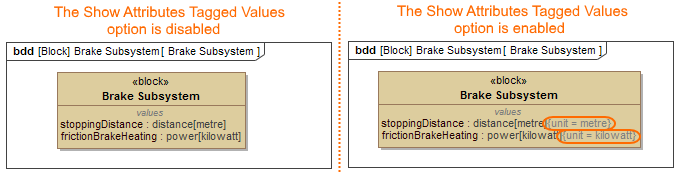
The full name of the unit (e.g. metre, kilogram) is shown by default next to the Value Property on the Block compartments.
To hide/display the full name of a unit for a Value Property
- Select the Block shape.
- From its shortcut menu, select Symbol Properties.
- Select the All options display mode.
- Find the Show Attributes Tagged Values option.
- Set its value to true to show the unit (default), or false to hide it.
The full name of the unit is shown/hidden next to the values in brackets in the compartments.
| Anchor | ||||
|---|---|---|---|---|
|
You can show the unit symbol in brackets (e.g. (m), (kg)) next to the Value Property on the Block compartments. If the Value Property has a value defined, the unit symbol in brackets is hidden (see the figure below). How to show unit symbols next to values >>
To display/hide a unit symbol next to a Value Property
- Select the Block shape.
- From its shortcut menu, select Symbol Properties.
- Find the Show Unit on Value Property option.
- Set its value to true to show the unit symbol, or false (default) to hide it.
The unit symbol is shown/hidden next to the Value Property.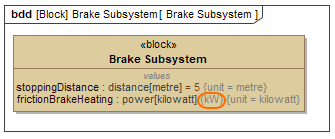
| Anchor | ||||
|---|---|---|---|---|
|
You can hide or display a unit's symbol (e.g. m, kg):
- Next to values in the whole project.
- Next to slots on the Instance Specification shape.
- In cells and column headers of the Instance Table.
Displaying/hiding unit symbols next to valuesAnchor on block on block
You can display or hide the unit symbols (e.g. m, kg) of values in the entire project when the Unit is already defined for the Value Property and it has a value specified. For projects older than version 18.5, you must enable the Show Units option in the Project Options dialog if you want to see unit symbols. As of version 18.5, this option is enabled by default for any new projects.
To display/hide unit symbols next to valuesAnchor show_units show_units
- Select Options > Project.
- In the Project Options dialog, expand the General option group and select SysML.
Set the Show Units option value to true to show unit symbols, or false to hide.
The unit symbols are shown next to the values in the compartments.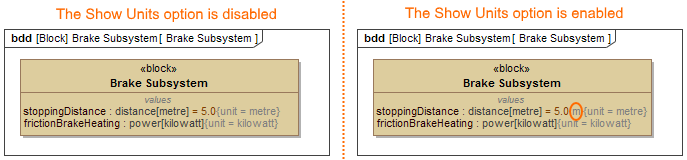
Displaying/hiding unit symbols next to slotsAnchor slot slot
You can display a unit symbol for a slot on the Instance Specification shape by specifying it in the following ways:
- Using the Specify Type button from the smart manipulator toolbar.
- Typing the appropriate unit symbol directly next to slot value.
- From the right-click menu.
| Warning | ||
|---|---|---|
| ||
The following procedures work only if the Show Units option is enabled. How to enable the Show Units option > |
To specify or change the unit symbol of a slot using the Specify Type buttonAnchor type type
- Do one of the following:
- Select the value in the compartment, and click the Specify Type button.
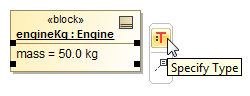
- Right-click the value in the compartment, and select Type.
- Select the value in the compartment, and press Ctrl+T.
- Select the value in the compartment, and click the Specify Type button.
Specify the new unit, or select an existing unit from the Select Type menu list.
Info title Information The list of units in the Select Type menu consists of those units that are defined in the Block property type, or in its subtypes.
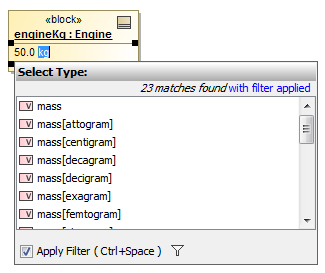
To specify or change unit by typing it manuallyAnchor manually manually
- Select the slot on the Instance Specification shape.
- Click it to edit.
- Type the required unit symbol next to the slot value.
- Press Enter.
To specify or change the unit using the right-click menuAnchor right-click right-click
- Select the slot in the Instance Specification compartment, the row in the Instance table, or the Slot in the Containment tree.
Right-click it, select the Unit button, and choose the required unit from the list.
Info title Information The list of units under the Unit button consists of those units that are defined either in the Block property type or in its subtypes.
Displaying unit symbols in the Instance tableAnchor cells_columns cells_columns
You can display units in the Instance table in the following ways:
To show unit symbols in the cells of an Instance TableAnchor unit_in_cell unit_in_cell
Click the Options button.
Select the Show Units on Values option.
The unit symbols are displayed next to the values in the cells.
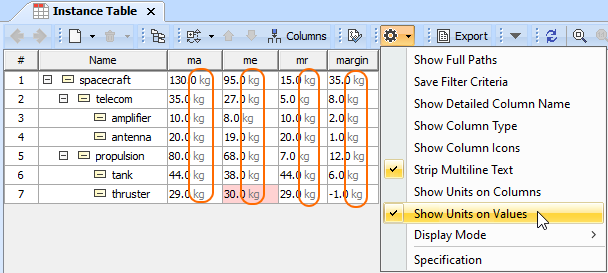
| Warning | ||
|---|---|---|
| ||
| The Show Units on Values option does not allow you to specify units directly in the row of the Instance Table. If you want to edit them, enable the Show Unit option in the Project Options dialog. How to enable Show Units option > |
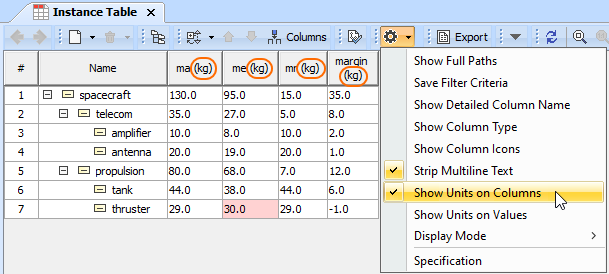
To show the unit symbol in the column header of the Instance TableAnchor unit_in_column unit_in_column
Click the Options button.
Select the Show Units on Columns option.
The unit symbols are displayed on the column header.
Related pages
Children Display
Overview
Content Tools