Versions Compared

Key

  • This line was added.
  • This line was removed.
  • Formatting was changed.


Excerpt

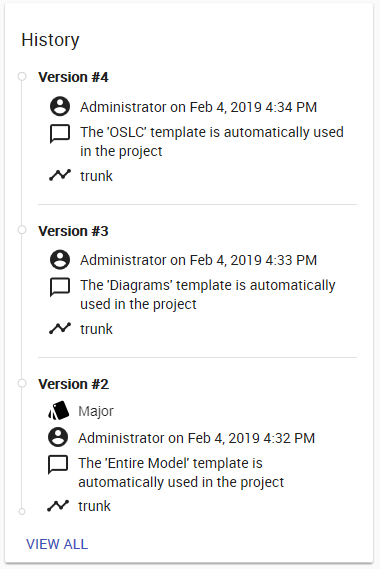
History  allows allows you to track changes made to the project. You can expand History and see all of the particular resource's versions, who committed them, and when. A commit will also include a description of the changes that tells you what has been changed in the resource. 

Image Removed

Resource history card.

The History card displays basic information, such as versions, contributors, and branches of each modification, while the visual representation of history provides a full-screen comprehensive view of the project's evolution over time.

Viewing resource history

To view resource history


  1. Navigate to the Resources application. 
  2. Then do one of the following:
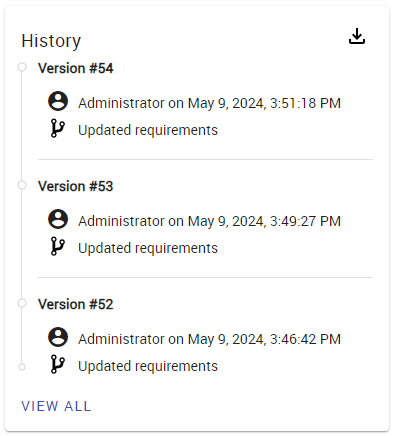
    1. Click a resource name to open the Resource pane and find the History card:

      Image Added

      Click View All at the bottom of the History card to view a full-screen representation of resource history.
    You can expand the History section to see the resource information, including version, branch, commit, comment, and author. 


    1. OR
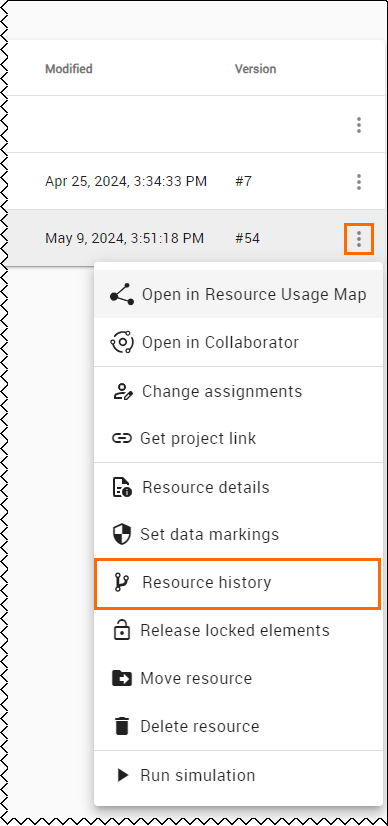
    2. Select Image Added next to a resource and click Resource history to open the full-screen history view:

      Image Added

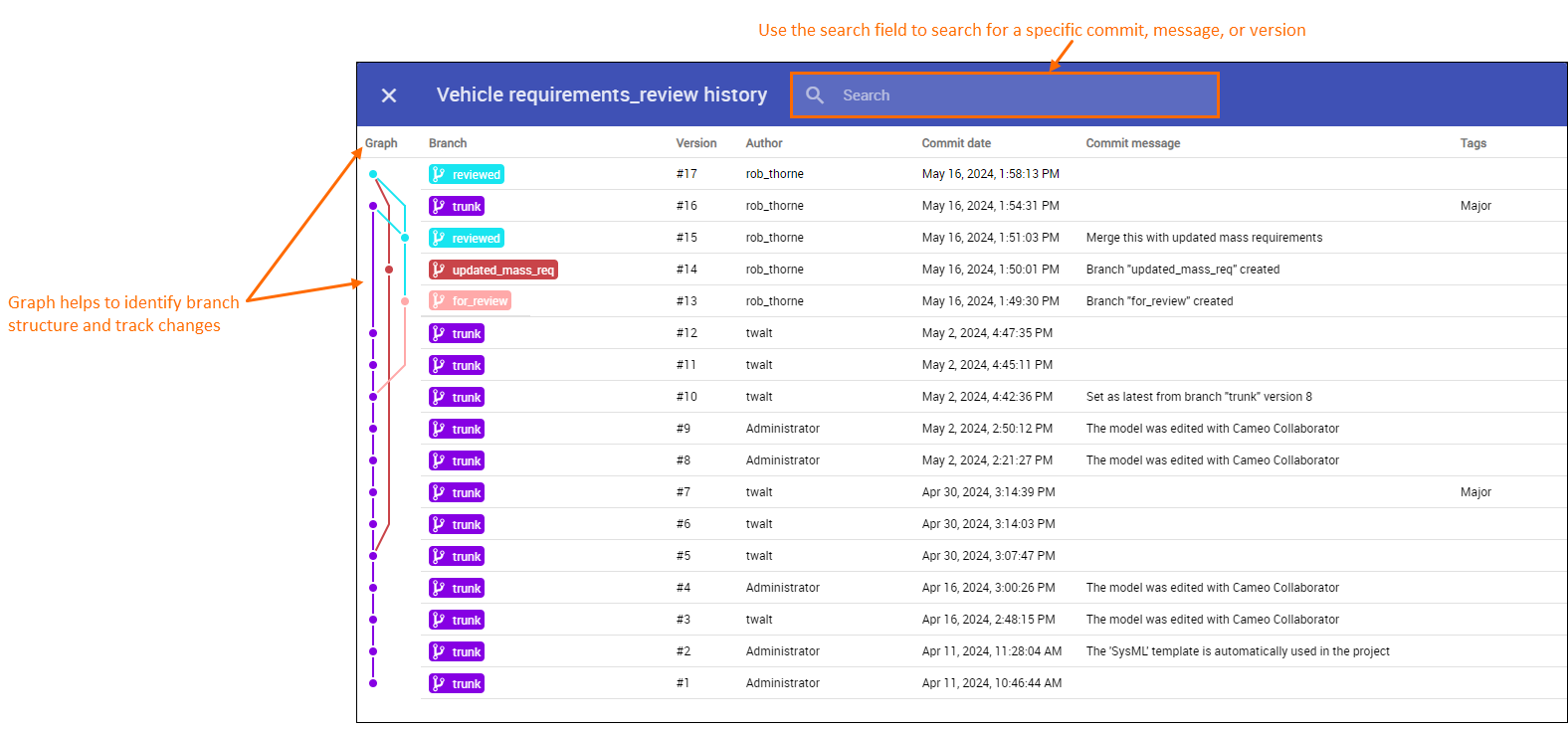
Navigating full-screen history view

Image Added

Viewing full-screen visual history representation.

In the full-screen history view, you can:

  • View branch structure, merge and commit information;
  • Search for a specific commit, message, or version using the search field at the top.