To make changes to the footer or header of exported documents, you will need to modify the following files: - For the header - <template folder>/common/header.html
- For the footer - <template folder>/common/footer.html
You can add a logo to the header or footer in one of the following ways: Let’s say you want to use a logo in the header of the exported PDF file pages.
To add a logo to the header as a Base64 encoded string
- Encode the image as a Base64 string. You can use an online converter or use your own code/tools to make the conversion.
- Open the <template folder>/common/header.html file.
- Find the header tag.
- Add the img tag with <img src="{data:image/<image type>;base64,<Image as a Base64 encoded string> }" alt="<alt text>">
Use other HTML tags and CSS styling information to display the logo image the way you want. Your code may look like the one below if you use a PNG image and want some padding around the image: | Code example when using the PNG image type and some padding around the image |
|---|
<header class="header">
<div style="padding: 10px;">
<img src=" data:image/png;base64,iVBORw0KGgoAAAANSUhEUgAAAEgAAAAWCAYAAABjadrAAAAACXBIWXMAAAnyAAAJ8gEO/FPVAAAAGXRFWHRTb2Z0d2FyZQB3d3cuaW5rc2NhcGUub3Jnm+48GgAACJdJREFUWIXlmHuQU/UVxz/nd5MbWN5IxdqqKK9BirDqVAs+qq0KtAXcTSKoTLEqQ22Z+kBMcKchCEkWqrYqqEWlPhDNA5baVtHOaGu16gguRexAgVLxQZUVXEA3yd57+sfNJll01enUVuv5597feZ/v73XuFVXlw0jCS47AbW8AqUV0MMpAVPcgsgXkAczg5ZoOOR9q/H9Evi4l/fq0sKdlFUITqv1RORLkZCAEOg532+HAgv9apv8j6hIgvXNmEXjmUL6EUptQTYEc+6lm9hkh82/YnO493Ef/o5l8Rkm6OoM+VDmUCqH6MPAUuei3VPnkxp9T+sQrSEKLxqJ6L/Ayrn/qFwEc+IQASX1yEmqeANmIy1m6es5bn3ZinxXq+hYrkdQnL0VYivALeuZjuiLWJvWLvwrODISzgd5AG7AD9HlMcZWmY++U7YPJiUAckBLrTeBuzUabPHlqGqJTUXoB23D9DfQ52Mp++x5gGNAPUIyZAcXXcX1LQb8C9AQpYvJjNR17R4KJ84DLQfqDvI7TPl/XNGyX+uRchDbNRm8p1RNEZKxmI1dLfeIajNmtmcjKUlvTdAgmLR8JkNQnLkTkIoyM03RkvcdbdAxi1gOHAa0IL6LsA3FAhuLYI6i+/UzhORx7peaiPweQutR4jDZJuHEgjnMaIgnETELc3Sh3YRWu5F37VxguQLmmw64MJjoB5TTNRcsxJJwYg/IARifjyBaM3oBlLQAuQrgQ5K5KUYwHAqX3S3H1RgBNX7sbOFWCiTDIYs1GB8HHrSBr6MOaDj3YGTVrAuhhADgyWtdEdn6kD9c/EWE64BXq01dxCdBuBTDudIQ0fn0NBPL6PohfV0e3Sig1AdEVEkyeiSNX6ZrITnKRh6hL9UP0txJM3kvRatC1c/ejMg3hCWzzVwDyehAYIBNvDVDD8RjdVJXRaNR9SCbFa7DtYVi6vnN9jEG1uWNYBkgmJwZiy3RcTkIYDhwNtEkwsR14GvXdobm5r4H7bHm3CMcBHw2QyEnVAXF0KiIbdfWctySYPAU4nbwGS9KjQGcBaCbyuIQbjwdnBRbr5eL4saqxVogsk/DCR3GtJnzOOmAsLqcgjCCvL5b8fBlYQs/3BuLix9GtAFL3s8MxnICYmfh9JwBF+g3YfEjCtag8Vx51XPMSTJyHyvmIdlTfFxgOjC7pHkT1DM3N2yDB5CPAd4FmehW+oStibV3iE0z8AaQ76EsgRwIjMRLCzw7y2oJxBmu64e8Szli421oxcgYu48E9GsQCHQvSF9WTQGJefsZGdALKJnLRc6lP7kVkimYiT3kxk1tQidA7/yj77VeAzaAbQaYAz2o2OlOCqVmIzge5GQB1mzU7b52Ekrtxmam56K+hagVpdt46YJ2EMxYHdvv0d7PzHuqNozHun4CeiEwDNtDuXoHPjAPGsN++CbiiK4Aw1o9BbRAotu/DP3ynpkOOXBLvRj5wLpmGnZ7iKxbinwRDmjE7CmBsANpZjK/bLnq0KgcDy0HAcRXHxPEP3lWa5nqk2/PlmK78kPb8c7oi1iaT4l/DFzgV4/bAlft0dXSrl5c8gzK7kqi2iCDU6UQGDChvyQ80ihJM3oeYnGauW1vF24J3o1yh2ejtABJK1qHkPN+ENBfNdgnS55g6ASTB5BRgCS2FEfpkrB1AwqkhuLoFeB/bHqQPXrOnop+4E2QmsA9jRmv6ulc7OQ82jkTcW1B64x1cezUbPUeCyTTKI5qL3u9tre1/xDhXge99XHcJMKDkooVRhQls8q9GpBdKH4R3UYoYjaDyGMobgAuAq1GMDAHmIPxEM9HfyMXx3rTZdwGuZqNTJZSYj8olwNulGG9iCtNw7btRBiFYnj+ZqtnIjsohHY73BPsWhFgZnHjcoPYywCDSWA0OADX21bxX/CYwDNddCnyvk1yds0HGgTNKsw1/q5KMx+id3uuWIWCNBftV3OIFIGdStAbr2rlvVOlPkfCir6PmaaTQSzOxQmkyaxhVOFljMbdqki8H9qHcLeHURNzAbaC9gZe9nMw5KPdoLhKv2KRqQcMY6jUTXV1dQqWT1sB8oMiewv1l3ib7ZpRzgKfo3z/FIaT3zTmIsrA0/I5MWXRUJwVr6DJPbm2QYGqxhG/uLuGMBfhRGS/B1LdRaxbwpqav3Y0ZehuQxO/8RUKp6+SseKUNUVMLbNZ0rFDi1AJ+NtkvSDD5ogRTMyt8XQqkcfUJb6XxLirNEo8b0BMQneHZJF+QSfEazUZeQqUOWCb1ieVSlzysI6wPQMILj0Wt2cCV+mSsXcJxG8e/FJHLgOcJSF3p90cnkvPjfbECo/A+ywRjuncC0PuhtlDqEk0Y1uK2HaPZ0AUSTHwfpB7VIMJQkOYq/QUSTDShNNHfHg78AACXWqDSLghjcLlJc9Hry6zJi3vh5zgMGzQdvQeYLeGMhWwbjbg3sNEegqEHTuEoXRPb1ynXXGSNXHjj0xQKDyDyZwlnRmg65Hgz5Pp+Cio4hVVSnzgRsZcjnIjyED38l+G02xJM/hKve+5deh6BZR8BKngI3VG+ISj1HFJcgKhgxAL6grwOoNl5aSANUAJjs0xODMQn8VKb4fP0KVRKoBaRyupWxgB9vHMQQJ4lYLbjUoDiK2U9d9tQoAaXZkTOAM1j+RslmOjwMx8xV4Hbx2OYQeC2kwm5AD6pSw7DMB0Ay34cOBnvAJuhuei9pTAHpa5xKeKMRORo0L5AP0TyqO4C83vNRl6qnhHveyqwGARMu4JzpaZjBziUjP6ItuJeumGg+hp352vT9bvKepYJcaDmnxVDOcvrV0ttm+1vpf1AK8Xuh+vaWAXYUYWtbA3015XRvRJufAyXkZXPQuCd/Nt8KfBw1WmzhH4D/tHxt0KoX3Q7yKySsBX0VgLmRl0Z2fuBYr6A5AOZADwJrMIpZA7dm190+hdzuqIEhSKkvAAAAABJRU5ErkJggg==" width="72" height="22" alt="Logo"/>
</div>
</header> |
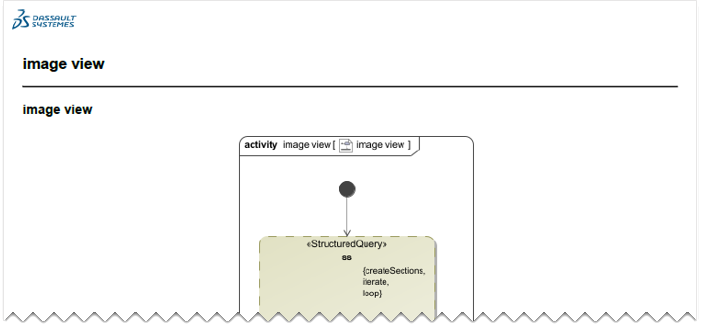
The figure below shows an example of the exported document with the logo in the header.
Let’s say you want to use a logo in the footer of the exported PDF file pages. In this example, we will use an absolute URL as the image source.
To add a logo to the footer using an absolute URL to the image
- Open the <template folder>/common/footer.html file.
- Find the footer tag.
- Add the img tag with <img src"http(s)://path_to_image" alt="<alt text>" >
Use other HTML tags and CSS styling information to display the image the way you want. Your code may look like this (the CSS is inline for simplicity): | Code Block |
|---|
| <footer class="footer"
xmlns:th="http://www.w3.org/1999/xhtml">
<div style="padding: 0 0 5px 5px; float: left; height: 25px;">
<img src="https://www.3ds.com/assets/3ds-navigation/3DS_corporate-logo_blue.svg"
alt="Logo" style="width: auto;
height:100%;
object-fit: cover;">
</div>
<div th:text="|${pagination.currentPageNumber}/${pagination.documentPagesSize}|" class="footer-text">
</div>
</footer> |
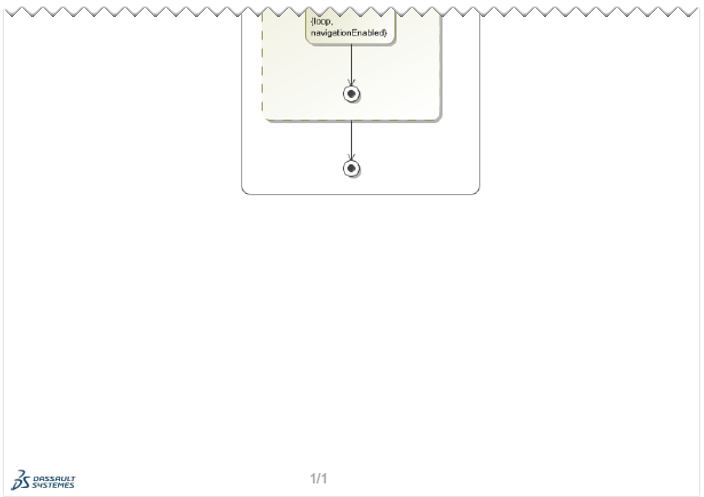
The figure below shows an example of the exported document with the logo in the footer.
| 