
On this page
| Table of Contents | ||
|---|---|---|
|
If you need to provide feedback on a model or address reviewer's comments, edit certain element values right in the Cameo Collaborator for Teamwork Cloud Magic Collaboration Studio document.
| Note | ||
|---|---|---|
| ||
|
To edit element values in a Cameo Collaborator document
Click
 on the bottom right corner of the content pane.
On the content pane, select the item you want to edit. Editable items are highlighted in yellow when hovering over them with a mouse pointer.
In the Edit pane (displayed below), change the item value and click
 to save the changes.

The example shows how you can edit requirement text.
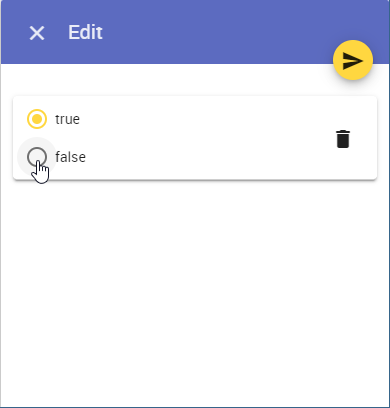
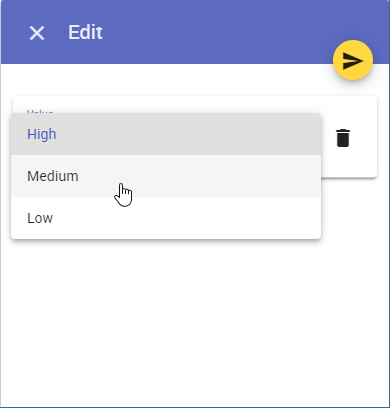
Once you finish the steps described above, the modified item value is saved both in the Cameo Collaborator document and Teamwork Cloud Magic Collaboration Studio project. See the figures below for more examples of editing different types of values.
| Section | ||||||||||
|---|---|---|---|---|---|---|---|---|---|---|
|
| Tip | ||
|---|---|---|
| ||
To delete the value of an editable property:
|
Reordering the values of multi-value properties
You can use the model editing feature to reorder the values of multi-value properties as described below.
To reorder the values of multi-value properties
Click
on the bottom right corner of the content pane.On the content pane, select the item you want to edit. Editable items are highlighted in yellow when hovering over them with a mouse pointer.
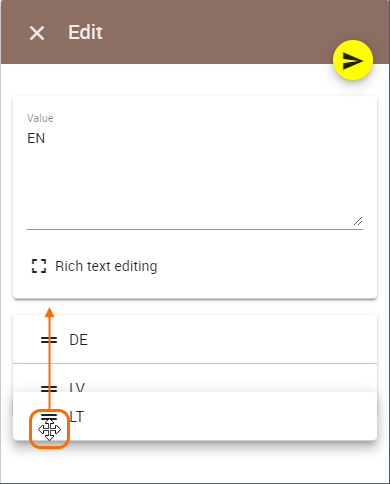
When the Edit pane opens, drag a value to the desired position as displayed below.
Click
to save the changes.