Assigning signals
To assign a Signal to a Send Signal Action, you can use any of the following:
| Anchor |
|---|
| specification |
|---|
| specification |
|---|
|
To assign a Signal via the Send Signal Action’s Specification window
- Open the Specification window for the Send Signal Action.
- In the Signal property value cell, do any of the following
- Click the
 button. The Select Signal dialog opens. Select the Signal from the list, or create a new one.
 - Click the button to open the list of Signals available in the project. Select the Signal from the list.

- Click Close once the Signal is selected.
To assign a signal using a drag-and-drop operation
- Select the Signal in the Containment tree.
- Drag the Signal to the Send Signal Action as shown in the following picture.
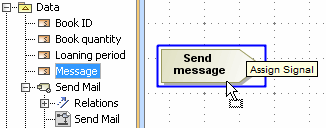 Signal dragging to Send Signal Action
To assign a signal using the Send Signal Action shortcut menu
- Right-click the Send Signal Action to open the shortcut menu.
- Click Signal. The list of Signals available in the project opens.
Select the Signal from the list, or click New Signal and create a new one.
To assign a signal by typing the Send Signal Action name
- Select the Send Signal Action shape, click on it to activate the name edit mode.
- Do one of the following:
- if you want to use an existing Signal from the model, start typing an appropriate Signal name, and select it from the opened list.
- if you want to create a new Signal in the model, type its name and press Enter.

