
...
- Go to the Settings application and select Webhooks on the left side of the screen.
- In the bottom right corner of the screen, click
 to open the wizard for creating a webhook.
 - In the first step of the wizard, type in the Webhook title and Webhook URL.
- Select Resource as the Webhook scope. With this webhook scope, you can also select Commit or Tagged commit event.
For the option of Tagged commit, enter the commit tags to listen for: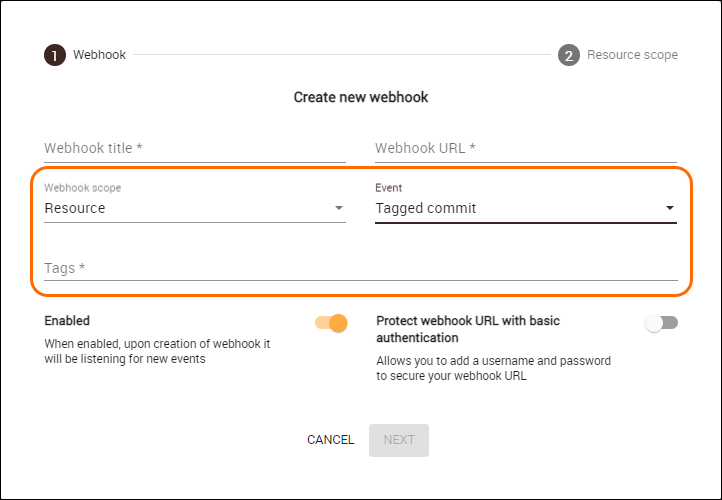
- For the webhook to work, keep the option Enable Enabled turned on.
- You can also choose to Protect webhook URL with basic authentication. If you choose this option, enter the username and password:

- Click Next.
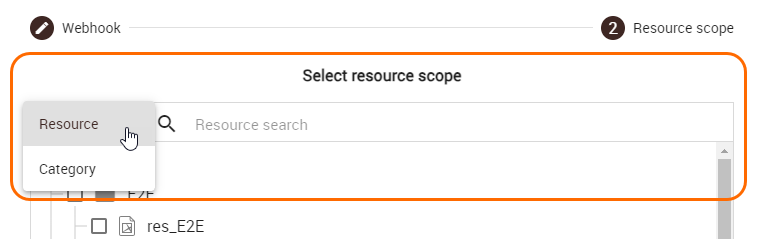
- In the second step of the wizard, select the Resource scope of the webhook. You can select either the Resource or Category option and search for a resource or a category in the search field:
- Once you select the resources or categories, click Create to create your webhook.
...
- Go to the Settings application and select Webhooks on the left side of the screen.
- In the bottom right corner of the screen, click to open the wizard for creating a webhook.
- In the first step of the wizard, type in the Webhook title and Webhook URL.
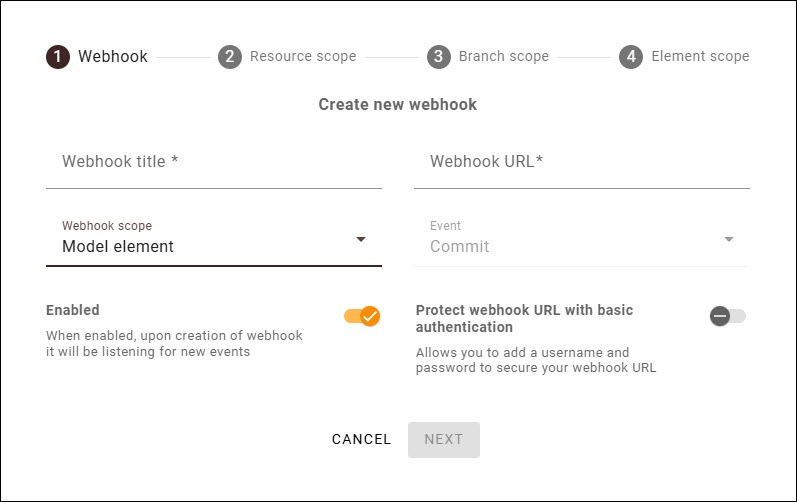
- Select Model element as the Webhook scope.
Note that Tagged commit is not available for this option: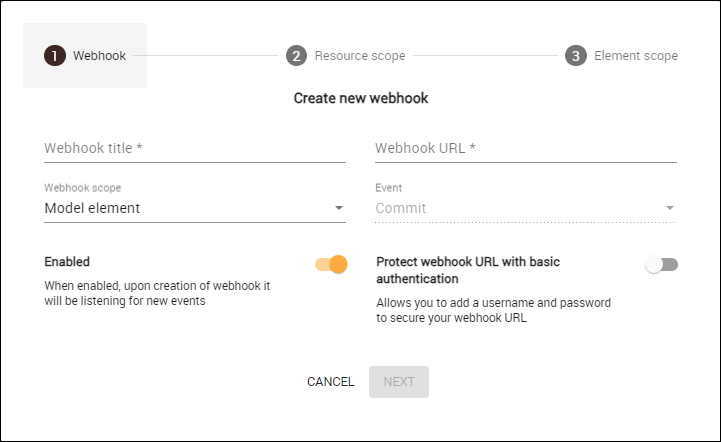
- 721pxFor For the webhook to work, keep the option Enable option Enabled turned on.
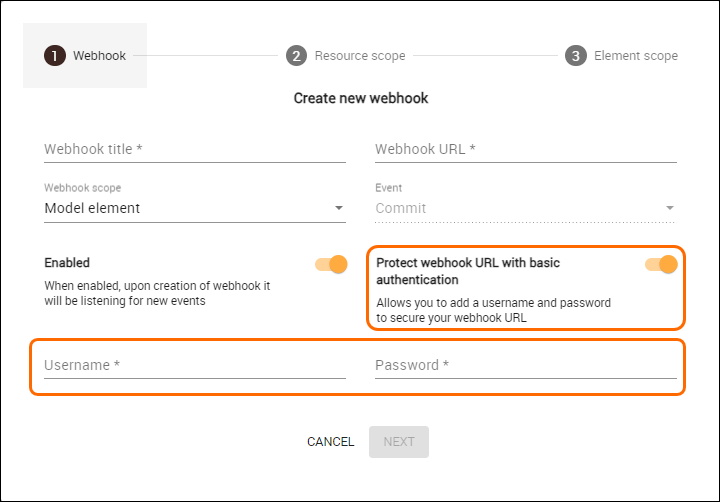
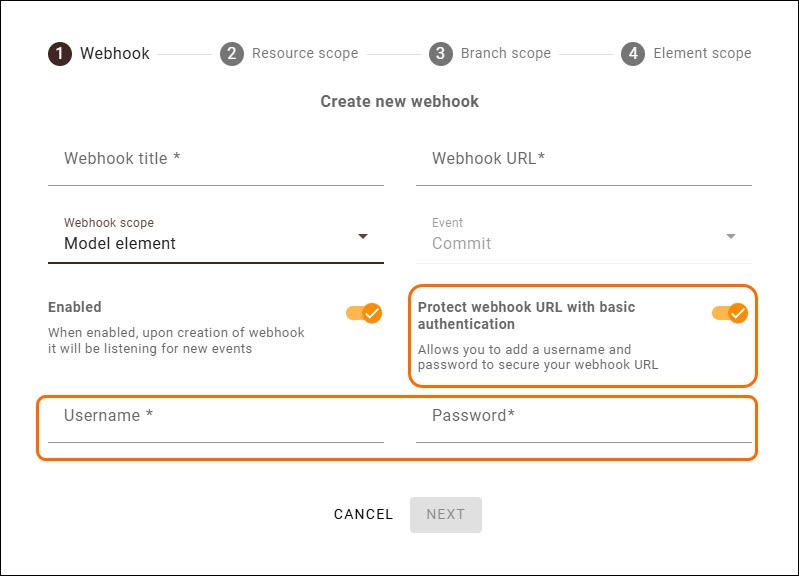
- You can also choose to Protect webhook URL with basic authentication. If you choose this option, enter the username and password:
- Click Next.
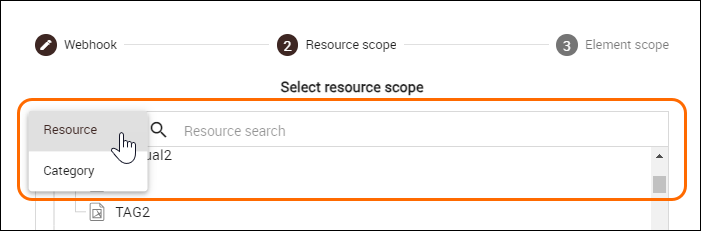
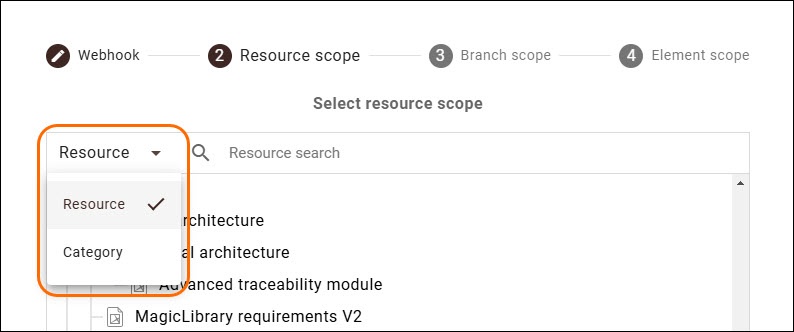
- In the second step of the wizard, select the Resource scope of the webhook. You can select either the Resource or Category option and search for a resource or a category in the search field:
- Click Next.
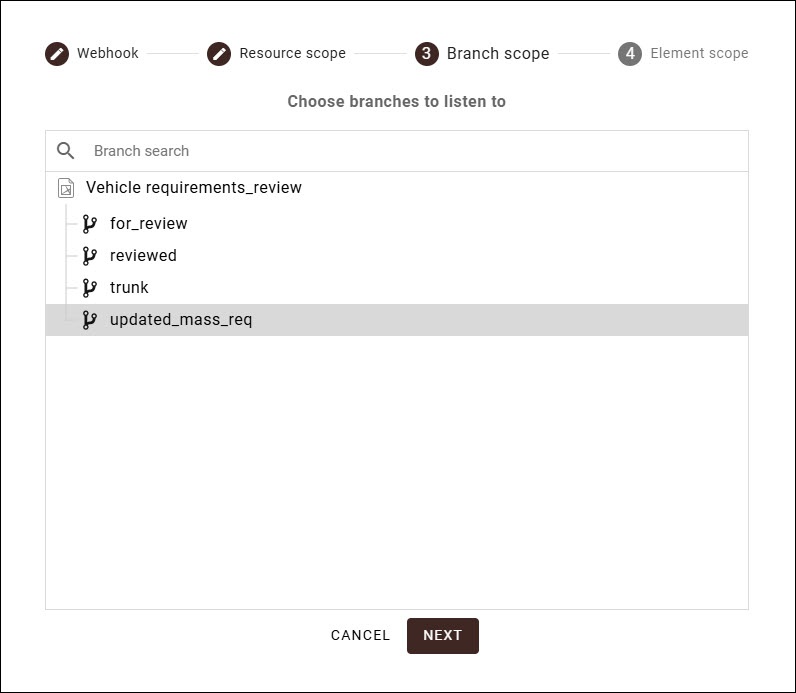
- In the third step of the wizard, select the Branch scope of the webhook.
- Click Next.
- In the next step select the Element scope.
You can also check the Select recursively box if you want to include the element and its child elements into the webhook scope. If Select recursively is left unchecked, only the selected element will be included in the webhook scope: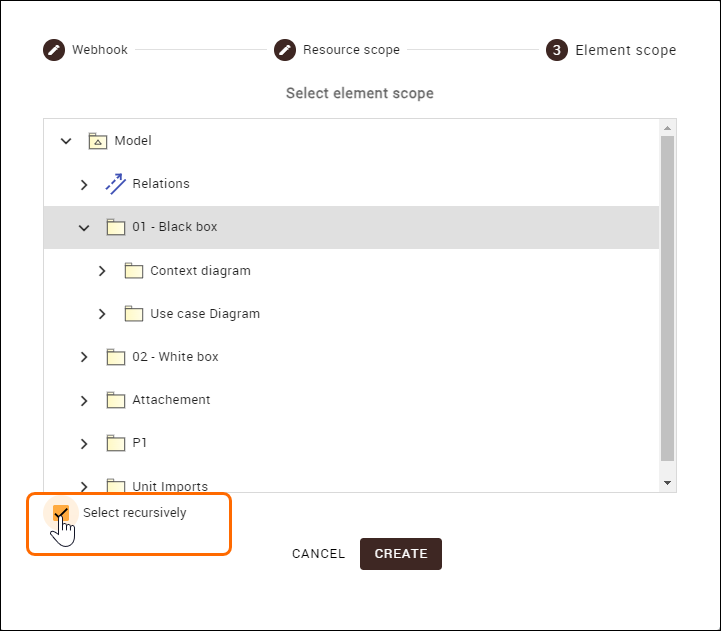
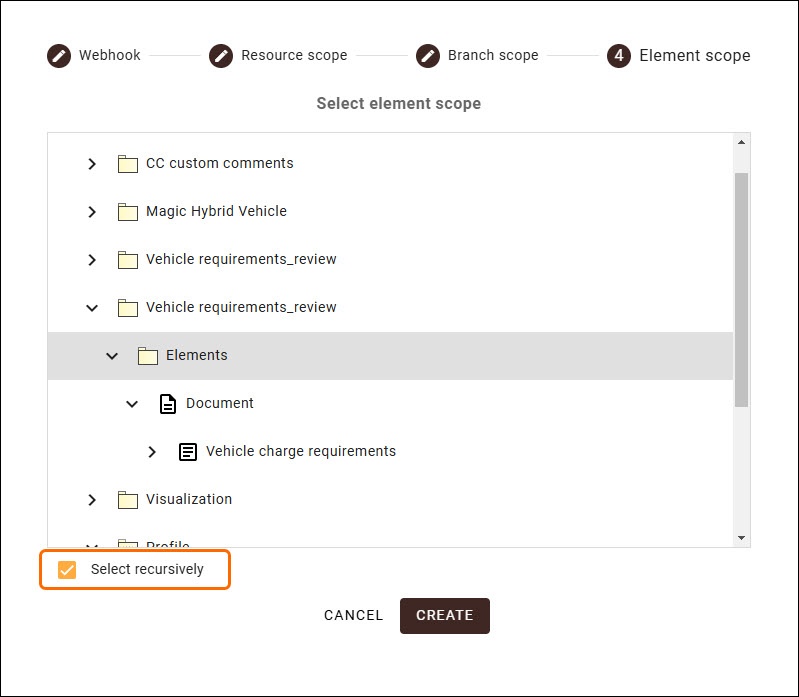
- After making your selections, click Create to finish creating your new webhook.