
...
- Log in to Teamwork Cloud with the dedicated user.
- Open the project the used project of which you want to update.
- In the main menu, go to Options > Project Usages.
- In the Project Usages dialog, click
 .
.Info In the opened Used Projects Auto Update Wizard dialog, you can see the username you are logged in with. This user will be set up in the properties file to automatically update used projects. - Depending on your authentication type, fill in the following boxes:
- For standalone authentication:
- Properties file - specify the location and name for the properties file.
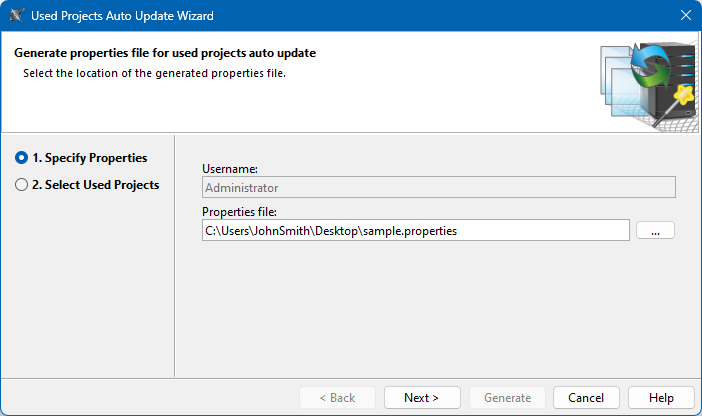
- Properties file - specify the location and name for the properties file.
- For single sign-on authentication:
- Access Token - enter a personal access token generated using the My account application in the Teamwork Cloud web UI. To learn more, see Generating a personal access token.
Note You can specify only the personal access token generated with your user. An access token generated by another user will not be accepted.
- Properties file - specify the location and name for the properties file.
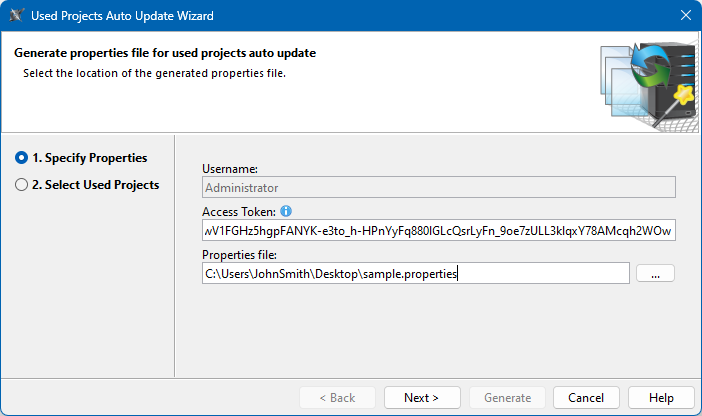
- Access Token - enter a personal access token generated using the My account application in the Teamwork Cloud web UI. To learn more, see Generating a personal access token.
- For standalone authentication:
- Click the Next button.
- Select directly and indirectly used projects you want to update. The values listed in the Status column show whether or not a used project can be updated.
Tip To see where the selected used project is used, click the Project Usage Information button. This will help to find update paths. An update path is a path of projects that must be updated in order to update a certain used project.
Note The plugin does not update used projects that are involved in cyclic dependencies.
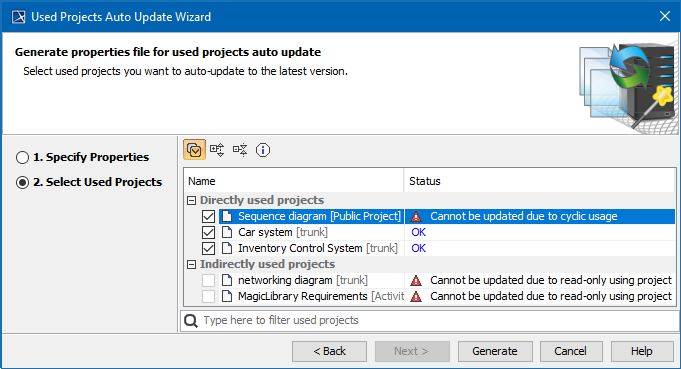
- Click the Generate button to create the properties file that can later be used in the command line tool.
...