There are two types of links supported by DataHub: DHLinks and DHTrace links. You can choose to copy data with DHLinks, with DHTrace links, or without any links.
To create a DHTrace link
- From the Operations drop-down list, select the Create DHTrace option.
- Drag a node, e.g., a DOORS or CSV Data Source, to the MagicDraw Containment tree.
- The Create DHTrace Summary dialog box opens to confirm the DHTrace link has been created.
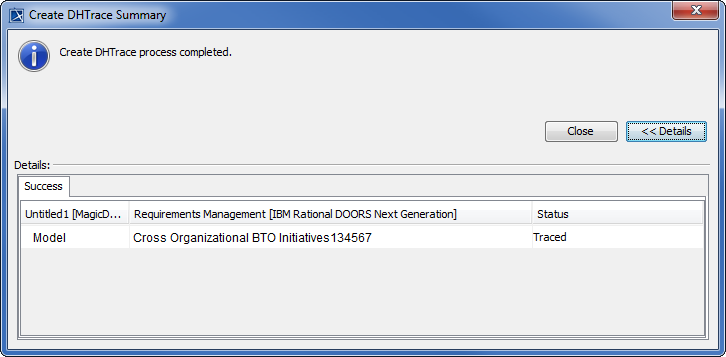 DHTrace Summary dialog - shows when you create a DHTrace DHTrace Summary dialog - shows when you create a DHTrace
The DHTrace links appear on the DH Links panel.
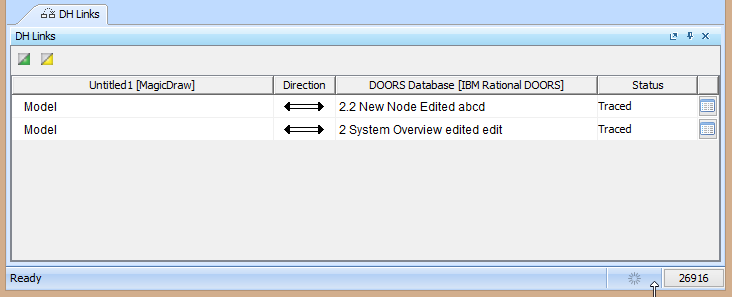 The newly created DHTrace in the DHLinks panel The newly created DHTrace in the DHLinks panel
DHTrace links on the DH Links panel.| Note |
|---|
| Nodes that contain DHTrace links are indicated with small half-green squares. In the following figure, the DHTrace links are created between CSV Data Source nodes and MagicDraw elements. The links are indicated with small half-green squares in Cameo DataHub Explorer and the MagicDraw Containment tree.
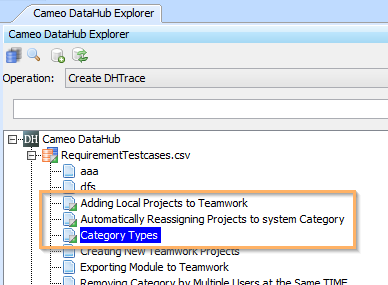 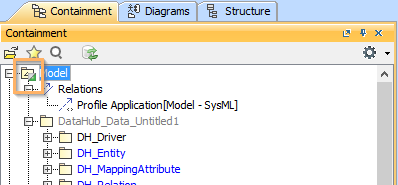 CSV Data Source nodes with DHTrace links to MagicDraw elements are indicated with small half-green squares in Cameo DataHub Explorer and the MagicDraw Containment tree. |
| 