...
| id | 1537093316 |
|---|
...
| id | 1537093327 |
|---|
...
| id | 1537093315 |
|---|
On this page
| Table of Contents | ||
|---|---|---|
|
...
...
You can export Generic, Instance, and custom tables in a Cameo Collaborator document to PDF, HTML, or Excel.
Exporting tables to PDF or HTML
To export a table to PDF or HTML
- In a Cameo Collaborator document, navigate to the table you want to export.
...
- Click

...
- on the top right corner of the table and
...
- select Export to PDF or HTML.
In the open wizard, choose the format of the target document by selecting
...
the PDF or HTML
...
radio button.
- Optionally, change the following export options:
- Turn on the Cover page switch to add a cover page to the generated document. A cover page contains the Cameo Collaborator document name, export date, and project and document information.
Turn on the Table of contents
...
switch to add a page with the table of contents to the target document.
Info You cannot add the table of contents when exporting documents to the HTML format.
- Click
...
- the Image numbering drop-down box and select one of the following options:
- Generate automatically - all images in the generated document are numbered automatically while disregarding any image numbers that were changed manually.
- Use current numbering - all images in the generated document are numbered the same way as in the Cameo Collaborator document.
- Click the Finish button.

The wizard for exporting tables to PDF or HTML.
Exporting tables to Excel
To export a table to Excel
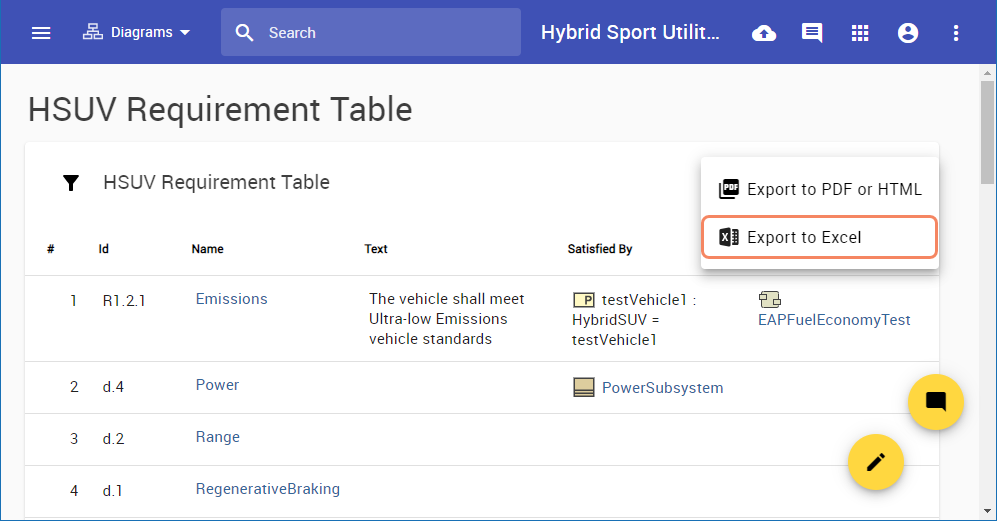
- In a Cameo Collaborator document, navigate to the table you want to export.
...
- Click
...
- on the top right corner of the table and
...
- select Export to Excel.