
...
| id | 823840096 |
|---|
...
| id | 823840099 |
|---|
...
| id | 823840095 |
|---|
On this page
| Table of Contents | ||||
|---|---|---|---|---|
|
...
| id | 823840098 |
|---|
The requirement always contains two properties: id and text. This section describes how to modify the text property of the requirement.
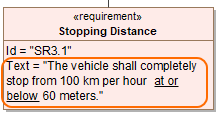
The
...
Stopping Distance
...
Requirement shape with filled Text property.
Editing the requirement text
You can edit the requirement text directly on shapes and in cells, or use
...
the Text
...
dialog.
To open the edit mode of the requirement text, do one of the following
- On
...
- the diagram pane, select the Text box on the Requirement shape. Click the text box again. The edit mode opens on the shape.
- In the Requirements table, double-click the Text cell. The edit mode opens on the cell.
- In the Requirements table, double-click the Text cell, and
...
- select
 .
.
...
- The Text
...
- dialog opens.
- Open Specification window
...
- of the Requirement, select the Text property, and
...
- click .
...
- The Text
...
- dialog opens.
| Anchor | ||||
|---|---|---|---|---|
|
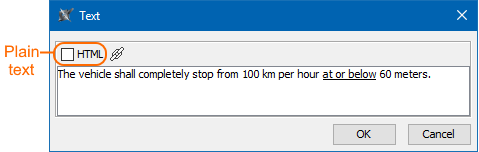
You can change the requirement text to HTML or Plain text directly on the Requirement shape or in
...
the Text
...
dialog.
To switch the requirement text to HTML or Plain text directly on the Requirement shape
- On the diagram pane, select the text box on the Requirement shape.
- Click one of the following buttons appearing on the lower left corner of the shape:
- HTML - converts the text to HTML text.
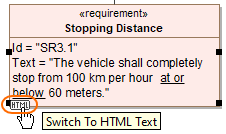
- Plain - converts the text to plain text.
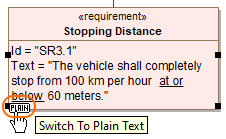
- HTML - converts the text to HTML text.
To switch the requirement text to HTML or Plain text in
...
the Text
...
dialog
- Open
...
- the Text
...
- dialog:
- In the Requirements table, double-click the Text cell, and
...
- select .
- Open Specification window
- select
...
- of the Requirement, select the Text property, and
...
- click .
- click
- In
...
- the Text
...
- dialog tootbar, do one of the following:
- Select
...
- the HTML
...
- check box to convert the text to HTML text.
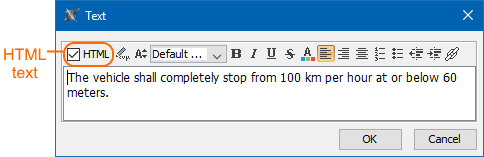
- Clear
- check box to convert the text to HTML text.
...
- the HTML
...
- check box to convert the text to plain text.
- check box to convert the text to plain text.
...
- Click OK.
Modifying the requirement text
You can modify the Requirement text in the following ways:
| Anchor | ||||
|---|---|---|---|---|
|
If
...
you switch the requirement text to HTML, you can use the toolbar in
...
the Text
...
dialog to format it as rich text.
To open the rich text formatting toolbar
- On
...
- the diagram pane, select the Text box on the Requirement shape. Click the text box again.
- In the Requirements table, double-click the Requirement Text cell, and
...
- select .
- Open Specification window
...
- of the Requirement, select the Text property, and
...
- click .
If the Requirement text is in HTML format, the rich text formatting toolbar appears as shown in the following image.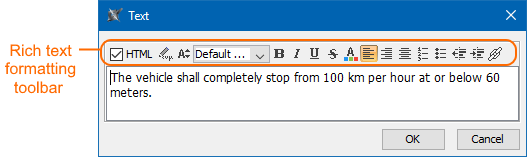
| Info | ||
|---|---|---|
| ||
Learn more about how to work with HTML texts: |
| Anchor | ||||
|---|---|---|---|---|
|
You can use the terms from the Glossary Table to ensure the same definitions of the concepts. How to work with Glossary table >>
If you want to extract a Constraint from a Requirement, you must use the special condition terms when defining the Requirement text.
| Info |
|---|
The full procedure for extracting a Constraint from a Requirement is provided in the |
...
...
|
...
|
| Anchor | ||||
|---|---|---|---|---|
|
You can add a hyperlink on the requirement text. How to add hyperlinks in text read in
...
...
page.
| Anchor | ||||
|---|---|---|---|---|
|
| Excerpt Include | ||||||
|---|---|---|---|---|---|---|
|
...
| id | 824150503 |
|---|
Related pages
...